How do I search for errors? (Checkout) (2023.05)
Checkout
Use Checkout to search for errors in the database. Include Checkout as part of the regular Business License checklist to keep the program running smoothly.
Step 1: Running Checkout
Search the database for errors.
Do this...
1. Open Connect Business License > Organization > Checkout.
You can also open Checkout through the Businesses menu.
2. Set up the Selection Criteria (optional).
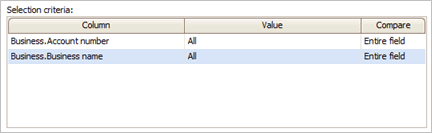
Selection Criteria
What is the selection criteria?
How do I add/remove fields to a selection criteria?
How do I define values in a selection criteria?
How do I search for an exact match?
How to use operators in the selection criteria?
3. Select the options on the routine.
Verify transactions have been updated to General Ledger through MM/DD/YYYY
Check for old transactions that can be deleted
Check for active businesses with no active licenses
Check for active businesses with no active licenses
Check for inactive businesses with active licenses
Check for active businesses with no owners
Check for closed businesses missing a closed date
Check for non-closed businesses with a closed date
Check for active businesses without billing transactions
Verify a business exists for each owner
Identify owners with the same name
Check for active licenses missing issued and/or expiration dates
Check for licenses with no license billings
Check for businesses with license expiration dates that occur prior to license issued dates
4. Click GO (CTRL+G).
The routine runs. It may take a few minutes depending on how many options you have selected. If errors are found, use the Checkout report to review the errors.
Updated 19Nov2018
System information
Verify transactions have been updated to General Ledger through MM/DD/YYYY
Use Verify Transactions have been Updated to General Ledger Through to search for transactions that should be updated to the General Ledger but have not been updated.
Do you want to search for transactions that have not been updated to the General Ledger?
-
Yes, I want to search for transactions that have not been updated to the General Ledger. Select the Verify Transactions have been Updated to General Ledger... checkbox. Then, enter a MM/DD/YYYY in the ...Updated to General Ledger Through [ ___ ] field.
-
No, I do not want to search for transactions that have not been updated to the General Ledger. Deselect the Verify Transactions have been Updated to General Ledger... checkbox.
Check for old transactions that can be deleted
Check for transactions with dates that occur prior to the number of years of history to keep. Old transactions that can be deleted are listed in the System Information section of the Checkout Error report.
Business information
Search business information for errors.
Check for active businesses with no active licenses
Search for businesses that are active that do not have an active license linked to it. An active business should be tied to at least one active license.
Check for active businesses with no licenses
Search for businesses that are active without an active license or inactive license linked to it. An active business should be tied to at least one license.
Check for inactive businesses with active licenses
Search for businesses that are not active and the inactive business is tied to an active license. An inactive business should not be tied to any active licenses.
Check for active businesses with no owners
Search for businesses that are active that are not linked to an owner. An active business should be tied to at least one primary owner.
Check for closed businesses missing a closed date
Search for a business that's closed but the closed date has not been recorded. A closed business should have a closed date.
Check for non-closed businesses with a closed date
Search for a business that's open and a closed date has been recorded. A closed date should not be recorded on an open business.
Check for active businesses without billing transactions
Search for businesses that are active that do not have any billing transactions. Each active business should have billing transactions.
Owner information
Search owner information for errors.
Verify a business exists for each owner
Search for businesses that are not tied to an owner. Each business should be assigned to an owner.
Identify owners with the same name
Search for owners that have the same first, middle, and last name. Finding an owner that shares the same name may mean the owner has a duplicate record.
License information
Search license information for errors.
Check for active licenses missing issued and/or expiration dates
Search for licenses that are active that do not have an issued date, expiration date, or both issued and expiration date. An active license should have an issued date and an expiration date.
Check for licenses with no license billings
Search for licenses that do not have any transactions for license billings. Each active license should have license billing transactions.
Check for businesses with license expiration dates that occur prior to license issued dates
Search for businesses that have a license expiration date that occurs earlier than the date when the license was issued. The license expiration date should occur after the license issued date.
2019Sep17
Step 2: Reviewing the Checkout report
Use the instructions on the Checkout report to fix the errors in the database. Some of the errors can be fixed by running Recalculate. The rest of the errors will need to be fixed by hand.
Running Recalculate
Use Organization > Recalculate. Use the form to select the options for running the routine. Then, click GO (CTRL+G).
System information errors
Missing index: The following tables are missing at least one index. Contact customer support.
Check Business License tables for missing indexes. If Connect finds tables with missing indexes, the table name will print on the Checkout Error report.
There are ###,###,### transactions older than MM/DD/YYYY: Transaction history should be kept for 2 years. Use Delete History to remove old transactions.
Remove old transactions. To fix this error, run Delete History. See the help topic titled How do I delete transaction history?
Transactions not updated to General Ledger through MM/DD/YYYY
A transaction should be updated to the General Ledger. To fix this error, update the transaction or change the update flag status to updated.
Choose an option:
-
To update transactions to Connect General Ledger, run Update General Ledger.
-
To change the update flag to updated on transactions that have already been updated to Connect General Ledger, run Recalculate. See the help topic titled How do I recalculate Checkout errors?
Business information errors
Active businesses with no active licenses
An active business does not have an active license. To fix this error, close the business or add an active license to the business.
Choose an option:
-
To close the business, add a closed date to the business. See the help topic How do I add a closed date to a business?
-
To add an active license to the business, use Modify Existing Businesses to add an active license. See the help topic titled How do I add a license to a business?
Active businesses with no licenses
An active business does not have a license. To fix this error, close the business, add an active license to the business, or remove a closed business.
Choose an option:
-
To close the business, add a closed date to the business. See the help topic How do I add a closed date to a business?
-
To add an active license to the business, use Modify Existing Businesses to add an active license. See the help topic titled How do I add a license to a business?
-
To remove a closed business that does not have licenses, run Delete History. See the help topic titled, How do I delete businesses with no licenses?
Inactive business with active licenses
An inactive business has an active license. To fix this error, change the business status to active. See the help topic titled Changing the license status to active.
Active businesses with no owners
An active business does not have an owner. To fix this error, add an owner to the business. See the help topic titled How do I add an owner to a business?
Closed businesses missing closed dates
A closed business does not have a closed date. To fix this error, add a closed date to the business or change the business status to active.
Choose an option:
-
To add a closed date to the business, use Modify Existing Businesses. See the help topic titled How do I add a closed date to a business?
-
To change the business status to active, use Modify Existing Businesses. See the help topic titled Changing the license status to active.
Non-closed businesses with a closed date
An active business has a closed date. To fix this error, remove a closed date from a business or change the business status to closed.
Choose an option:
-
To remove a closed date from a business, use Modify Existing Businesses. See the help topic titled How do I remove a closed date from a business?
-
To change the business status to closed, use Modify Existing Businesses. See the help topic titled Changing the license status to closed.
Owners without a business
An owner does not have a business. To fix this error, remove the owner, add the owner to a business, or remove all owners without a business.
Choose an option:
-
To remove the owner from the Owners table, use Organization > Owners. See the help topic titled How do I add/remove owners?
-
To add the owner to a business, use Modify Existing Businesses. See the help topic titled How do I add an owner to a business?
-
To remove all owners that do not have a business, run Delete History. See the help topic titled How do I delete owners that do not have a business?
Owners with same name
There is more than one owner record in the database with the same first and last name.
Do this...
-
First, verify the owner records belong to the same person. Use Inquiry to look up and compare the owner records.
-
Second, choose which owner record to keep and which owner record will be merged and deleted.
-
Third, move the businesses from the owner record that will be deleted to the owner record that you'll keep. See the help topic titled How do I add/remove a business? (Owners)
-
Last, remove the duplicate owner record. See the help topic titled, How do I delete an owner? (Owners)
License information errors
Active licenses without issued and/or expiration dates
An active license is missing an issued date, expiration date, or both an issued date and expiration date. To fix this error, use Modify Existing Businesses to look up the active license. Add the missing issued date or expiration date to the license.
Choose an option:
-
To add a missing license issued date, see the help topic titled How do I add a license issued date?
-
To add a missing license expiration date, see the help topic titled How do I add a license expiration date?
Licenses with no license billings
A license does not have license billings. To fix this error, use Modify Existing Businesses to verify the license billing information. See the help topic titled How do I view license billings?
Businesses with license expiration dates prior to issued dates
A business has a license expiration date that occurs before the license issued date. To fix this error, use Modify Existing Businesses to Use Modify Existing Businesses to review the licenses expiration date. See also the help topic titled How do I add a license expiration date?
Step 3: Rerunning the Checkout report
When you're done fixing the errors listed on the Checkout report, rerun the Checkout report to make sure all of the errors have been resolved. When the Checkout report shows that the database is error free, then you're done.
2019Sep18
Copyright © 2025 Caselle, Incorporated. All rights reserved.