How do I add/remove owners?
A business owner.
An owner is the individual or organization that owns the business being licensed. Use Owners to add, modify, or delete an owner from the Business License database.
Before you get started
Set up the business. See the help topic titled How do I add a business?
Updated 23Oct2018
Watch a video
See how to add an owner (2m35s)
For more information, see the 2018 Business License Refresher Training (1h31m) at 31m16s..
Updated 23Oct2018
Adding an owner
Create a record for a new owner.
Do this...
1. Open Connect Business License > Organization > Owners.
2. Click New (CTRL+N).
3. Enter the owner's name, address, and contact information.
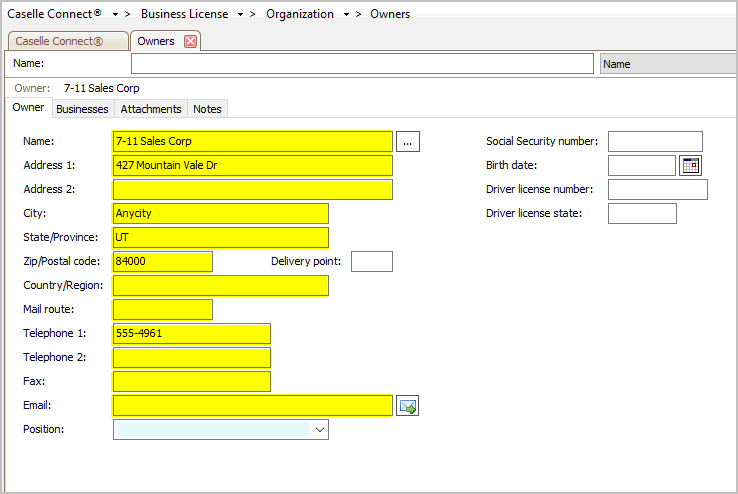
Owner's contact information
4. Enter the owner's position, SSN, birth date, driver license number, and driver license state (optional).
Driver license number and state
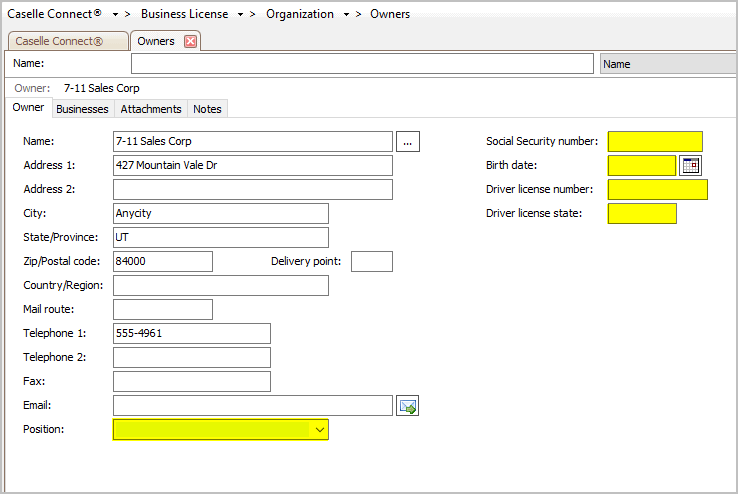
Optional fields
5. Set up the Businesses.
Use the Businesses tab to add a business to the owner.
Note: The business must be set up and saved in the Business table. If you need to add a new business to the Business table, see the help topic titled How do I add a business?
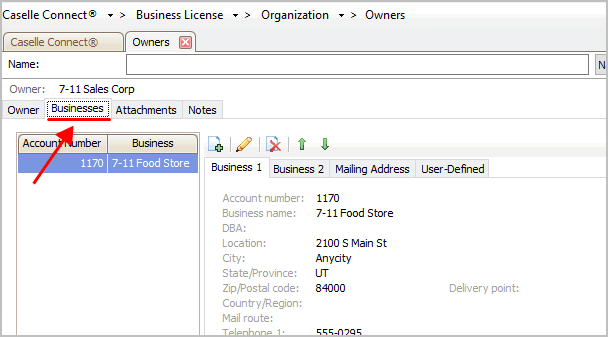
Businesses tab
Click the Add a New Business button.
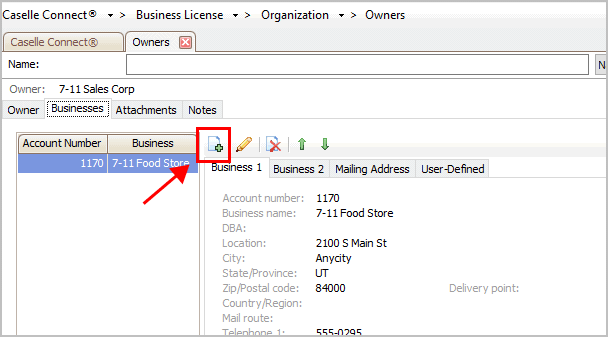
Add a New Business button
Use the Search form to select a business and then click OK.
Note: The business must be set up and saved in the Business table. If you need to add a new business to the Business table, see the help topic titled How do I add a business?

Search form
6. Add Attachments and Notes.
7. Click Save (CTRL+S).
The record is saved.
Updated 20Jun2018
Changing an owner
Edit the owner's information.
Do this...
1. Open Connect Business License > Organization > Owners.
2. Use the Lookup bar to enter the owner name. Press Enter.
3. Now, edit the owner properties.
4. Click Save (CTRL+S).
The record is updated.
Deleting an owner
Remove the record storing the owner's information from the database. You cannot remove the owner's record if related transactions exist.
Do this...
1. Open Connect Business License > Organization > Owners.
2. Use the Lookup bar to enter the owner name. Press Enter.
3. Click Delete (CTRL+D).
The record is deleted.
Birth date
Enter the date of the defendant's birth. Example: MM/DD/YYYY
Businesses
A business is a company or organization that buys and sells goods, services, or both goods and services. Use the options on the Businesses tab to add, edit, or delete businesses that are owned by the owner.
Driver license number and state
A driver license is an official document that states that a person may operate a motorized vehicle. A driver license number is a unique number that is assigned to the driver license (this field is encrypted). The state is the state issuing the driver license.
Updated 20Jul2018
Owner contact information
The owner contact information is the address, telephone number, and email address.
Position
A position is the place, situation, or standing of an individual within an organization. This is a self-validating field so you can select a position from the drop-down list or type in a new one.
Example: Manager, Owner, Sole Proprietor
Social Security number
A Social Security number is a unique number assigned to each individual that can work legally in the United States.
What is the Social Security number?
Use the Social Security Number field to enter a nine-digit number (this field is encrypted). Do not key dashes. Example: 555555555
Updated 20Jul2018
Copyright © 2025 Caselle, Incorporated. All rights reserved.