How do I search the database for errors? (Checkout)
Reconcile Checklist
Use Checkout to search for errors in the database. Check for errors in GL accounts for the current, prior, or future year in bank reconciliation, transaction information, and budget transaction information. If Connect finds any errors, the errors will print on the Checkout error report. You can use the Checkout error report to learn where or how to fix the Checkout error.
Step 1. Run Checkout
Search the database for errors.
Do this...
1. Open Connect General Ledger > Organization > Checkout.
2. Set up the Selection Criteria.

Selection criteria
What is the selection criteria?
How do I add/remove fields to a selection criteria?
How do I define values in a selection criteria?
How do I search for an exact match?
How to use operators in the selection criteria?
22Jan2018
3. Set up the date range.

Dates
Number of prior years to check
Number of future years to check
4. Set up the search options.
5. Click GO (CTRL+G).
Connect searches the database for errors . It may take a few minutes depending on how many options you have selected. When the search is finished, the errors that are found in the database will print on the Checkout report.
2019.11, 2019Aug20
Check through period
Use the current period date as the date range end. Include transactions with a transaction date that occurs on or before the current period date.
Number of prior years to check
Search for Checkout errors in prior years. The default setting is none. You can use this option to search transactions with a transaction date that occurs one to two years prior to the current fiscal date set in Organization.
Number of future years to check
Search for Checkout errors in future years. The default setting is none. You can use this option to search transactions with a transaction date that occurs one to two years after the current fiscal date set in Organization.
Bank reconciliations
Search for errors in bank reconciliation records. Connect creates bank reconciliation records when you run routines for Reconcile Bank Accounts, Import Cleared Checks, and Reset Bank Number.

Bank reconciliations
Verify beginning balance with prior ending balance
Look for reconciliation records with a book balance from the previous month that is not equal to the book balance from the prior month. A the bank's beginning balance for the current month should be equal to the prior ending balance.
Book Balance Previous Month <> Prior Ending Balance = Book Balance Previous Month + Total Receipts Previous Month + Total Disbursements Previous Month
Checkout error: Beginning balance is not equal to the prior ending balance
If the bank beginning balance for the current month does not equal the prior ending balance, the error is reported as Beginning balance is not equal to the prior ending balance.
To fix the error, use the Recalculate button  in Reconcile Bank Accounts. For detailed instructions, click here.
Verify ending balance with account balance
Compare the bank reconciliation ending balance with the account balance to verify the bank ending balance equals the account balance. When this option is selected, Connect will perform the following steps.
First, calculate the ending balance for all periods for the current year to the end of the date range (Check Through Period MM/DD/YYYY).
Bank Ending Balance = Book Balance Previous Month + Total Receipts + Total Disbursements
Second, calculate the account balance.
Bank Account Balance = Bank GL Cash Account Reconciliation Total for each bank reconciliation included in the date range
Last, verify the Bank Ending Balance is equal to the Bank Account Balance.
Bank Ending Balance = Bank Account Balance
Checkout error: Ending balance is not equal to account balance
If the bank ending balance does not equal the bank account balance, the error is reported as Ending balance is not equal to account balance.
To fix the error, check the bank reconciliation for book adjustments and then review GL cash account entries recorded on non-cash journal codes. For detailed instructions, click here.
Verify outstanding check and deposit totals
Compare the outstanding check total to the outstanding deposit total on a bank reconciliation to verify the outstanding check total equals the outstanding deposit total. When this option is selected, Connect will perform the following steps.
First, use the database to calculate the outstanding check total.
Second, use the database to calculate the outstanding deposit total.
Last, verify
-
the outstanding check total calculated from the database is equal to the outstanding check total that's stored in the bank reconciliation.
-
the outstanding deposit total calculated from the database is equal to the outstanding deposit total that's stored in the bank reconciliation.
-
the outstanding check total is equal to the outstanding deposit total
Checkout error: Outstanding checks and deposits
If the outstanding check total does not equal the outstanding deposit total, the error is reported as Outstanding checks and deposits.
To fix the error, use the Recalculate button in Reconcile Bank Accounts. For detailed instructions, click here.
Verify the total deposits and checks
Find out if the total checks total is equal to the total disbursement amount and the total deposits total is equal to the total receipts amount. When this option is selected, Connect will perform the following steps.
First, sum the check total transactions by bank and period date.
Second, sum the deposit total transactions by bank and period date.
Last, verify
-
the total checks is equal to the total disbursements amount on the bank reconciliation.
-
the total deposits is equal to the total receipts amount on the bank reconciliation.
Checkout error: Out-of-balance reconciliation checks or deposits
If the total checks is not equal to the total disbursements amount on the bank reconciliation or the total deposits is not equal to the total receipts amount on the bank reconciliation, the error is reported as Out-of-balance reconciliation checks or deposits.
To fix the error, use the Recalculate button in Reconcile Bank Accounts. For detailed instructions, click here.
Check for partially cleared checks and deposits
Search the database for transactions with a deposit amount or check amount that does not equal 0 (zero) and the deposit amount or check amount does not match the transaction amount.
Checkout error: Partially cleared checks or deposits
If a transaction has a deposit amount or check amount that does not equal 0 (zero) and the deposit amount or check amount does not match the transaction amount, the error is reported as Partially cleared checks or deposits.
To fix the error, use the Recalculate button in Reconcile Bank Accounts. To fix this error, run Recalculate. To learn more, click here.
Transactions
Search for errors in transactions that do not include report-only transactions or budget transactions.

Transactions
Validate account number
Search transactions for account numbers that
-
do not match the account number mask,
-
include non-alphanumeric characters (-, *, _, etc.)
-
use invalid account numbers,
-
have a blank or null value stored in the GL account field, or
-
stores a formatted account in a table instead of an unformatted account.
Checkout error: Transactions with invalid account numbers
If a transaction has an invalid GL account or does not have a GL account, the error is reported as Transactions with invalid account numbers.
-
To fix an invalid account or missing account error, edit the transaction to replace the invalid GL account with a valid GL account. For detailed instructions, click here.
-
To fix an account that is not formatted correctly, run Recalculate. For detailed instructions, click here.
-
To fix a formatted account error, run Recalculate. For detailed instructions, click here.
Validate journal code and type
Verify the value on a transaction that's stored in the Journal Code Type field matches the value that's stored on the transaction in the Transaction table.
Checkout error: Transactions with mismatched journal codes and types
If the values don't match, the error is reported as Transactions with mismatched journal codes and types. To fix this error, contact customer support.
Contact Caselle customer support at (800) 243-8275 or use the Caselle support portal to create a support request.
Check for out-of-balance journals
Find journals that are out of balance. An out-of-balance journal is a journal where the sum of all transactions in the journal and period does not equal to 0.00 (zero).
Checkout error: Out-of-balance journals
If the journal does not have a net zero balance, the error is reported as Out-of-balance journals. To fix this error, use Enter Journal Amounts to create transactions to balance the out-of-balance journal.
Check for unapproved amounts
Search for journal entries with an approval status of pending. This option is available if the organization is using an approval process to approve journal amounts.
Checkout error: Unapproved journal entries
If the organization is using an approval process to approve journal amounts and there are journal amounts that are waiting for approval, the unapproved amounts are reported as Unapproved journal entries. To fix this error, review the section titled Unapproved Journal Entries on the Checkout report to verify if the unapproved amounts have been approved. You can click on the journal code to view the Journals report for the unapproved amounts.
To change the journal entry approval status to approved. use Approve Journal Amounts.
Budget transactions
Search for errors in budget transactions. Connect creates budget transactions when you create budget levels; enter budget amounts; set up state budget codes; or use any routine that calculates, copies, closes, imports, modifies, or reopens a budget.

Budget transactions
Validate account numbers
Search budget transactions for account numbers that
-
do not match the account number mask,
-
include non-alphanumeric characters (-, *, _, etc.)
-
use invalid account numbers,
-
have a blank or null value stored in the GL account field, or
-
stores a formatted account in a table instead of an unformatted account.
Checkout error: Budget transactions with invalid account numbers
If a budget transaction has an invalid GL account, is missing a GL account, or does not have a GL account, the error is reported as Budget transactions with invalid account numbers.
-
To fix an invalid account or missing account error, edit the transaction to replace the invalid GL account with a valid GL account. For detailed instructions, click here.
-
To fix an account that is not formatted correctly, run Recalculate. For detailed instructions, click here.
-
To fix a formatted account error, run Recalculate. For detailed instructions, click here.
Validate journal code and type
Verify the value on a budget transaction that's stored in the Journal Code Type field matches the value that's stored on the budget transaction in the Transaction table.
Checkout error: Transactions with mismatched journal codes and types
If the values don't match, the error is reported as Transactions with mismatched journal codes and types. To fix this error, contact customer support.
Contact Caselle customer support at (800) 243-8275 or use the Caselle support portal to create a support request.
Check for out-of-balance journals
Find journals that are out of balance. An out-of-balance journal is a journal where the sum of all transactions in the journal and period does not equal to 0.00 (zero).
Checkout error: Out-of-balance journals
If the journal does not have a net zero balance, the error is reported as Out-of-balance journals. To fix this error, use Enter Journal Amounts to create transactions to balance the out-of-balance journal.
Check for unapproved amounts
Search for journal entries with an approval status of unapproved or pending. This option is available if the organization is using an approval process to approve journal amounts.
Checkout error: Unapproved journal entries
If the organization is using an approval process to approve journal amounts and there are journal amounts that are waiting for approval, the unapproved amounts are reported as Unapproved journal entries. To fix this error, review the section titled Unapproved Journal Entries on the Checkout report to verify if the unapproved amounts have been approved. You can click on the journal code to view the Journals report for the unapproved amounts.
To change the journal entry approval status to approved. use Approve Journal Amounts.
Report-only transactions
Search for errors in report-only transactions. Connect creates report-only transactions when you create budget levels; enter budget amounts; set up state budget codes; or use any routine that calculates, copies, closes, imports, modifies, or reopens a budget.
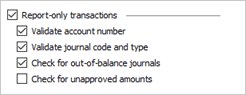
Report-only transactions
Validate account numbers
Search report-only transactions for account numbers that
-
do not match the account number mask,
-
include non-alphanumeric characters (-, *, _, etc.)
-
use invalid account numbers,
-
have a blank or null value stored in the GL account field, or
-
stores a formatted account in a table instead of an unformatted account.
Checkout error: Report-only transactions with invalid account numbers
If a budget transaction has an invalid GL account, is missing a GL account, or does not have a GL account, the error is reported as Report-only transactions with invalid account numbers.
-
To fix an invalid account or missing account error, edit the report-only transaction to replace the invalid GL account with a valid GL account. For detailed instructions, click here.
-
To fix an account that is not formatted correctly, run Recalculate. For detailed instructions, click here.
-
To fix a formatted account error, run Recalculate. For detailed instructions, click here.
Validate journal code and type
Verify the value on a report-only transaction that's stored in the Journal Code Type field matches the value that's stored on the report-only transaction in the Transaction table.
Checkout error: Report-only transactions with mismatched journal codes and types
If the values don't match, the error is reported as Report-only transactions with mismatched journal codes and types. To fix this error, contact customer support.
Contact Caselle customer support at (800) 243-8275 or use the Caselle support portal to create a support request.
Check for out-of-balance journals
Find journals that are out of balance. An out-of-balance journal is a journal where the sum of all transactions in the journal and period does not equal to 0.00 (zero).
Checkout error: Report-only out-of-balance journals
If the journal does not have a net zero balance, the error is reported as Report-only out-of-balance journals. To fix this error, use Enter Journal Amounts to create transactions to balance the out-of-balance journal.
Check for unapproved amounts
Search for journal entries with an approval status of unapproved or pending. This option is available if the organization is using an approval process to approve journal amounts.
Checkout error: Report-only unapproved journal entries
If the organization is using an approval process to approve journal amounts and there are journal amounts that are waiting for approval, the unapproved amounts are reported as Unapproved journal entries. To fix this error, review the section titled Unapproved Journal Entries on the Checkout report to verify if the unapproved amounts have been approved. You can click on the journal code to view the Journals report for the unapproved amounts.
To change the journal entry approval status to approved. use Approve Journal Amounts.
System checks
Search for grants that are missing dates and GL accounts and check for transactions that fall outside of the transaction retention period. .

System checks
Check grants for missing dates and GL accounts
Search for transactions for grants that are missing a start date, end date, or GL account.
Important! This option will search for grant transactions in the current year through the selected period. It will include prior and future years that are included in the selection criteria.
Checkout error: Grants missing dates and/or GL accounts
If a grant transaction is missing a start date, end date, or GL account, the error is reported as Grants missing dates and/or GL accounts.
To fix a missing start date or end date, use Modify Existing Grants to add missing date.
To fix a missing GL account, add the GL account to the Accounts tab in Modify Existing Grants.
Check for old transactions that can be deleted
Search for transactions and budget transactions with transaction dates that occur prior to the transaction history retention period and budget history retention period set in Organization.
Checkout error: History transactions that can be deleted
If General Ledger does have transactions, budget transactions, or both transactions and budget transactions that fall outside the transaction retention period , the error is reported as History transactions that can be deleted.
Important! None of the transactions and budget transactions listed in this section have been deleted.
To delete transactions, run Delete History for transactions.
To delete budget transactions, run Delete History for budget transactions.
Step 2. Review the Checkout report
Use the instructions on the Checkout report to fix the errors in the database. Some of the errors can be fixed by running Recalculate. The rest of the errors will need to be fixed by hand.
Step 3. Rerun the Checkout report
When you're done fixing the errors listed on the Checkout report,
-
rerun Create Allocations, and then
-
rerun Checkout to make sure all of the errors have been resolved.
When the Checkout report shows that the database is error free, then you're done with the Reconcile Checklist.
201911, 2019Aug21
Copyright © 2020 Caselle, Incorporated. All rights reserved.