How do I calculate billings?
Businesses
Run Calculate Billings to create billing transactions for licenses that will expire during a given date range. You can set up the options to update the license expiration date when you calculate billings. If you need to notify the license owner of an upcoming license renewal, you can send a renewal email to the business owner.
Watch a video
-
Learn about changes to the Calculate Billings routine in Connect 2020.05 or later. Watch a video (2m52s)
Step 1. Calculating billings for review
Set up the routine to print a report of the billings that will be calculated so you can review the transactions.
Do this...
1. Open Connect Business License > Businesses > Calculate Billings.
2. Do not select the Update License Expiration Dates checkbox.
3. Click to select the Calculate License Billings checkbox.
4. Use the Print box to select Report Only.
Choosing Report Only will print a report of the calculated billings without creating any billing transactions. To learn more, see Printing Report, Report Only, or No Report.

Print box
5. Set up the following options.
6. Click GO  (CTRL+G).
Go button
7. Use the Review tab to review the businesses with license billings and select the licenses to bill.
Check the license type, rate, quantity, amount, and email options for each license. If everything looks good, select the checkbox at the beginning of the row. If there's an error that needs to be corrected, click the Edit button. To learn more, see How do I review calculated billings?
8. Click GO (CTRL+G) again.
The routine calculates billings for the selected licenses and prints a report. Use the report to verify the licenses are billed the correct amount.
202011, 2020Dec22
Step 2. Calculating billings
Set up the routine to create billing transactions. You should use the same settings that you used to review the calculated billings.
Do this...
1. After you complete Step 1. Calculating Billings for Review, use the Print box to select Report or No Report.
2. Use the Review tab to verify the licenses to bill.
To learn more about reviewing transactions, see How do I review calculated billings?
3. Click GO (CTRL+G) again.
Go button
The routine calculates billings and creates billing transactions. If you selected Report as the Print option, running the routine will create billing transactions and print a report. If you selected No Report, running the routine will create billing transactions without printing a report.
202011, 2020Dec22
Options
Calculating license billings
Select the Calculate License Billing checkbox to calculate billings for the licenses that fall within the selected license expiration date range. If you want to update license expiration dates without calculating billings, do not select this checkbox.
Printing report, report only, or no report
Select a print output option. When you run the routine, you can preview the calculated billings on the screen or as a report, create calculated billings, or do both. You can set the default print output option in Options (F12).

Print box
What do you want to do?
-
I want to create billing transactions. Select No Report.
-
I want to print the calculated billing transactions report without creating billing transactions. Select Report Only.
-
I want to create billing transactions and print the calculated billing transaction report. Select Report.
202005, 2020Mar02
Selecting the license expiration date range
Select the license expiration date range. The routine will select licenses with an expiration date that fall within the date range.

License expiration date range
Selecting license types
Use the License Types list to select the license types to bill. The list shows the license types that are saved in the License Types table. To add or remove a license type, see How do I add/remove license types?
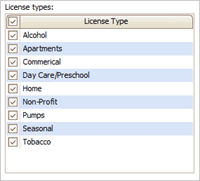
License types
Selecting rates
Use the Rates list to select the rates to bill. The list shows the rates that are saved in the Rates table. To add or remove a rate, see How do I add/remove rates?

Rates
Calculating billings manually
You can also calculate manual billings for a business. See the help topic titled How do I enter manual billings?
202005, 2020Mar2
Refreshing billings
If you set up the selection criteria and then click GO, Connect will update the transaction grid to use the updated selection criteria to show the billings that will be calculated.
If you choose to edit the license, you will need to click Refresh Settings  again to update the calculated billings with the updated license information.

Refresh Settings button
202005, 2020Mar2
Copyright © 2025 Caselle, Incorporated. All rights reserved.