How do I enter manual billings?
Businesses
A manual billing is a billing that was created as a single, or one-off, bill. For example, Jane uses a manual billing to enter tax, interest, and penalty amounts. Use Enter Manual Billings to enter billings by hand for a business.
Watch a video
Learn about the changes to Enter Manual Billings in 2020.05 or later. Watch a video (1m29s)
Entering manual billings
Create a single entry for a one-off bill.
Do this...
1. Open Connect Business License > Business > Enter Manual Billings.
Use the default date and reference number.
2. Use the Business box to enter a business name or number.

Business box
Warning: License billings exist in the current license period for this business. A warning displays at the end of the Business box when the license has been billed in the current license period. The warning will not prevent you from entering a manual billing.
The grid on the left side of the view will show the license billings. You can use the Amount column to change the billed amount. If you need to edit the business properties, click the edit button in the grid.

License billings grid
Include only licenses with no current billing
Update license expiration date
3. Press Enter again or click Save (CTRL+S).
The manual billing is created.
Entering payments
You can set up your default options to launch the Enter Payments view or ask you if you would like to enter payments when you save a manual billing entry. To learn how, see How do I change my default application for entering payments? (Enter Manual Billings)
Changing a manual billing
To edit the information on a manual billing, you'll need the date of the original entry. When you enter the input date, the system displays of the manual entry transactions. Enter the reference number that belongs to the transaction.
Do this...
1. Open Connect Business License > Business > Enter Manual Billings.
2. Use the Date box to enter the same date that was used to record the manual billing transaction.
The transaction grid displays all of the transactions that were created on the transaction date.
3. Click Edit (CTRL+E).
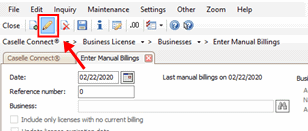
Edit button
4. Use the Reference Number box to enter the reference number that's assigned to the manual billing transaction.
The manual billing details display in the entry form.
5. Now, edit the manual billing transaction properties.
6. Click Save (CTRL+S).
The updated transaction is saved.
Deleting a manual billing
Remove a manual billing that was saved.
Do this...
1. Open Connect Business License > Business > Enter Manual Billings.
2. Use the Date box to enter the same date that you used to record the manual billing transaction.
The transaction grid displays all of the transactions that were created on the transaction date.
3. Click Delete/Abort (CTRL+D).
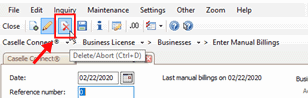
Delete/Abort button
4. Use the Delete Billings window to select an option.
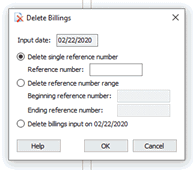
Delete Billings window
5. Click OK.
The selected transactions are deleted.
Aborting a manual billing
To cancel a manual billing that has not been saved, click Delete/Abort (CTRL+D). Aborting a manual transaction will only work in New mode after a business has been selected.
Delete/Abort button
Options
Business
A business is a company or organization that buys and sells goods, services, or both goods and services.
What is the business name?
I know the business name or number. Use the Business box to enter the name or number.
I don't know the business name. Click Search at the end of the Business box to view the businesses that are saved.
Business information
Use the Business Information section to review the additional properties on the business record.
Date
The Date is the date the system will use to record the transaction.
Do you want to use the current date as the transaction date?
Yes, I want to use the current date. This is the default date.
No, I want to use a different date. Click on the Date box to enter a MM/DD/YYYY.
Include only licenses with no current billing
The current billing is the total amount of billed amounts within the current period. Use Include Only Licenses with No Current Billing to change the default setting to allow only licenses that do not have a billed amount in the current period. Click Options (F12) to change the default setting, to learn more see How do I include only licenses with no current billing by default?
Reference number
In New mode, the Reference Number is a read only number. The first digit, the underlined digit in 1.01 is the reference number. The digits that follow the decimal place make up the sequence number. In the previous example, 1.01 is the sequence number.
In Edit mode, you can use the Reference Number box to type in a reference number to look up a transaction.
Update license expiration date
When you enter a manual billing, you can also update the license expiration date. The license expiration date will use the rules that are set up in the license type to calculate the new license expiration date. This checkbox is only available in New mode.
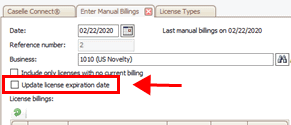
Update license expiration date checkbox
What do you want to do?
I want to enter a manual billing and update the license expiration date. Select the Update License Expiration Date checkbox.
I want to enter a manual billing without updating the license expiration date. Do not select the Update License Expiration Date checkbox.
202005, 2020Feb22
Copyright © 2025 Caselle, Incorporated. All rights reserved.