How do I change a customer's direct pay status?
Modify Existing Customers - Direct Pay
After a customer's direct pay information is verified, you're ready to change the customer's direct pay status to active. Setting up direct pay allows a customer to submit an electronic payment to pay a bill. When you receive the list of customers with verified accounts from the bank, you're ready to change the ACH status on the customer to active. You can use the Activate ACH Payments view to change the direct pay status for a group of customers or you can use the Direct Pay tab in Modify Existing Customers to change the direct pay status on one customer at a time.

Changing direct pay status to active - Batch
Use the Activate ACH Payments routine to change the direct pay status to active on a group of customers. More
Changing direct pay status to active - Individual
1. Open Connect Utility Management > Customers > Modify Existing Customers.
2. Click to select the Direct Pay tab.
3. Select the direct pay disbursement that was verified from the disbursement grid.
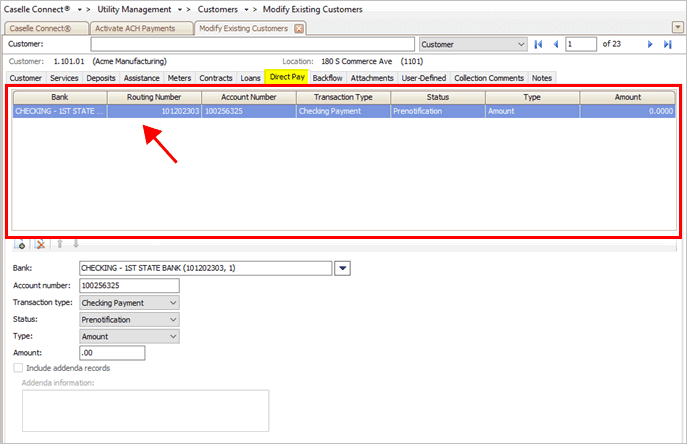
Direct pay disbursement grid
4. Use the Status menu to select Active.
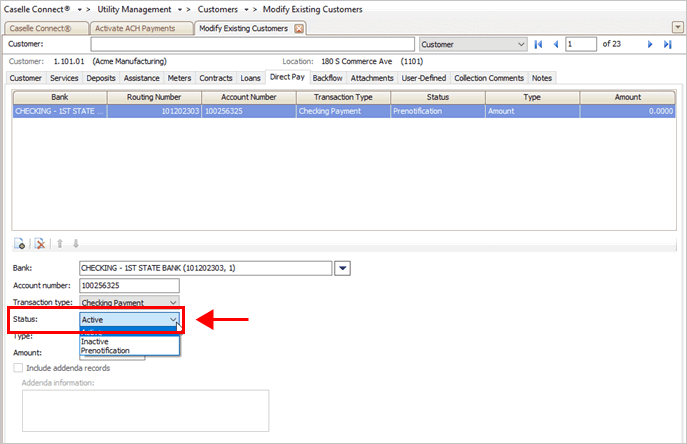
Status menu
5. Click Save  (CTRL+S).
The customer's direct pay status is set to active. The customer can use direct pay to pay utility bills.
202108, 2021Jun10
Copyright © 2025 Caselle, Incorporated. All rights reserved.