How do I add a new owner? (Real Properties)
Real Properties
Add an owner to a real property. When a real property is sold, you'll add the new owner of the real property to the real property record and then delete the old owner.
Selecting an existing owner
1. Open Connect Property Tax Collection > Real Properties > Setup New Real Properties or Modify Existing Real Properties.
2. Click to select the Owners tab.
3. Click Add an Existing Owner  .
.
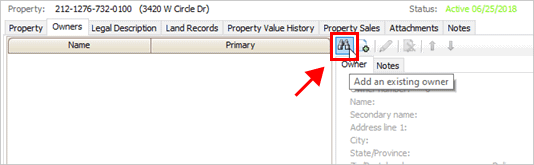
Add an Existing Owner button
4. Use the Search window to select an existing owner, and then click OK.
The Search window displays the owners who have been added to the Owners table. To learn more, see How do I set up a new owner? (Owners)
5. Click Save (CTRL+S).
The owner is added to the real property.
202005, 2020Apr15
Adding a new owner
1. Open Connect Property Tax Collection > Real Properties > Setup New Real Properties or Modify Existing Real Properties.
2. Click to select the Owners tab.
3. Click Create New Owner  .
.
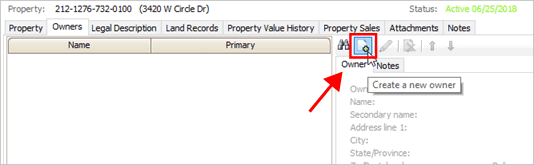
Create a New Owner button
4. Use the Setup New Owner view to add the owner, and then click Save (CTRL+S).
The new owner is added to the real property.
202005, 2020Apr15
Removing an owner
You need to add the new owner to a real property before you can delete the old owner.
Do this...
1. Open Connect Property Tax Collection > Real Properties > Setup New Real Properties or Modify Existing Real Properties.
2. Click to select the Owners tab.
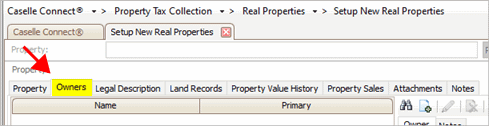
Owners tab
3. Use the list, on the left side of the view, to select an owner.
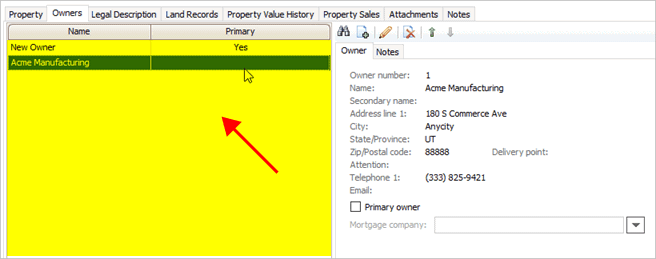
Owner list
4. Click Remove the Selected Owner  .
.
Why can't I delete an owner? You need to add the new owner and then set up the new owner as the primary owner. Connect will not delete a primary owner from the real property. To learn more, see How do I assign a primary owner? (Real Properties)

Remove the Selected Owner button
The owner is deleted.
202005, 2020Apr15
Copyright © 2025 Caselle, Incorporated. All rights reserved.