How do I assign a primary owner? (Real Properties)
Real Properties
You can assign one primary owner to a real property. Connect will create the real property notices, real property tax roll, and so on for the primary owner of the real property.
Contents
Using Modify Existing Real Properties to update the primary owner
1. Open Connect Property Tax Collection > Real Properties > Modify Existing Real Properties.
2. Use the Property box to enter a property name or number and then press Enter.
3. Click to select the Owners tab.
4. Click Create a New Owner.
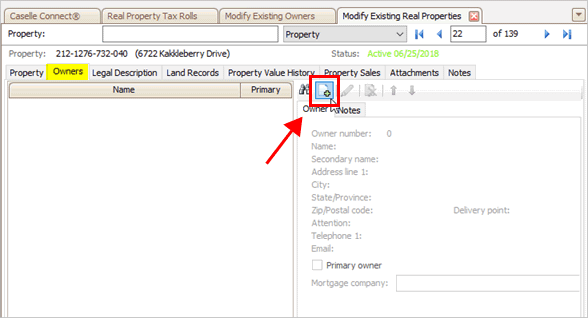
Create a New Owner button
5. Use the Setup New Owners view to add the new owner. When you're done, click Save (CTRL+S) to return to Modify Existing Real Properties.
Remember to set up the owner and properties options on the owner's record. This is where you can select the owner as a primary owner on the property.
To learn more about adding a new owner, see How do I set up a new owner? (Owners)
Using Owners to assign a primary owner
Open the owner record and make the change there. After launching Modify Existing Owners, look up the owner and then use the options on the Properties tab to look up the real property. The primary owner is assigned to the property, so you need to make the change to the settings on the property.
To learn more about adding a new owner, see How do I set up a new owner? (Owners)
Copyright © 2025 Caselle, Incorporated. All rights reserved.