How do I create a request form to change employee contact information?
Requests
Set up a form that a manager or an employee can use to submit to change the employee's contact information.
Before you get started
-
If the request form will use an approval process, you'll need to sketch out the people and positions in the approval process. See the help topic titled How do I set up an approval process?
-
If you want the request form to ask for specific information, you'll need to list the information you want to collect. There's space on the request form to add custom fields.
-
If you want to limit the use of the request form to a group of users, you'll need a list of users who can use the request form.
Creating a contact information change request
1. Open Connect Human Resources > Organization > Requests.
2. Click New (CTRL+N).
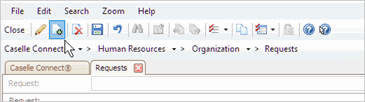
New button
3. Use the Request Type list to select Contact Information Change.
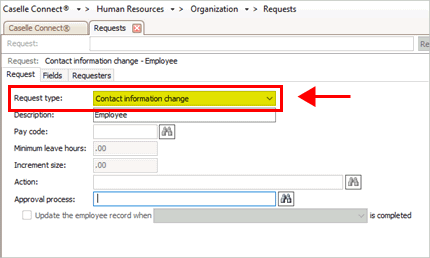
Request Type list
4. Use the Description box to enter a request description.
Example: Contact Information Change - Employee
Note: Use a combination of Request Type and Description that hasn't been used before.
6. Set up the fields on the contact information change request form.
See the help topic titled How do I add fields to a request form?
7. Assign requesters to the contact information change request form.
See the help topic How do I assign requesters?
8. Assign the contact information change request form to an approval process.
See the help topic titled How do I assign an approval process to a request?
9. Click Save (CTRL+S).
The request form is saved. Now, you can use Connect Online to submit a Contact Information Change Request.
202008, 2020Mar13
Copyright © 2025 Caselle, Incorporated. All rights reserved.