How do I add fields to a request form?
Add custom fields to a request form.
You can select the fields that will display on each request form. When you add the fields to the request form, you can choose the display order and which fields are required and which are not.
Before you get started
-
Add a request form to the Requests table. See the help topic titled How do I add a request form?
Adding fields to a request form
Choose which fields will collect the information that's needed to evaluate the request.
Do this...
1. Open Connect Human Resources > Organization > Requests.
2. Use the Request box to enter a request name, and then press Enter.
3. Click to select the Fields tab.
The default fields that will be included on the request form display in the left pane.
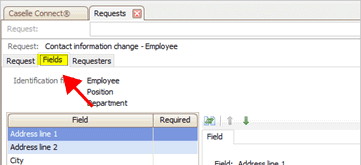
Fields tab
4. Click Select Fields  .
.
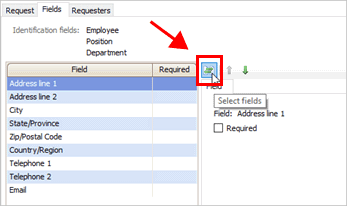
Select Fields button
5. Use the Selection window to select the fields to display on the request form, and then click OK.
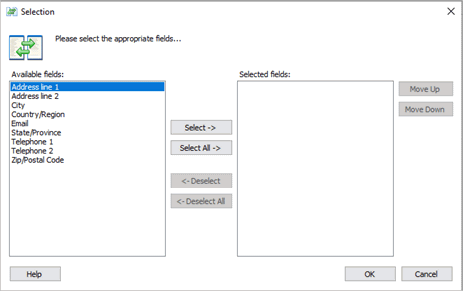
Selection window
Connect adds the selected fields to the request form. The field properties display on the Field subtab.
202008, 2020Mar13
Adding a required field to the request form
Making a field a required field means that a user will not be able to submit the form without entering the required value.
Do this...
1. Open Connect Human Resources > Organization > Requests.
2. Use the Request box to enter a request name, and then press Enter.
3. Click to select the Fields tab.
The default fields that will be included on the request form display in the left pane.
Fields tab
4. Click Select Fields .
Select Fields button
5. Use the fields list to select a field to select a field.
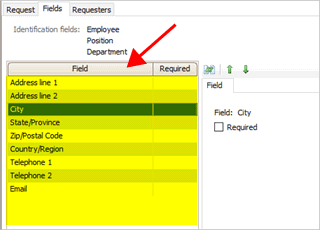
Fields list
6. Click to select the Required checkbox.
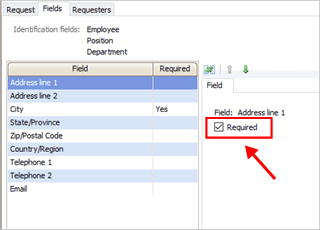
Required checkbox
7. Click Save (CTRL+S).
When a user fills in the form, Connect Online will not save the request form unless there's a value in the required field.
202008, 2020Mar13
Copyright © 2025 Caselle, Incorporated. All rights reserved.