Payroll Year-end Checklist
You’ll need to make sure each employee’s record is set up with the correct Social Security number, subject to pay codes, and employee options for the W-2 Form. When you’re done reviewing the employee setup, you’ll run the Employee Checkout.
Videos
Learn how to verify employee information (4m23s)
In this Topic Hide
The next step is to review the employee’s Social Security number, subject to pay codes, and employee options for the W-2 Form.
You have two options:
Verify the settings for each employee. If you choose this option, you will open an employee record and then verify the employee's Social Security number, Subject To settings, and W-2 Form options. When you're done, you'll verify the same information on the next employee record.
Verify a setting for all employees. If you choose this option, you will verify the Social Security number for every employee. Then, you will verify the Subject To settings for every employee. And finally, you'll verify the W-2 Form options for every employee.
You’ll want to complete 4.11, 4.12, and 4.13 in order for every employee, or you can complete 4.11 for every employee, complete 4.12 for every employee, and then complete 4.13 for every employee. The objective is a careful review of the employee’s information, so choose the method that best suits your needs.
You’ll need to...
Verify the employee’s Social Security number is correct.
Do this...
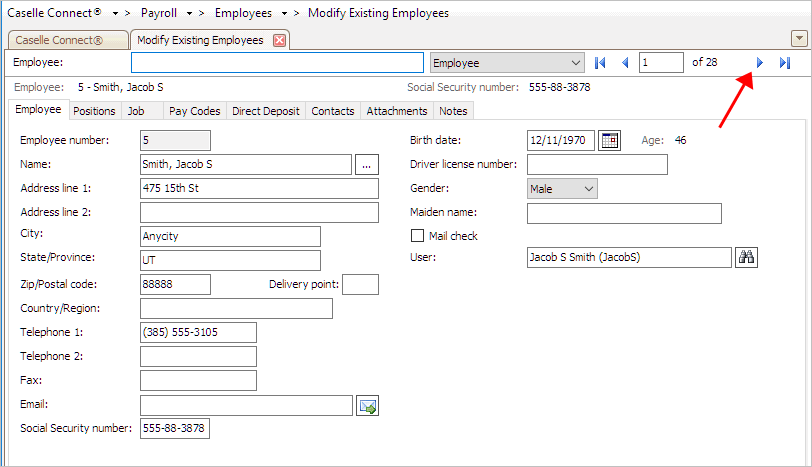
1. Open Connect Payroll > Employees > Modify Existing Employees.
2. Use the Lookup bar to display the first employee record.
Modify Existing Employees
3. Click the Employee tab.
4. Verify the employee’s Social Security Number (SSN).
5. Is the employee’s Social Security number correct?
Yes, the employee’s Social Security number is correct. That’s good news. Go to Second, Verify the Employee's Subject To Settings.
No, the employee’s Social Security number is NOT correct. Click on the Social Security Number field to correct it.
Updated 20Dec2017
Review the pay codes the employee is subject to. For example, the pay codes for retirement, Social Security, Medicare, federal, state, SUTA, workers compensation, and so on.
Do this...
1. Open Connect Payroll > Employees > Modify Existing Employees.
2. Click to select the Positions tab > Wage tab.
3. Find the section titled Subject To and review the pay codes that the employee is subject to.
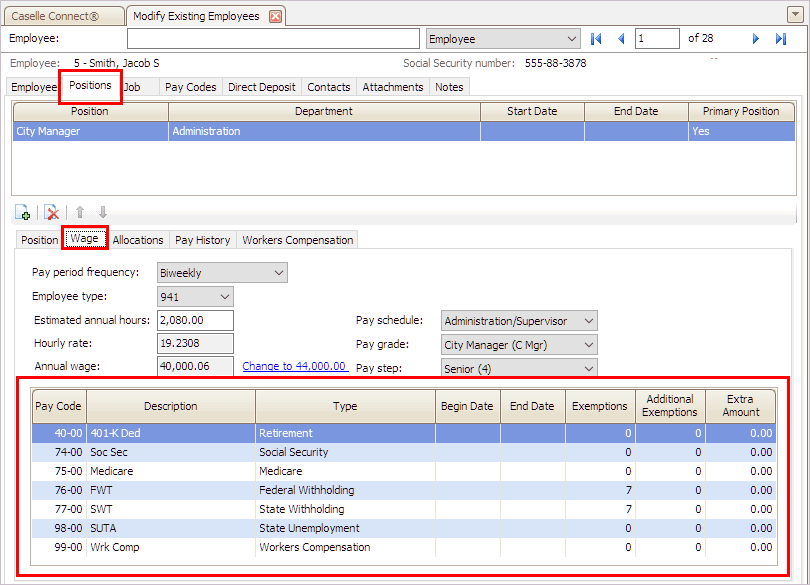
Modify Existing Employees > The employee's Subject To pay codes
What if there’s an end date on a pay code? Normally, you do not want the subject to pay codes to have an end date. If there is an end date recorded, make sure the end date is correct. This is important so everything will convert correctly to the W-2 database. Some pay codes do not need a begin date or an end date.
4. Are the employee’s subject to pay codes correct?
Yes, the employee’s subject to pay codes are correct. That’s good news. Go to Third, Verify the Employee's W-2 Form Options.
No, the employee’s subject to pay codes are NOT correct. Fix the employee’s subject to pay codes before you continue. That may mean adding a missing pay code, removing a pay code, or updating or removing the end date listed on a pay code.
Updated 20Dec2017
Review the options that will print on the employee’s W-2 Form.
Videos
Do this...
1. Open Connect Payroll > Employees > Modify Existing Employees.
2. Click to select the Job tab.
3. Find the section titled Include on W-2 Form.
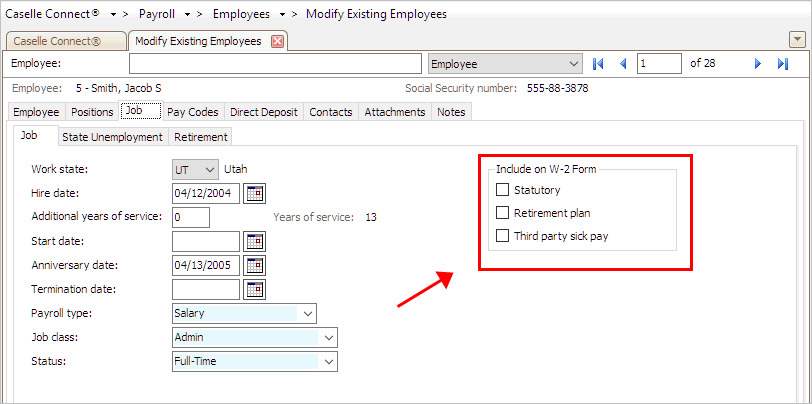
Include on W-2 Form options
Why isn’t the Retirement Plan checkbox selected? The employee may have started a retirement plan this year, which means the checkbox for Retirement Plan on the employee’s W-2 Form needs to be marked.
4. Select the W-2 Form options for the employee.
Is the employee enrolled in a retirement plan?
Yes, the employee is enrolled in a retirement plan. Click to select the checkbox titled Retirement Plan.
No, the employee is not enrolled in a retirement plan. Do not select the checkbox titled Retirement Plan.
Did the employee receive third party sick pay during the tax year?
Yes, the employee received third party sick pay during the tax year. Click to select the checkbox titled Third Party Sick Pay.
No, the employee did not receive third party sick pay during the tax year. Do not select the checkbox titled Third Party Sick Pay.
STOP!
Have you verified the Social Security number, Subject To pay codes, and W-2 Form options for each employee?
Yes, I have verified this information for every employee. That’s good news. You’re ready for the next step in this section, Run Employee Checkout Again.
No, I have not verified this information for every employee. Do not continue until you have reviewed the Social Security number, Subject To pay codes, and W-2 Form options for each and every employee.
Updated 20Dec2017
Now that you’ve verified the rates/limits for the year you’re closing, the next step is to run Checkout. This will help you to discover any errors that need to be corrected before you continue.
STOP!
Do I need to run Employee Checkout again?
I made changes to the employee’s pay codes. Yes, you should run Employee Checkout again. See the help topic titled How Do I Run Employee Checkout?
I didn’t make any changes to the employee’s pay codes. You can skip running the Employee Checkout again and continue to Step 5: Verify Leave Time Information.
Videos
Updated 20Dec2017
Use Checkout to discover any errors that need to be corrected.
Do this...
1. Open Connect Payroll > Organization > Checkout.
2. Run Checkout for ALL employees.
3. Verify the Beginning Date and Ending Date.
These dates should default to the year being closed. The routine will scan and check the data for the selected year.
How do I change the date range for annual reports?
4. Click GO (Ctrl+G).
5. Review the Checkout Report.
STOP!
Does the Checkout Report list any errors?
Yes, the Checkout Report lists errors. You’ll need to correct any errors shown on the Checkout Report and then re-run Employee Checkout to verify the errors are fixed.
No, the Checkout Report is error-free. You’re ready to move on. Go to Step 5: Verify Leave Time Information.
Updated 30Nov2017
Step 1: Before you get started
Step 2: Verify the pay code information
Step 3: Verify year-to-date information
Step 4: Verify employee information