Payroll Year-end Checklist
STOP!
Have you printed all payroll reports for the tax year?
Yes, I have printed all payroll reports for the tax year. Continue to the next question.
No, I have NOT printed all payroll reports for the tax year. Do not continue until you have printed all payroll reports for the tax year. When you close the year-end in the Payroll application you will not be able to make any changes to the transactions in the closed year.
STOP!
Have you updated all transactions for the tax year to the General Ledger?
Yes, I have updated all transactions for the tax year to the General Ledger. You’re ready to begin this section.
No, I have NOT updated all transactions for the tax year to the General Ledger. Do not continue until you finish updating all of the transactions for the tax year to the General Ledger application. Again, when you close the year-end, you will not be able to update transactions from the closed year.
If you have printed all payroll reports for the tax year AND you have updated all transactions for the tax year to the General Ledger, there are three steps to complete. First, you’ll close the current payroll year. Closing the payroll year means the transactions will be locked. Then you’ll update the new Federal and State tax rates. When you’re done, the Payroll application will be ready to go for the new payroll year.
Updated Dec2016
In this Topic Hide
Once you have completed the previous steps, performing the Year-end Closing is simple. This step will close the current year and roll over leave time to the new year.
Videos
Watch a video clip on closing the payroll year (0m33s).
Do this...
1. Open Connect Payroll > Organization > Close Year-end.
2. Verify the new Current Year listed on the screen.
The year-end closing will close out the previous year and set the system to the new current year.
What if the current year does not display the correct year? If your system does not display the correct new year (2019), contact customer support for assistance at (800) 243-8275. Do not attempt to close the year-end unless the current year displays correctly.
STOP!
Does the Current Year show 2019?
Yes, the current year is 2019. That’s good news. Continue to the next step.
No, the current year is not 2019. There’s a problem with the Payroll settings. Please call customer support at (800) 243-8275 for assistance. Do not continue to the next step.
3. Click GO (CTRL+G).
When the Year-end Closing is complete, a dialog box will appear.
4. Click OK.
The payroll year is closed.
Updated 19Dec2017
Running the Year-end Closing is the last official step in the Year-end Closing Checklist. If you haven’t already printed the W-2 Forms, you should print them as soon as possible after closing the year end.
The next steps will help you get Payroll ready for the new year.
Updated 29Nov2017
IMPORTANT! DO NOT load the new tax rate information until AFTER the Payroll Year-end Checklist has been completed.
In this step, you will load the Federal tax rates for the new year. This is a two-step process. First, you need to enter the new Federal Social Security rates. Then, you need to enter the new federal withholding tax rates.
Videos
Watch a video clip on entering the new Federal tax rates (3m16s).
In this section...
Federal Social Security rates are available online at irs.gov or you can download them from the irs.gov website.
Where can I find the new
Federal tax rates? Early release of the Federal Withholding Tax
is posted in IRS Notice 1036 (Rev. January
2018).
You can also find the Federal tax rates in IRS
Publication 15-Circular E, Employer’s Tax Guide. If you do not have
a copy of this publication, you can request a copy from the IRS for your
records.
Do this...
1. Open Connect Payroll > Organization > Pay Codes.
2. Look up the Social Security Tax pay code.
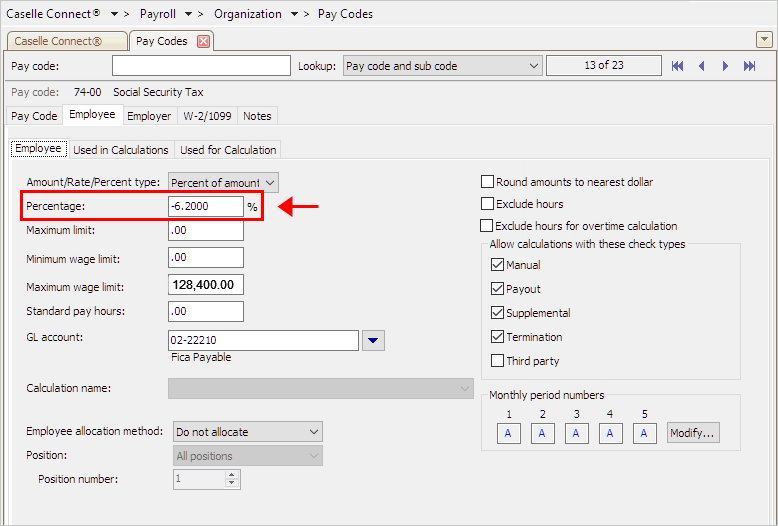
3. Navigate to the Employee tab > Employee subtab.
4. Make sure the Percentage field displays -6.20%
Employee Percentage field on the Social Security Tax pay code
Where can I find the Social Security Rate Percentage for employees and employers? Check the irs.gov website for this information.
What if I need to change the percentage? You can highlight the entire value, including the sign, and then enter 6.20 and press Enter to enter 6.20 as a positive value. Connect will assign the correct sign to the value.
5. Change the Maximum Wage field to 128,400.00
Should the Social Security limit be recorded as a positive or negative value? The Social Security wage limit of 128,400.00 should be recorded as a positive value for both the employee and employer.

Employee Maximum Wage field on the Social Security Tax pay code
Where can I find the Maximum Wage Limit for employees and employers? Check the irs.gov website for this information.
6. Navigate to the Employer tab > Employer subtab.
7. Change the Maximum Wage field to 128,400.00
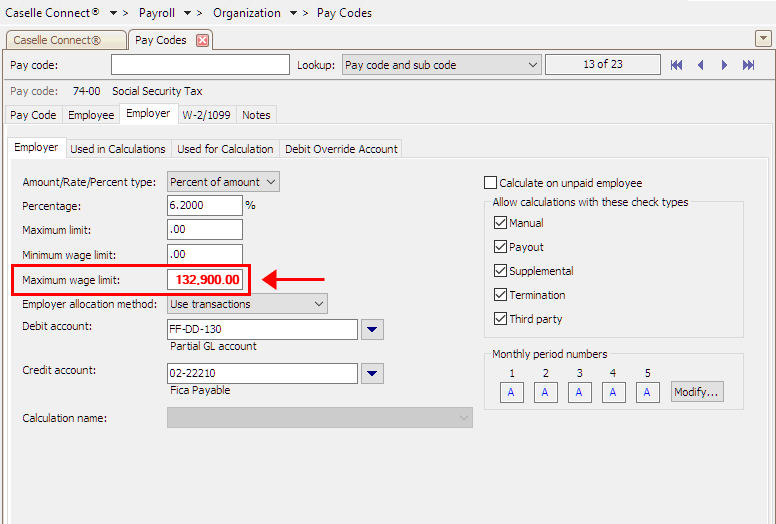
Employer Maximum Wage field on the Social Security Tax pay code
8. Click Close (CTRL+W).
The Social Security wage limits for the employee and employer have been updated to the new wage limit.
Updated 12Jan2018
The Federal withholding tax rates are updated each year by the Federal government. The withholding tax on wages includes income tax, Social Security, and Medicare. Follow these steps to update the Federal Withholding Tax Rates in the application with the rates for the new year.
WAIT! The new Federal withholding tax rates will be posted here as soon as they are available.
Do this...
1. Open Connect Payroll > Organization > Calculation Tables.
2. Click Search (F9).
3. Select the calculation table for Federal—Single, and then click OK.
4. Click to select the first row in the calculation table.
5. Use the amounts in Table 1: 2019 Federal Withholding Rates - Single to update the calculation table.
Table 1: 2019 Federal Withholding Rates - Single
Line No |
Wages Not Over |
Tax Amount |
Tax Rates |
1 |
3,700.00 |
0.00 |
0.00% |
2 |
13,225.00 |
0.00 |
10.00% |
3 |
42,400.00 |
952.50 |
12.00% |
4 |
86,200.00 |
4,453.50 |
22.00% |
5 |
161,200.00 |
14,089.50 |
24.00% |
6 |
203,700.00 |
32,089.50 |
32.00% |
7 |
503,700.00 |
45,689.50 |
35.00% |
8 |
999,999,999.99 |
150,689.50 |
37.00% |
Here's a screenshot of the Federal - Single calculation table with the Federal Single Withholding Rates.

2019 Federal - Single calculation table with new single withholding rates
6. Click the Modifiers tab.
7. Enter the Withholding Allows for Federal - Single: 4,150.00
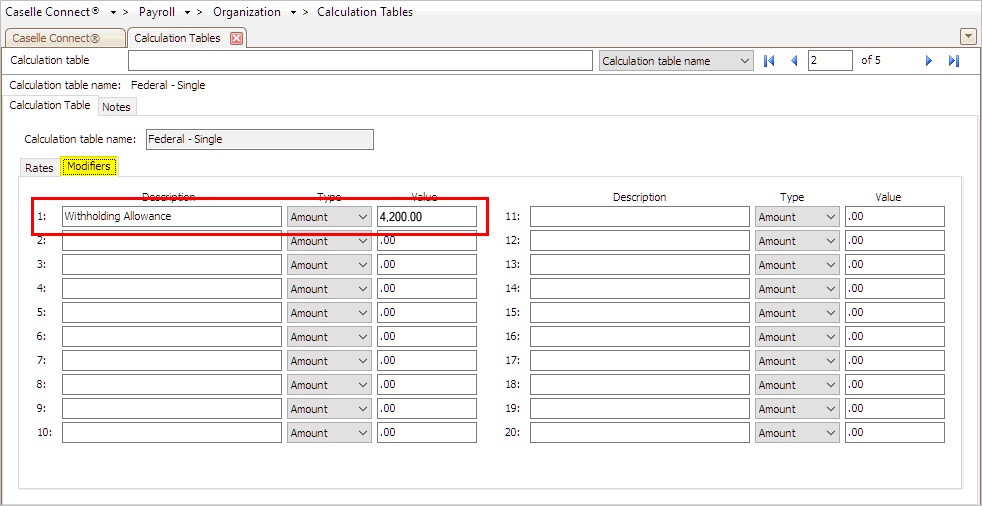
2019 Federal - Single calculation table with new single withholding rate modifier
8. Click Search (F9).
9. Select the calculation table for Federal—Married, and then click OK.
10. Click to select the first row in the calculation table.
11. Use the amounts in Table 2: 2019 Federal Withholding Rates - Married to update the calculation table.
Table 2: 2019 Federal Withholding Rates - Married
Line No |
Wages Not Over |
Tax Amount |
Tax Rates |
1 |
11,550.00 |
0.00 |
0.00% |
2 |
30,600.00 |
0.00 |
10.00% |
3 |
88,950.00 |
1,905.00 |
12.00% |
4 |
176,550.00 |
8,907.00 |
22.00% |
5 |
326,550.00 |
28,179.00 |
24.00% |
6 |
411,550.00 |
64,179.00 |
32.00% |
7 |
611,550.00 |
91,379.00 |
35.00% |
8 |
999,999,999.99 |
161,379.00 |
37.00% |
Here's a screenshot of the Federal - Married calculation table with the Federal Married Withholding Rates.
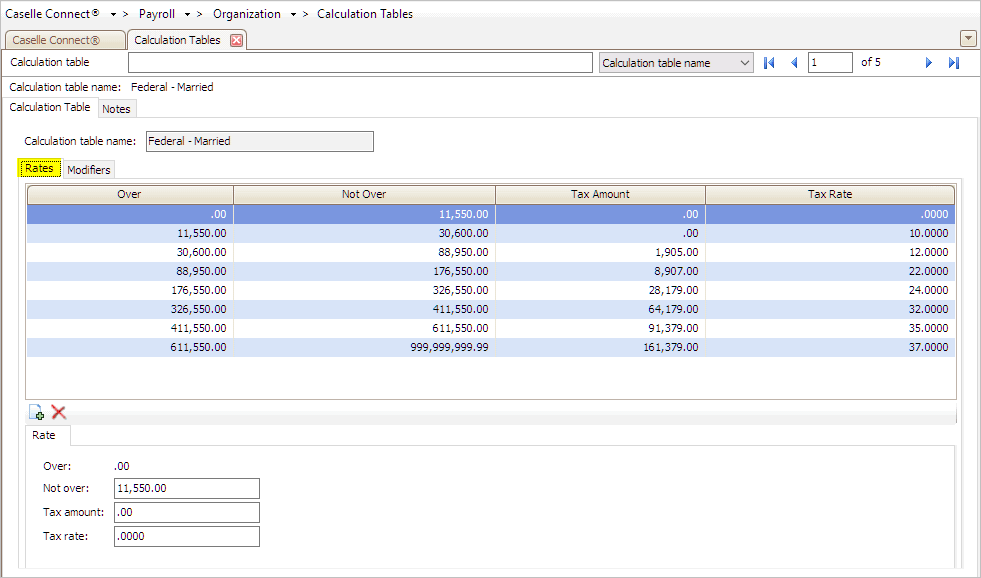
2018 Federal - Married calculation table with new married withholding rates
12. Click the Modifiers tab.
13. Enter the Withholding Allows for Federal - Married: 4,150.00
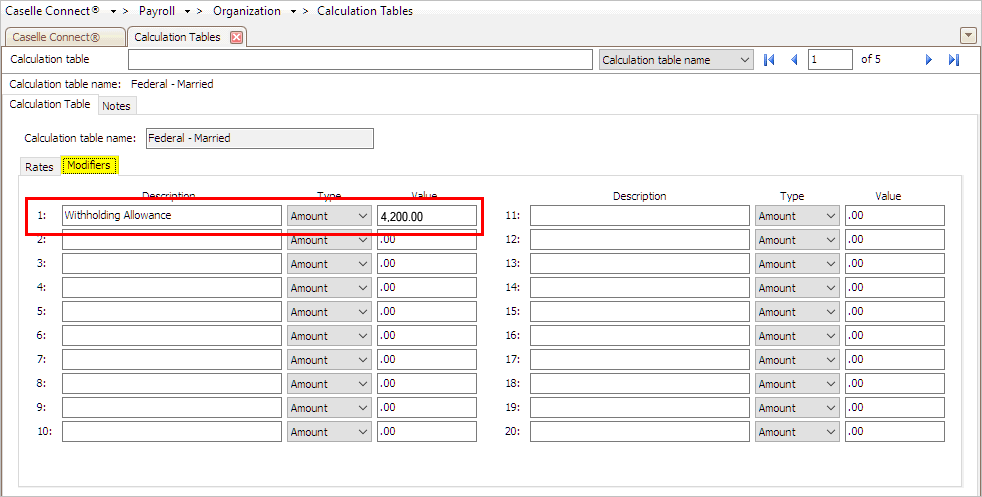
2019 Federal - Married calculation table with new single withholding rate modifier
14. Click Save (CTRL+S).
The new Federal withholding rates have been updated.
Updated 12Jan2018
The state tax rates is specific to each state. Follow these instructions to load the new state tax rates in the Calculation Tables.
Does my state have state withholding tax rates? Not all states have state withholding tax rates. For states that do have them, the state withholding tax rate is specific to each state. For more information about your state’s state withholding tax rates and changes that may apply to the new year, contact the state agency or commission responsible for state taxes.
The new state tax rates will be posted as they become available.
|
|
Updated 05Sep2018
Congratulations! You're done with the Payroll Year-end Checklist. You're ready for the first payroll of the new payroll year.
Updated 20Dec2017