Combined Detail Ledger
Reports
The Combined Detail Ledger is a modified version of the Detail Ledger that will show columns for the Actual, Encumbrance, and Budget amounts, as well as a running balance for the unspent budget in the Year-to-Date Budget column. All options on the Detail Ledger, with the exception of the Amount Option, are available on this report.
In this Topic
- Combined Detail Ledger
- Printing Combined Detail Ledger
- Report options
- Accounts to include
- Bold total lines
- Print grand totals
- Print period totals
- Print summary totals only
- Print transactions in date order
- Summarize payroll detail
- Additional options
- Print running balance
- Include comments
- Include report-only type transactions
- Show only grant accounts
Printing Combined Detail Ledger
1. Open Connect General Ledger > Reports > Combined Detail Ledger.
2. Set up the report dates.
How do I change the report date range?
How do I change the date type?
How do I change the date type?
How do I prompt a user to enter a date?
3. Set up the report options.

Report options tab
Print transactions in date order
4. Set up the additional options.
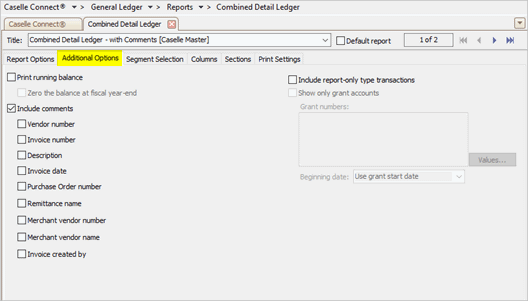
Additional options tab
Include report-only type transactions
5. Click Print (CTRL+P).
The report prints.
202008, 2020Jul29
Report options
Accounts to include
Use Accounts to Include to filter the accounts on the report. Use All to include all accounts in the General Ledger. Use With a Zero Balance to limit the account summary to show only accounts that have neither a positive or negative balance. Use With Balances to only include accounts that have a positive or negative balance. Use With Balances or Activity to include only accounts that have a balance and have transactions recorded during the report date range.
Bold total lines
Use bold total lines to apply bold formatting to lines in the report that show totals.
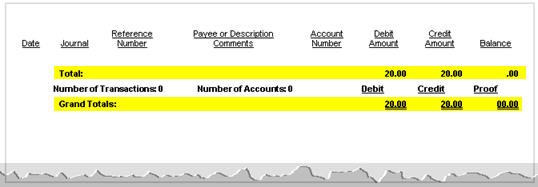
Do you want to print totals in bold type?
Yes, print totals in bold type. Click to select Bold Total Lines.
No, do not print totals in bold type. Click to deselect Bold Total Lines.
Print grand totals
A grand total is the sum of several groups of numbers. Use Print Grand Totals to print the grand totals on the report.
Do you want to print grand totals?
Yes, print grand totals. Click to select Print Grand Totals checkbox.
No, do not print grand totals. Click to deselect Print Grand Totals checkbox.
If you will print grand totals, which grand totals do you want to print?
I want to print grand totals by account type. Click to select By Account Type.
I want to print grand totals for revenue and expenditure accounts. Click to select With Revenue and Expenditure Totals.
Print period totals
A period total is the sum of the amounts in the selected period. Use Print Period Totals to print a one-line summary for each transaction in the period. An asterisk (*), shown in the asterisk column, identifies the period totals. This option will not include inactive periods, a period that does not have any transactions.
Note: If you select the option to Print Period Totals AND Summarize Payroll Detail, this option will summarize the transactions that are linked to the Payroll (CDP) journal code for the account AND period.
Do you want to print period totals?
Yes, print period totals. Click to select Print Period Totals.
No, do not print period totals. Click to deselect Print Period Totals.
Print summary totals only
Use Print Summary Totals Only to add up the transactions and print the total, without including any individual transactions, on the report. When this option is turned off, the individual transactions will print on the report.
Do you want to print summary totals or individual transactions?
I want to summarize transactions and print totals. Click to select Print Summary Totals Only.
I want to print individual transactions. Click to deselect Print Summary Totals Only.
Print transactions in date order
When you Print Transactions in Date Order, the report will sort by date, then by journal code, then by reference number, then by sequence number. When this option is NOT selected, the sorting order prints transactions by reference number.
Do you want to print transactions by the transaction date?
Yes, print transactions by date. Click to select Print Transactions in Date Order.
No, print transactions by reference number. Click to deselect Print Transactions in Date Order.
Summarize payroll detail
The payroll detail refers to the transactions in the Payroll (CDP) journal. Use Summarize Payroll Detail to total the transactions in the Payroll (CDP) journal for the selected date range and then print the totals on the report. When this option is not selected, the report will include all of the transactions in the Payroll (CDP) journal for the selected date range.
Note: If you select the option to Print Period Totals AND Summarize Payroll Detail, this option will summarize the transactions that are linked to the Payroll (CDP) journal code for the account AND period.
Do you want to summarize payroll detail as a single line on the report?
Yes, only print the totals for the Payroll (CDP) journal on the report. Click to select Summarize Payroll Detail.
No, include the transactions for the Payroll (CDP) journal. Click to deselect Summarize Payroll Detail.
Additional options
Print running balance
Calculate the account balance after each transaction and then print the new account balance.
Include comments
Append additional information to the transaction comment.
Include report-only type transactions
Print transactions with the report-only transaction type on the report.
Show only grant accounts
Print transactions for grant accounts on the report. This option is only available when grant accounting is set up, see How do I turn on grant accounting?
202008, 2020Jul29
Copyright © 2020 Caselle, Incorporated. All rights reserved.