How do I set up online budget submission?
General Ledger and Online General Ledger
Follow these instructions to set up Connect General Ledger to allow users to use Connect Online to update budgets, submit budgets, and review submitted budgets. You'll need to make changes to the user rights in System Management, set up submitters and reviewers in General Ledger, set up the online approval process, and set up the online budget worksheet.
Step 1: Set up System Management
Add the user to Setup/Modify User Rights in System Management. You'll need to give the user, or users, the user rights to access Connect Online. You'll also need to set up the user with notifications so they can receive requests from Connect Online to submit or review budgets.
First, set up users with access to Connect Online
Make a list of users who will use Connect Online to submit or review budgets. Update the user rights in Setup/Modify User Rights in System Management to allow the user to access the online budget submission in Connect Online. See the section titled Assigning User Rights to Connect Online in How do I assign user rights?
What if the user hasn't been added to Setup/Modify User Rights? See the help topic titled How do I add a new user? in System Management.

Granting user rights to Connect Online Budget Submission
Second, turn on user notifications
The user's email, mobile number, and mobile carrier are saved in Setup/Modify User Rights. You'll need to add this information to the user's record so the user can receive notifications to submit and review budgets. See the help topic titled How do I set up online notifications?
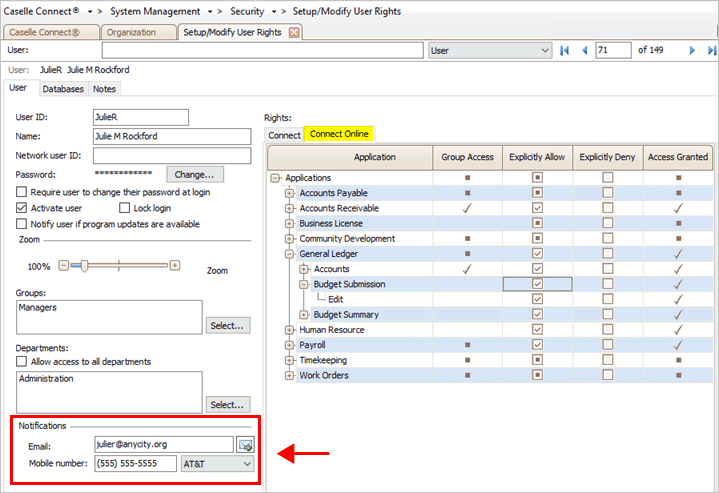
Notifications
Step 2: Set up Connect General Ledger
You'll need to set up two types of users for online budget submission in the Connect General Ledger.
-
Submitters (a user who submits or proposes a budget), and
-
Reviewers (a user who reviews a submitted budget).
And then you'll need to set up the approval process that routes the submitted budget to a reviewer.
First, set up users (submitters and reviewers)
Update the user rights for submitters and reviewers to allow the users access to Connect Online Budget Submission and choose which users can edit budgets.
Note: The user must be set up as a user in General Ledger before you continue. To add a new user, see the help topic titled How do I add/remove users?
To update user rights for Connect Online Budget Submission...
-
See the help topic titled How do I add or remove users for online budget submission?
Second, set up online notifications for submitters and reviewers
Then, set up the user with user rights for online budget submission and notifications for online budget submission.
To update user rights...
-
See the help topic titled How do I add or remove users for online budget submission?
To update user notifications...
-
See the help topic titled How do I set up a user to receive notifications for online budget submission?
Third, set up approval groups
If more than one user can review an online budget submission, set up an approval group. Include all of the reviewers. An approval group allows one or more users to fill the role of reviewer. It also allows you to add or remove reviewers from the approval group without making constant updates to the users who are assigned to the approval step.
To learn more about adding users to an approval group...
-
See the help topics titled How do I add an approval group? and How do I update users in an approval group?
Fourth, set up approval steps
Set up the approval steps that you will use to review budgets to set up the online budget submission approval process. When you set up an approval step, you may
-
include as many approval steps as needed,
-
assign a group or user to each approval step,
-
assign the departments who may be assigned to the approval step.
To learn more about setting up an approval step...
-
See the help topic titled How do I add an approval step?
Fifth, set up approval processes
Use approval steps to set up the approval process for approving an online budget submission.
The approval process may
-
include as many approval steps as needed,
-
assign groups to the approval process (anyone in the group can review an online budget submission), or
-
assign a user to the approval process.
To learn how to add approval steps to an approval process...
-
See the help topic titled How do I set up an approval process for budget?
When you're done setting up the approval process for online budget submission, you're ready to make the budget available online to the submitter.
Step 3: Set up Connect Online Budget Submission
Set up the online budget properties to choose how the submitter will view a budget in Connect Online.
Do this..
1. Open Connect General Ledger > Organization > Organization.
2. Click to select the Connect Online tab.
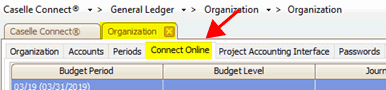
Connect Online tab
3. Click the Add a New Budget button. (It's located above the Budget Setup tab.)
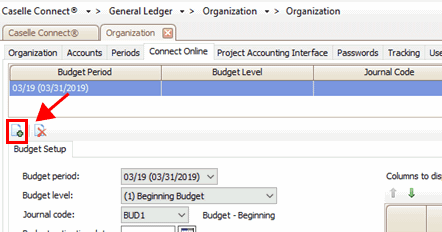
Add a New Budget button on the Connect Online tab
4. Enter the budget period, budget level, journal code, activation date, approval process, and due date.
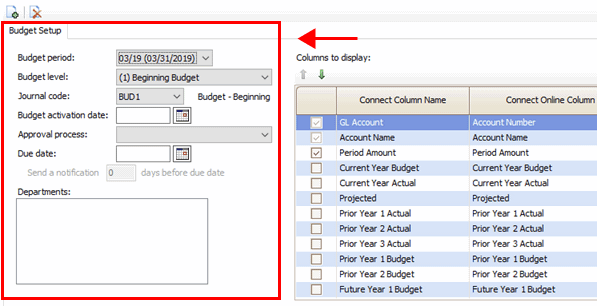
Online budget properties
The section titled Columns to Display, on the right side of the screen, will show the columns that have been set up in the budget level.
Showing/Hiding columns
You can choose which columns to show or hide in Online Budget Submission. You can choose where the columns will be displayed when the submitter sees the budget worksheet in Connect Online.
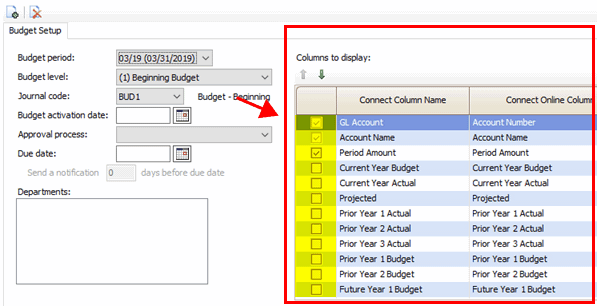
Columns to Display
To show/hide a column...
-
To show a column, click to select the checkbox.
-
To hide a column, remove the checkmark.
Changing column display order
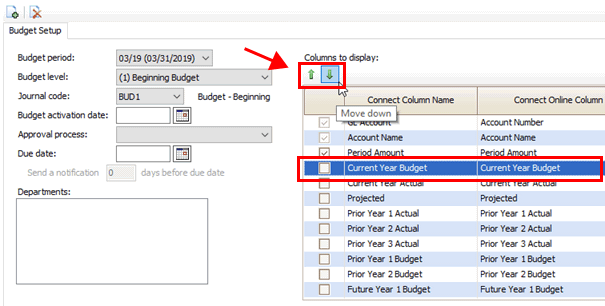
Move Up and Move Down buttons
To change the column display order...
-
Click to select a column and then click the Move Up or Move Down button to change the column display order.
You're done!
What happens next?
Connect will send the submitter a notification with instructions to submit the budget. When the submitter clicks on the notification, the Active Budget Requests page launches. If the submitter did not receive a notification, the submitter can use the Applications menu in Connect Online to select Active Budget Requests. The Active Budget Requests page will display all of the active budgets that are assigned to the submitter.
Where are my active budget requests? (Submitters)
How do I submit a budget? (Reviewers)
How do I review a budget? (Reviewers)
How do I add the Budget Summary widget?
Contacting Caselle for assistance
If you have any questions, contact your Client Relationship Manager (CRM) at (800) 228-9851.
2019.08, 2019May23
Copyright © 2025 Caselle, Incorporated. All rights reserved.