How do I add/remove users?
Users
Add or remove users from the General Ledger application. Users can submit a department budget.
Adding a user
1. Open Connect General Ledger > Organization > Users.
2. Click New (CTRL+N).
3. Select a User ID.
You can add a new User ID or select a user who is set up in the Connect System Management User table.
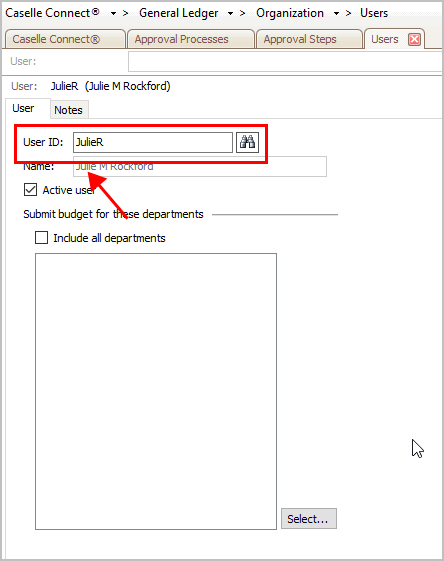
User ID
4. Enter a Name.
This is the user name.
5. Select the checkbox titled Active User.
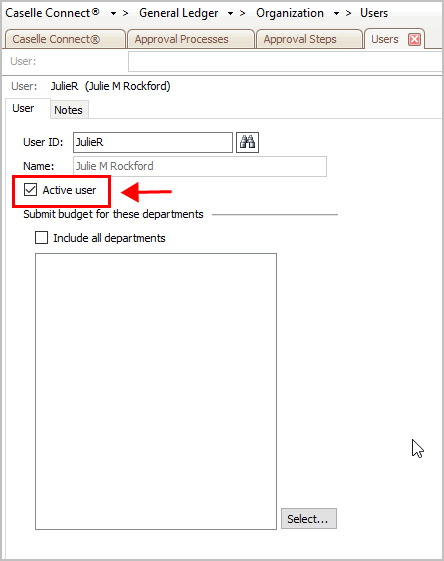
Active User
6. Set up the section titled Submit Budget for These Departments.
This is a list of the department budgets that this user will be able to update and submit for budget approval.
Which departments do you want to include?
This user will review budgets for all department. Select the checkbox titled Include All Departments.
This user will review the budgets for the selected departments. Remove the checkmark from the Include All Departments checkbox and then click Select to choose the departments.
7. Click Save (CTRL+S).
The user is set up and saved.
Updated 24May2018
Deactivating an active user
Use this option to remove an active user from General Ledger who has submitted a budget or has been assigned to a budget for submission. Only active users can submit budget requests. Once a user is not active, the user will not be able to submit budget requests.
Updated 24May2018
Removing a user
Use this option to delete an active user who has not submitted a budget or been assigned to a budget for submission.
Do this...
1. Open Connect General Ledger > Organization > Users.
2. Look up a user.
3. Click Delete (CTRL+D).
The user is deleted.
Updated 24May2018
Copyright © 2025 Caselle, Incorporated. All rights reserved.