How do I set up my Organization settings?
Application default settings
Use Organization to set up the organization’s name and address, default options, and interfaced applications.
Watch a video
Learn how to set up the default settings and options in the Organization table. These settings control how Connect formats information, tracks information, and works with other applications. [MP4]
Changing my organization's information
Enter or update the organization's information and the default settings for running the application.
Do this...
1. Open Connect Court Management > Organization > Organization.
2. Set up the organization information and options.
My organization's contact information
Use case number as warrant number
Updating my default payment allocation order
Setting up my General Ledger Interface
Updating my user-defined fields
3. Click Save (CTRL+S).
The information is saved.
2019.05, 2019Mar11
Allocation order
The allocation order refers to the order that payments will be distributed when there are multiple amounts due on a case. Use the options on the Allocation Order subtab to define the payment order by code or code type.
Codes are grouped into code types; generally, the code type on a pay code determines the payment allocation order. For example, City XYZ sets up the payment allocation order to pay the third party code type first, pay the fixed amount surcharge code type second, pay fines code type third, pay the court costs code type fourth, and then pay the surcharge that calculates based on a percentage code type last.
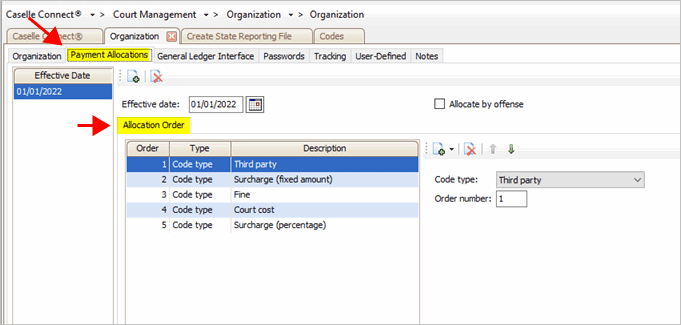
Payment Allocations tab in Organization
Setting payment allocation order for a code
Define the order to allocate payments to a code.
Do this...
1. Open Connect Court Management > Organization > Organization > Payment Allocations tab.
Remember! A code refers to a single code, in contrast, a code type is a group of codes that share similar characteristics.
2. Start by entering an Effective Date. An effective date is the date when the payment allocation comes into force.
3. Click Add Code Allocation.
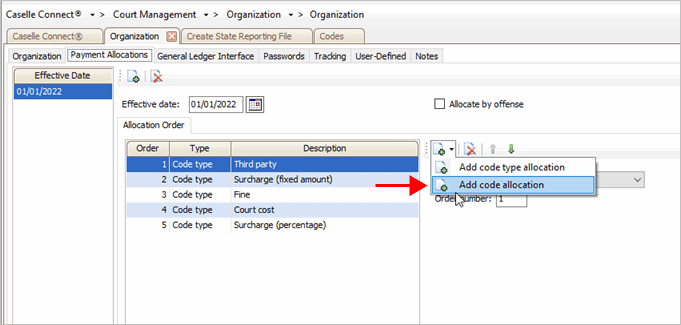
Add Code Allocation button
4. When the Add Payment Allocation Order Code dialog displays, use the Code drop-down list to select a code. Click OK.
5. Use the Order Number field to assign the allocation order. The system will use the assigned number to determine the payment allocation order, where the code assigned to the number 1 is paid first.
6. Repeat these steps to assign the payment allocation for the next code.
2019.05, 2019Mar11
Setting payment allocation for a code type
Define the order to allocate payments to a code type.
Do this...
1. Open Connect Court Management > Organization > Organization > Payment Allocations tab.
Remember! A code is a single code where a code type is a group of codes that share similar characteristics.
2. Start by entering an Effective Date. An effective date is the date when the payment allocation comes into force.
3. Click Add Code Type Allocation.
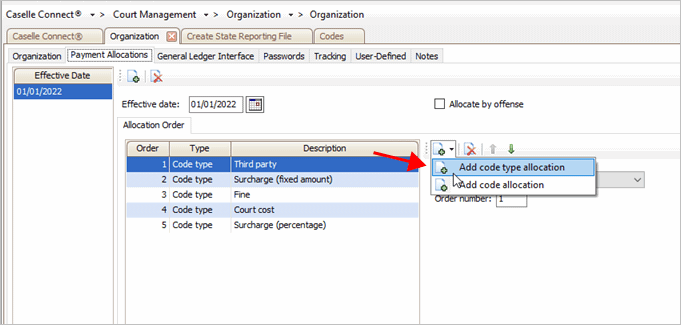
Add Code Type Allocation button
4. When the Add Payment Allocation Order Code dialog displays, use the Code Type drop-down list to select a code type. Click OK.
5. Use the Order Number field to assign the allocation order. The system will use the assigned number to determine the payment allocation order, where the code type assigned to the number 1 is paid first.
6. Repeat these steps to assign the payment allocation for the next code type.
2019.05, 2019Mar11
Removing a code/code type from the payment allocation order
Follow these instructions to remove a code or code type from a payment allocation.
Do this...
1. Open Connect Court Management > Organization > Organization > Payment Allocations tab.
2. Click to select an item from the list on the Allocation Order subtab.
3. Click Remove the Selected Payment Allocation Order Code.
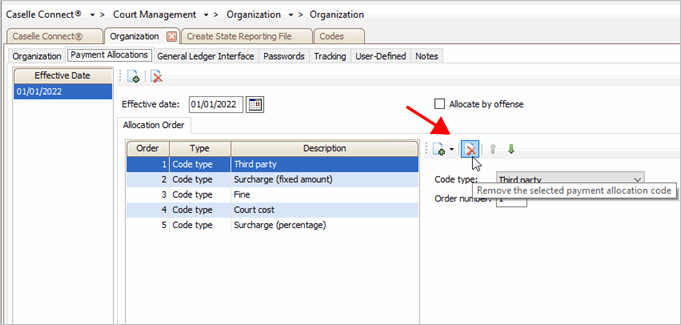
Remove the Selected Payment Allocation Order Code
How do I override the allocation order?
When you need to override the allocation order, you can assign a specific code to a specific allocation order. Click Add Code Allocation to add a new code and allocation order.
2019.05, 2019Mar11
Case number format
A number format is a series of symbols that represents a pattern for formatting case numbers. Connect will apply the case number format that you set up to the case numbers that users enter. Using a custom number format to differentiate between different types of cases can make it easier for users to quickly identify different case types (for example, TYY-#####, YY-####, and so on.)
Example
When Jane enters a case number, she types 191234 and press Enter. Connect applies the case number format yy-#### to the numbers that Jane has entered. When Jane looks at the Case Number field, she sees the number that she typed has been formatted as 19-1234.
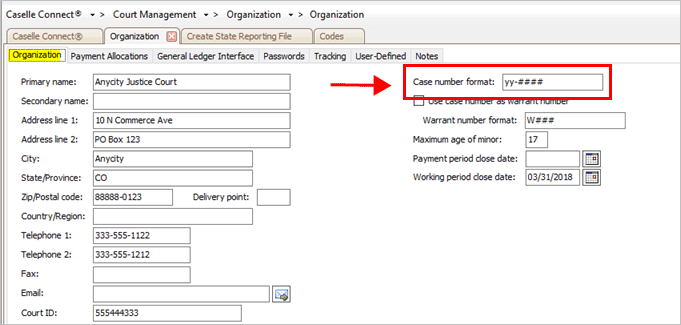
Case Number Format field on the Organization tab
Use these symbols to create a mask:
-
Use YY to represent a two-digit year.
-
Use YYYY to represent a four-digit year.
-
Use MM to represent a two-digit month.
-
Use # to represent a number that will auto-increment.
-
Use a period (.), dash (-), or forward slash (/) to separate segments.
Note: The application uses literal values for all other characters.
Table 1: Examples of different ways to format a case number
|
Number Format |
Previous Case Information |
New Case Number |
|
yy-###### |
Date: 2013 |
13-01002 |
|
YYYY.MM.#### |
Date: 5/20/2013 |
2013.05.3421 |
|
SCyy-##### |
Date: 2013 |
SC13-00451 |
2019.05, 2019Mar11
Code type
Use the Code Type list to select the code type that will receive the allocated payment. The code type refers to a group of codes assigned to a specific purpose; such as a fine or court cost. While a code refers to the codes defined in Organization > Codes.
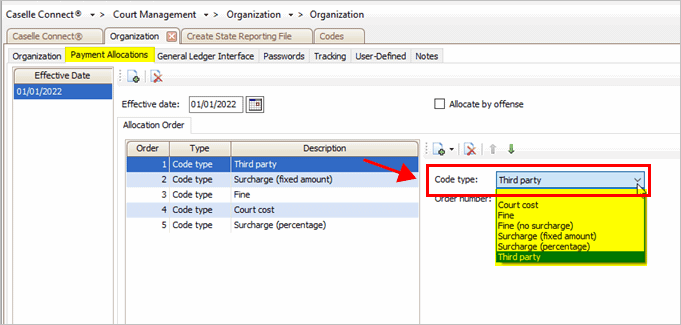
Code Type field on the Payment Allocations tab
What is the code type?
-
Court costs: Fees for expenses that the courts pass on to defendants. Court costs may include filing fees, charges for serving summons and subpoena, court reporter charges for depositions, court transcripts, and copy papers and exhibits.
-
Fine: A fine is an amount imposed as punishment for an offense. This amount can include a surcharge for a governing organization or state.
-
Fine (No Surcharge): Refers to a fine not associated with an extra amount.
-
Surcharge (Fixed Amount): The surcharge bills a set value for a governing organization or state; the amount is billed in addition to the offense amount.
-
Surcharge (Percentage): The surcharge bills an amount based on the fine amount.
-
Third party: The third party is an amount paid to a third party. For example, the victim restitution amount.
2019.05, 2019Mar11
Court ID
The Court ID is assigned by the governing body. The Court ID identifies your organization and provides a reference number for the payments that you need to send to the government. Example: UT50055, CO22-5555J
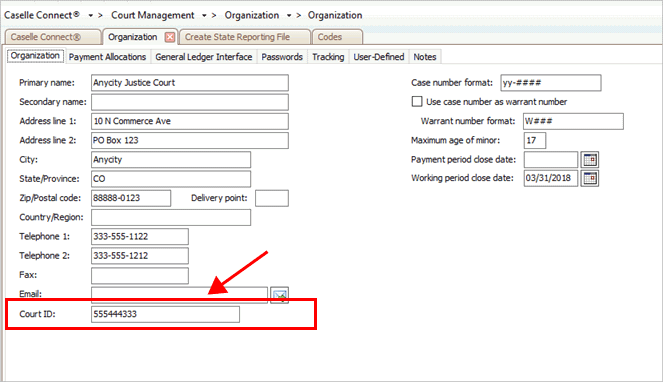
Court ID
2019.05, 2019Mar11
Effective date
An effective date is the date when the payment allocation is applied. Use the current date to make the payment allocation status active immediately. Use a future date to adjust the payment allocation order later. Or, use a past date to create a payment allocation with a retroactive effective date.

Effective Date
2019.05, 2019Mar11
Maximum age of minor
The Maximum Age of Minor is the greatest age a defendant will be subject to rules regarding minors. Most states set the age of a minor between the age of 17 and 20. The application will use the value stored in the Maximum Age of Minor field to determine when to provide a warning regarding the age of the defendant in routines, letters, and forms as well as when to include the case when printing.
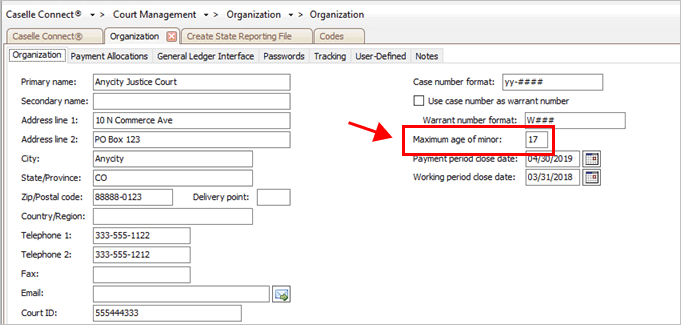
Maximum Age of Minor
2019.05, 2019Mar11
Order number
The order number is a number that is assigned to a payment allocation that determines when to pay the payment allocation in relation to the other payment allocations that appear in the Allocation Order list. For example, if the payment allocation is assigned to the number1, the payment allocation will be the first allocation to be paid.
Important! If more than one code or code type is assigned to the same order number, the system will allocate payments on the percentage that each payment makes up the total payment amount.
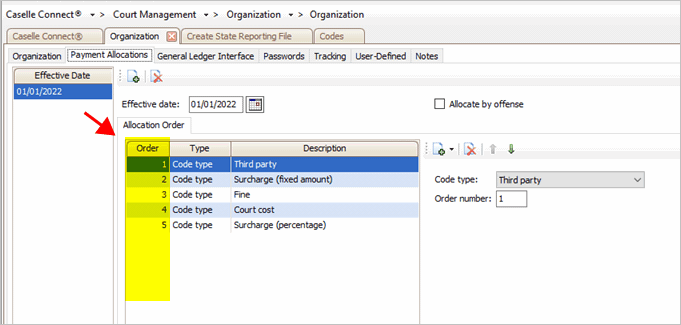
Order Number column on the Payment Allocations tab
What is the order number?
On the Payment Allocations tab, use the Order Number field to assign a priority number (0-99) to the payment allocation.
2019.05, 2019Mar11
Organization contact information
The organization's name and contact information is stored in Organization. The application will print this name and address on reports, forms, lists, notices, bills, and so on.
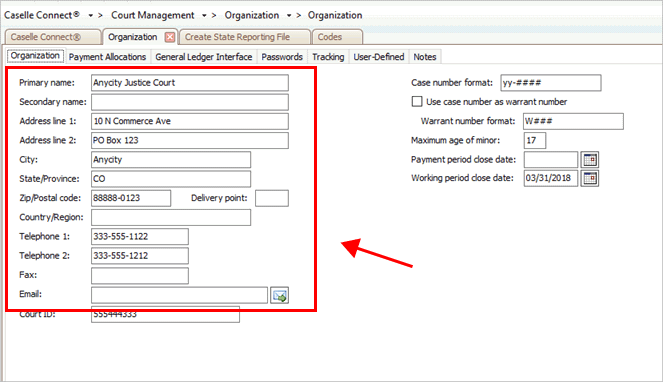
My organization's contact information
Enter the organization’s information in the following fields:
-
Primary and secondary name
-
Address
-
Telephone, Fax, and Email
2019.05, 2019Mar11
Payment allocations
A payment allocation is an amount that has been set apart, or earmarked, to distribute to a code or code type. The payment allocation order tells the system which amount to pay first.
For example, some states require defendants pay restitution and mandatory agency fees before paying surcharges or other amounts. Setting up the payment allocation order ensures these amounts will be paid first.
Important! If the allocation order is not set up, the system will allocate payment based on percentage.
Use the options on the Payment Allocations tab to define how a partial payment is distributed when there are multiple fees on a case.
What do you want to do?
-
I want to add a payment allocation. On the Payment Allocations tab, click Add a New Payment Allocation. Then, use the options on the Allocation Order subtab to define the payment allocation properties.
-
I want to remove a payment allocation. On the Payment Allocations tab, click to select a MM/DD/YYYY from the Effective Date list. Next, click Remove the Selected Payment Allocation.
Note: Changing this option will not adjust payments that have already been applied using the Payment Allocation routine.
2019.05, 2019Mar11
Passwords
Minimum length
Enter the number of characters required in the password. Passwords may be longer but not shorter. For example, you can require users to create passwords that are at least six characters long.
Require at least a single letter
Select this checkbox to require a user to create a password with at least one character (A-Z). For example: 12345A
Require at least a single number
Select this checkbox to require a user to create a password with at least one number (0-9). For example: ABCDE4
Payment period close date
A payment period close date is the date that prevents users from entering payment codes with transaction dates that occur prior to the date stored in the Payment Period Close Date field. However, the system allows users to create transactions using the other transaction types.
Important! Do not change the date that displays in the Payment Period Close Date field. Do not change the Payment Period Close Date. It may impact your ability to update the General Ledger and it protects you in case of an audit.
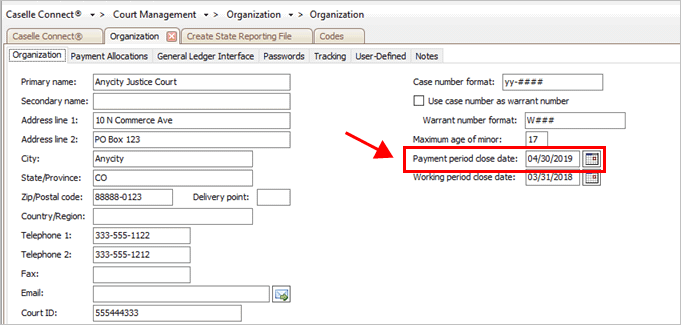
Payment Period Close Date field
2019.05, 2019Mar11
Tracking
A tracked field is a field the system is monitoring. When a field is tracked the system will create a log file that records when, what, and who made changes to the field content. Some fields contain sensitive information that may change the way a routine calculates or a report runs. For example, you may want to track changes to the case number, social security number, or birth date.
How do I set up management tracking?
How do I print the Management Tracking Report?
Updated 20Jun2018
Turn on/off the General Ledger Interface
Configure the Court Management application to retrieve account information from an interfaced application or update information to an interfaced application.
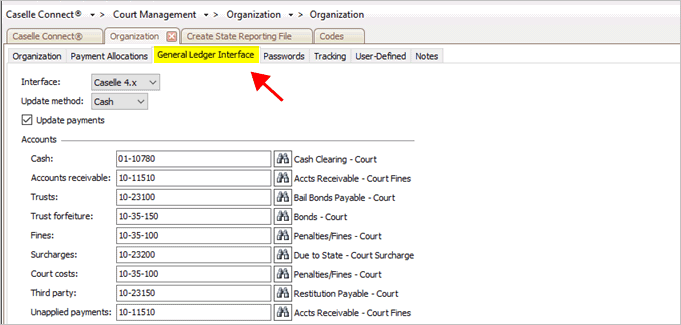
General Ledger Interface tab
Do this...
1. Open Connect Court Management > Organization > Organization.
2. Click to select the General Ledger Interface tab.
3. Select the Interface.
This option lets you select how Connect will work with the General Ledger application.
How do you want to interface to the application?
-
I want to use Connect General Ledger. Select Caselle 4.x. Use this option to update values to the interfaced application and look up account numbers.
-
I want to use a non-Caselle application General Ledger. Select Other. This option is only available when Connect System Management > Other GL Accounts is set up.
-
I do not want to use a general ledger interface. Select None.
4. Select the Update Method.
This is the accounting basis that Connect will use to update transactions to the General Ledger.
What is the update method?
-
Record revenue when cash is received. Use Update Method to select Cash Basis.
-
Record revenue when fees are assessed. Use Update Method to select Accrual Basis.
5. Set up the Update Payments checkbox.
Do you want to update payments to the General Ledger?
-
Yes, I want to update payments to the General Ledger. Select the Update Payments checkbox.
-
No, I do not want to update payments to the General Ledger. Leave blank the Update Payments checkbox. For example, City XYZ uses Cash Receipting to record payments; however, City XYZ does not use a Court Cash Clearing account. Then, City XYZ would not select the Update Payments checkbox.
6. Enter the Accounts.
Use this section to record the default GL accounts for cash, accounts receivable, trusts, trust forfeiture, fines, surcharges, court costs, third party, and unapplied payments.
7. Click Save (CTRL+S).
The General Ledger Interface is set up and saved.
2019.05, 2019Mar11
Use case number as warrant number
Copy the case number in the field that records the warrant number. When this checkbox is selected, the Warrant Number Format field is not available.
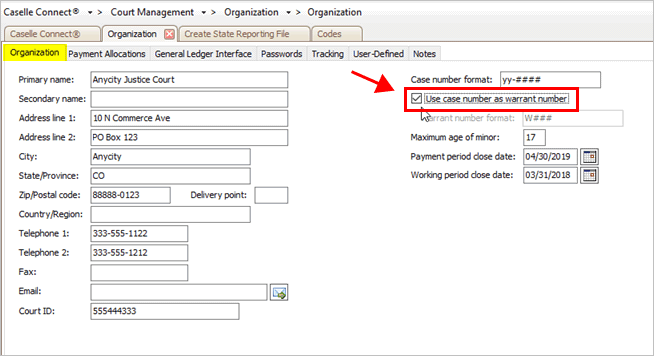
Use Case Number as Warrant Number field on the Organization tab
2019.05, 2019Mar11
User-defined fields
Do you want to add a field that collects information that is not collected elsewhere in the application? A user-defined field is the way to go. You can view user-defined information in the file it was saved in, in Inquiry, or on reports that allow you to print user-defined fields.
All user-defined fields are set up in Organization. In Organization, you can determine where you want the user-defined field to appear in the application, what type of user-defined field to create, and how the user will be allowed to enter the information the user-defined field is requesting.
How do I add a user-defined fields?
How do I change the display order of user-defined fields?
How do I change the name of a user-defined field?
How do I change the user-defined field properties?
How do I delete a user-defined field?
How do I test a user-defined field?
Updated 20Jun2018
Warrant number format
A number format is a series of symbols that represents a pattern for formatting warrant numbers. You can use a unique number format to mask the warrant numbers for each warrant type. For example, using a number format to differentiate between different types of warrants can make it easier for users to quickly identify differences between warrants.
Example: TYY-#####
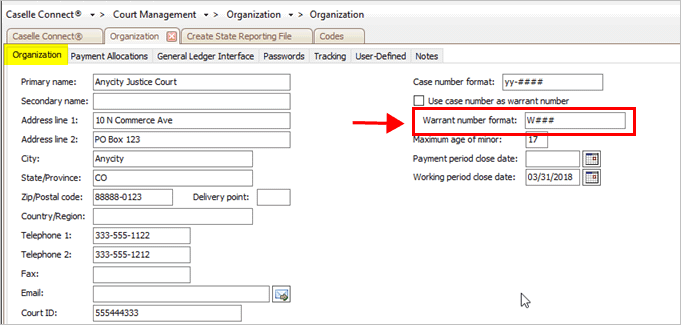
Warrant Number Format field on the Organization tab
Use these symbols to create a mask:
-
Use YY to represent a two-digit year.
-
Use YYYY to represent a four-digit year.
-
Use MM to represent a two-digit month.
-
Use # to represent a number that will auto-increment.
-
Use a period (.), dash (-), or forward slash (/) to separate segments. Note: The application uses literal values for all other characters.
Table 2: Examples of using a case number as the warrant number
|
Number Format |
Previous Case Information |
New Case Number |
|
yy-###### |
Date: 2013 |
13-01002 |
|
YYYY.MM.#### |
Date: 5/20/2013 |
2013.05.3421 |
|
SCyy-##### |
Date: 2013 |
SC13-00451 |
2019.05, 2019Mar11
Working period close date
The working period close date prevents users from adding, changing, or deleting codes with transaction dates that occur before the date in the Working Period Close Date field.
Important! Do not change the Working Period Close Date. It may impact your ability to update the General Ledger and it protects you in case of an audit.
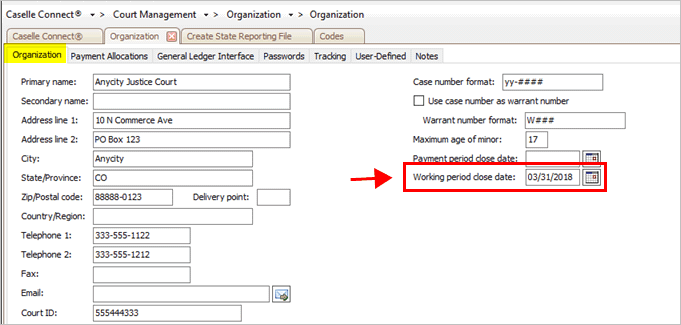
Working Period Close Date on the Organization tab.
Copyright © 2025 Caselle, Incorporated. All rights reserved.