How do I add a new permit?
Permits Checklist
Add a new permit to authorize work by a city's planning department to improve or change a building structure.
Examples of work that may require a structural change include:
-
Demolition
-
Renovation
-
Installation
-
Construction
-
Augmentation
Watch a video
Learn how to set up a permit. [MP4]
Before you get started
-
First, add the owners to Setup New Contacts. The owner record also needs to be created first so you can link it to the property record. [More]
-
Second, add the property to Setup New Properties and link it to the owner. [More]
Converting a permit estimate to a permit
If the permit is linked to an estimate, you can enter the permit estimate number to use the information on the permit estimate to fill in the fields in the Setup New Permits view. [More]
Note: The Estimate field is only available when an estimate has been created for the property. To estimate a permit, see the help topic titled How do I estimate a permit?
Setting up a new permit
1. Open Connect Community Development > Permits > Setup New Permits.
2. Enter the Property.
This is the property that is requesting the permit. This field is required.
3. Enter the Permit Type.
Select the permit type for the permit.
When you select the permit type, the routine will fill in the some of the fields on the form. To add a permit type to the list, see the help topic titled How do I add a permit type?
4. Select the Applicant Type.
The applicant type defines the person who is applying for a new permit. You can select: Agent, Architect, Contact, Contractor, or Primary Owner.
6. Fill in the remaining permit information.
The permit type that you select will determine which fields need to be filled in.
7. Click Save (CTRL+S).
The new permit is saved. To update the permit properties or add new information to the permit, use Modify Existing Permits.
202205, 2022Apr20
Adding a description of work
Use the text field to enter a description of the work that will be completed at the work site.
06Jun2018
Adding contractors
A new permit must be assigned to at least one contractor. To add a contractor to the app, see the help topic titled How do I add a contractor?
Click the Contractors tab and fill in the fields on the Contractor subtab.

Contractor subtab
Click Save to add the contractor to the permit.
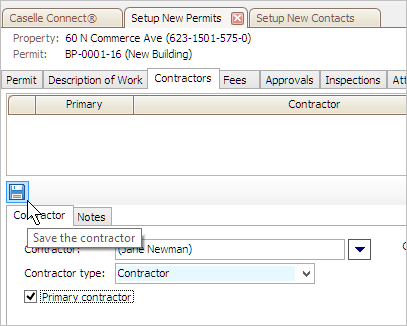
Save the Contractor button
06Jun2018
Setting up fees
Connect uses the permit type to determine which fees to add to the permit. You can use the Fees tab to add a quantity to the fees that use a quantity to calculate an amount. To add a fee or fee level, see the help topic titled How do I add a fee? and How do I set up fee levels?
Click on the Fees tab and then enter the total valuation and square feet.
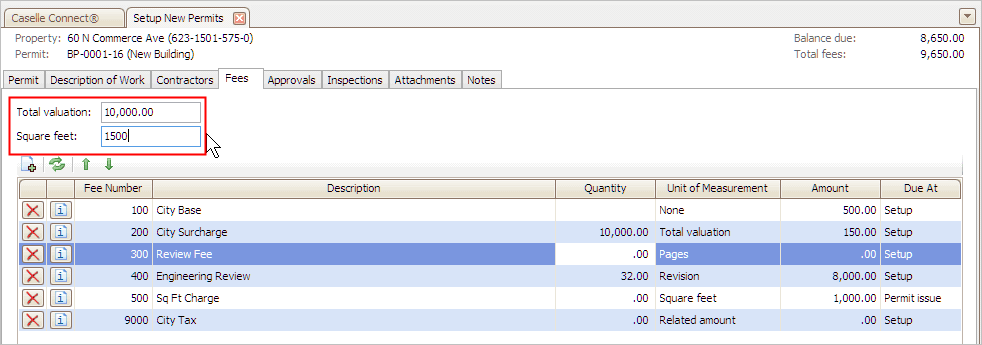
Total Valuation and Square Feet
You can tell which fees calculate using total valuation and square feet by checking the column titled Unit of Measurement.

Unit of Measurement
Next, add the quantity to the fees that calculate based on a quantity. Click on a value in the column titled Quantity and then enter the quantity to use in the calculation.

Quantity column
Some values in the Quantity column cannot be updated because the fee calculation uses a pre-defined value.
06Jun2018
Adding/removing approvals from a permit
Review the approval process that is assigned to the permit. Connect assigns the approval process based on the permit type. You can add an approval step, remove an approval step, and update previous approvals.

Approval menu options
06Jun2018
Adding/removing inspections from a permit
Connect uses the permit type to determine which inspections to assign to a permit. You can add or remove inspections from a permit; assign an inspector to an inspection; and add blueprints, documents, and attachments.
Connect uses the path and file name to locate an attachment. If the path or file name changes, the link to the attachment is broken. To learn more about using attachments, see How do I change my attachments location?
202205, 2022Apr20
Troubleshooting
Warning: Request total valuation, square feet, or quantity
If you receive a warning requesting total valuation, square feet, or quantity, you'll want to check the Fees tab. The Total Valuation and Square Feet fields are at the top of the form and the Quantity is located in the grid. Make sure the information is entered in the right place on the Fees tab.
Warning icon: Property field has unresolved violation
You need to use a property that does not have an unresolved violation. Try to fix the unresolved violation and then you should be able to set up a new permit.
Updated 30Jul2018
Copyright © 2020 Caselle, Incorporated. All rights reserved.