How do I add a fee?
Set up the fees assessed on permits, projects, code violations, and inspections.
Add a fee and save it, then add the fee to permits or project types.
Adding a fee
1. Open Connect Community Development > Organization > Fees.
2. Click New (CTRL+N).
3. Fill in the options on the form.
Use the sections in this help topic to fill in each field. The fields are listed in alphabetical order.
4. Use the options on the Related Fees tab to add fees that are related to the assessed fee.
5. Use the options on the GL Accounts tab to enter the default GL accounts for Cash, Accounts Receivable, and Revenue.
6. Click Save (CTRL+S).
The new fee is saved.
Base amount
A base amount is an amount charged in addition to the fee amount.
Total Calculated Amount = Base Amount + Fee Amount
Do you want to charge a base amount?
-
Yes, charge a base amount. Use the Base Amount field to enter an amount.
-
No, do not charge a base amount. Enter zero (0) as the Base Amount.
Bill minimum amount
Use bill minimum amount to bill at least x dollars even when the billed amount is less than the billed minimum amount. For example, Jane bills a minimum amount of $10. When she uses this fee to calculate an amount, the billed amount is $7.00. Since the fee is set up to bill minimum amount and the calculated billed amount is less than the bill minimum amount, the account is billed $10.00.
Do you want to bill minimum amount?
-
Yes, bill minimum amount. Click to select Bill Minimum Amount. Then, enter the minimum amount to bill in the Bill Minimum Amount field.
-
No, bill calculated amount. Clear the Bill Minimum Amount checkbox.
Bill maximum amount
Use bill maximum amount to bill x dollars when the account balance is greater than the billed maximum amount. For example, Jane adds a rate that bills a maximum of $100. She uses this rate to calculate an amount. The billed amount is $125.00. Because the rate is set up to bill a maximum amount and the calculated amount is greater than the billed maximum amount, the account is billed $100.00.
Do you want to bill maximum amount?
-
Yes, bill maximum amount. Click to select Bill Maximum Amount. Then, enter the maximum amount to bill in the Bill Maximum Amount field.
-
No, bill calculated amount. Clear the Bill Maximum Amount checkbox.
Level based on
When you use a rate, the rate uses levels or tiers to calculate amounts. You can set up the variable the level will use to calculate amounts. The variable is defined in the Levels Based On field.
Important! Changing the Levels Based On will also delete the fee levels.
Acreage
The acreage is the area of land measured in acres.
Quantity
The quantity is a total amount or number. The system will prompt you to enter the quantity when the fee is charged. The levels are based on the established unit of measurement.
Related fee amounts
Some fees calculate based on the total valuation, square feet, and/or quantity. These fees are known as related fee amounts. The related fee amounts will calculate after you enter the required variables.
Square feet
A square foot measures area, where a linear foot is a straight-line measurement for measuring length. For example, a 5 by 5 foot square is 25 square feet.
Total valuation
Total valuation is the value assigned to real property based on an appraisal to assess the property's real market value. In Community Development, the total valuation includes properties or buildings, whole or partial, in the project or permit.
Which variable do you want to use to calculate the rate?
-
Use the Levels Based On field to select a variable.
Round to the nearest dollar
Rounding means replacing a numerical value with another value that is approximately equal to the original number. For example, rounding up will replace $24.66 with $25.00.
What do you want to do?
-
I want to round the calculated amount to the nearest whole dollar. Click to select the checkbox titled Round to the Nearest Dollar.
-
I want to leave the calculated amount as is. Do not select the checkbox titled Round to the Nearest Dollar.
Allow new fees
Allow new fees means the fee that belongs to a permit or project type is active and it will not prevent the owner or contractor from being assigned a new fee in addition to an existing fee. Use this option to determine when a fee is active and can be used to create new permits. For example, City XYZ selects the Allow New Permits checkbox on the fee associated with performing a permit request.
When you assign a fee to a history record for permits or estimates, you cannot delete the fee without first deleting the history.
How do I make this option available?
1. Open Connect Community Development > Organization > Permit Types.
2. Look up the permit type that uses the fee.
3. Click the Fees tab.
4. Delete the fee from the Fees list.
5. Repeat steps 2 through 4 to remove the fee from all of the related permit types.
6. Now, look up the fee in Organization > Fees.
The Allow New Fees checkbox is available for selection.
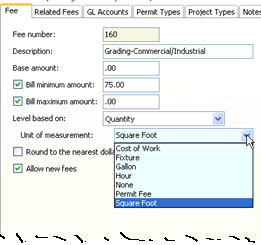
Unit of Measurement
A unit of measure is a physical quantity that is typically used to describe mass, length, or volume. The light blue background means the field is a self-validating field, in other words, you can use the items listed in the drop-down list, or you can add a new item to the drop-down list.
Copyright © 2020 Caselle, Incorporated. All rights reserved.