How do I update license expiration dates?
Calculate Billings
The license expiration date is stored on the license. You can update the license expiration manually or you can update it when you calculate license billings.
Manually updating license expiration date
You can review the license expiration date and manually update it, if you so choose, in Modify Existing Businesses.
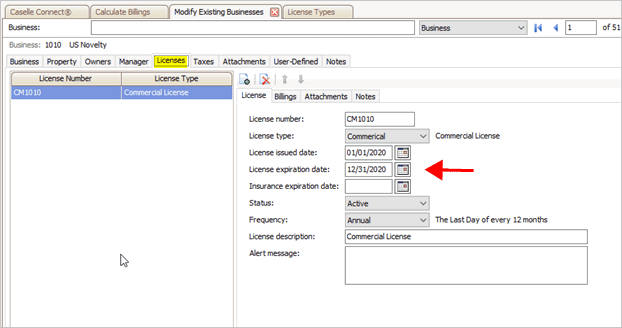
License expiration box in Modify Existing Businesses
Do this...
1. Open Connect Business License > Businesses > Modify Existing Businesses.
2. Use the Business box to look up a business name or number, and then press Enter.
3. Click to select the Licenses tab.
4. Select a license.
5. Use the License Expiration Date box to enter the new expiration date.
6. Click Save (CTRL+S).
The license expiration date is saved.
Updating license expiration date when I calculate billings
Or you can select the Update License Expiration Dates checkbox in Calculating Billings to use the default frequency code on the license type to calculate the new license expiration date.

Update license expiration dates
Do this...
1. Open Connect Business License > Businesses > Calculate Billings.
2. Click to select the Update License Expiration Dates checkbox.
3. Set up the remaining options and run the routine.
To learn how to set up billing options and review billings, see How do I calculate billings?
202002, 2020Mar02
Copyright © 2025 Caselle, Incorporated. All rights reserved.