Step 7. Calculate Penalty Billings
Business License Year End
Bill penalty on a license. Follow these steps to review delinquent accounts, calculate penalty billings on delinquent accounts, and print delinquent account notices to send to the account owners.
Watch a video - Penalty Billings
Before you get started
-
Back up the database. See the help topic titled How do I back up a database?
-
Add the Business License Year End Checklist to the Checklist fly-out menu. Step 1. Print a delinquent account list
A. Print Delinquent Account List
Printing the Delinquent Account List will show you which accounts have an delinquent amount. You will use the list of delinquent accounts to verify the accounts that will be billed a penalty.
Do this...
1. Open Connect Business License > Reports > Delinquent List/Notices.
2. Use Title box to select Delinquent List/Notices - First Notice.

Title box
3. Enter the mailing date and due date.

Mailing date and due date
4. Click to select the checkbox titled Print Delinquent List.
Do not select the Print Delinquent Notices checkboxes.

Print delinquent list
5. Set up the options for selecting delinquent accounts (Delinquent Options tab).
This is where you set up the options for choosing when an account is delinquent. Use the same settings that you used to select delinquent accounts in Step 8.
6. Click Print  (CTRL+P).
The list uses the due date to select delinquent accounts.
7. Review the Delinquent Account List.
Search the Delinquent Account List for names that should not be included on the list and incorrect delinquent amount.
8. If there are errors on the Delinquent Account List, enter the corrections and then print the Delinquent Account List again to confirm the changes are recorded correctly.
B. Look payments made in the current payment
When you’ve finished reviewing the Delinquent Account List, you need to check if there's a payment in the current period on each delinquent account. If there's a payment the account is not delinquent.
Do this...
1. Open Connect Business License > Inquiry.
You can use the Delinquent Account List as a list of the businesses that you will need to review in Inquiry.
2. Use the field titled Business to enter the business name or number. Press Enter.
3. Click to select the License Transactions tab.

License Transaction tab
4. Search the payment history for a payment that was made in the current period.
5. If the business has made a payment in the current period and the business is listed on the Delinquent Account List, you’ll want to remove the business from the list of delinquent accounts.
If the business has NOT made a payment in the current period, you’re fine. The business account is delinquent.
How do I remove a business from the delinquent account list? To remove a business from the delinquent account list, enter a payment or change selection criteria on the Delinquent Account List to exclude the account.
6. Repeat these steps to review the payment history for each business listed on the Delinquent Account List.
You have verified the payment history for each delinquent account does not include a current payment.
C. Calculate penalty billings
Now you’re ready to calculate penalty billings for delinquent accounts.
Do this...
1. Open Connect Business License > Businesses > Calculate Penalty Billings.
2. Use the Billing Date box to enter the penalty billing date.
You can use the billing date when you intend to bill penalty or you can use the current date.

Billing date
3. Skip the Include Payments Through box.
4. Use the Business.Account number value to enter All.
Using ALL will search for delinquent accounts to bill penalty. Another option is to enter the delinquent account numbers.
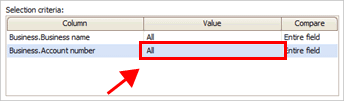
Selection criteria
5. Review the Penalty Rates to review the penalty rates to bill.
If a penalty is missing from the list, make sure it is set up as a penalty in the Rates table (see How do I add a penalty rate?) To remove a penalty, remove the checkmark from the checkbox next to the penalty rate description.

Penalty rates
6. Find the field titled License Types to review the license types to bill.
If a license type is missing from the list, make sure the license type has been added to the License Types table (see How do I add/remove license types?). To remove a license type, remove the checkmark from the checkbox next to the license type description.

License types
7. Click GO  (CTRL+G).
Business License creates penalty billings for the selected businesses. The review screen displays the accounts that match the license end date.
8. Review the accounts on the billing screen for errors.
To bill penalty, click to select the checkbox next to an account. To not bill penalty, remove the checkmark from the checkbox. To exclude an account from penalty billing, click  .
.

Billings screen
9. Click GO (CTRL+G).
Business License creates penalty billing transactions for the accounts that you selected on the review screen.
202011, 2020Dec22
D. Print a billing register
Print a Billing Register to review the accounts that have been billed penalty. Check the Billing Register to make sure the accounts that have been billed penalty should be billed.
Do this...
1. Open Connect Business License > Reports > Billing Register.
2. Use the section titled Report Dates to select 01/01/YYYY as the From date and 12/31/YYYY as the To date.
You should use the same report date range as you used to calculate billings in Step 2: Calculate Billings.
3. Find the section titled Types and select the Billings checkbox.
4. Click Print (CTRL+P).
The Billing Register prints billing transactions created for the selected date range.
5. Review the billing transactions.
You’ll want to make sure the billing transactions are correct and the right billing transaction has been created for each account. If you find a billing transaction that was created in error, you need to remove the billing transaction from the account before you continue. You’ll write down the account numbers so you can remove the accounts from Selection Criteria before you print delinquent notices.
202311, 2023Nov27
Copyright © 2025 Caselle, Incorporated. All rights reserved.