How do I import invoices from a user-defined delimited file?
Import invoices
Use Import Invoices to import invoices that were created by a third-party application into the Accounts Payable application for processing. This file format uses a character or symbol, also known as a delimiter, to mark the end of a field. Example: comma (,), semicolon (;), colon (:), etc.
If you're using an import file that was created by a Caselle app, use the instructions for importing invoices from a Caselle delimited file.
What's a delimited file? A delimited file uses a character or symbol (comma (,), semicolon (;), colon (:)) to mark the beginning and end of the contents in a field. To learn more, click here.
Before you get started
-
Before proceeding, back up the current files. Always make a back up of the database BEFORE running routines that modify or delete transactions. To learn more, see How do I back up a database?
Importing invoices from a user-defined delimited file
1. Open Connect Accounts Payable > Invoices and Payments > Import Invoices.
2. Select User-Defined Delimited as the Import File Type.
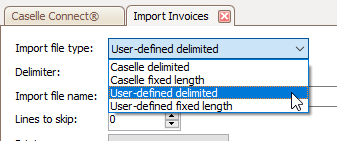
Import file type
3. Enter the Delimiter.
A delimiter is a character that marks the beginning or end of a field value. Commonly used delimiters include the comma (,), semicolon (;), colon (:), or TAB (TAB). To learn more, see What is a field delimiter?

Delimiter
3. Enter the Import File Name.
The import filename is the filename and file location. This image shows the import file name for a user-defined delimited file, but the Import File Name field works the same way for all import file types.

Import file name
What is the import filename?
-
The import file is located in the Connect directory. All of the Connect applications are located in the default d:\Connect directory, where you replace d:\ with the appropriate drive letter. If the import file was created and saved to the Connect default directory, then you only need to enter the import filename and extension. For example, ImportFileName.txt
-
The import file is located in a local or network directory. If you are importing a file that is stored on a disk or hard drive, type in the drive letter and path followed by the import filename and extension. Example: d:\my documents\ImportFileName.txt
The contents from the import file display in the preview pane.
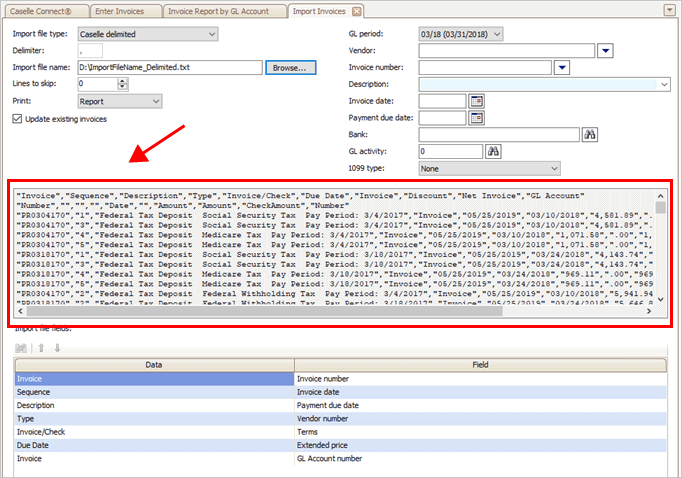
Preview pane
The fields that will be imported are listed in the section titled Import File Fields.
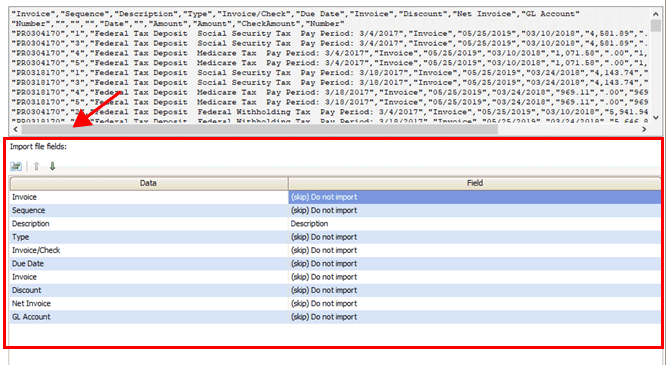
Import file fields
Use the drop-down list on the Field column to assign the field name in the Enter Invoice view to the data that will be imported from the import file.
The Data column shows the fields in the import file. The Field column shows the field name for the destination field in the Enter Invoices view. You want to assign the destination field name to each field that you want Connect to use to create the new invoice. If you do not want to import data, select (Skip) Do Not Import.
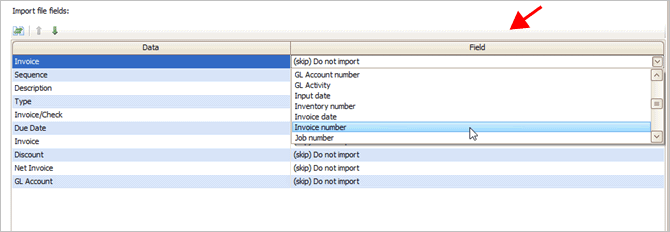
Drop-down list on the Field column
5. Enter the Lines to Skip.
Set up the import invoice options to omit column headings from the import file. A column heading that describes the data in a column but is not necessarily data that you want to use to create an invoice record is a line to skip. In this example, the yellow line is the column-heading row.

Column headings in an import file
To learn more, see How do I omit a row from the import file?
6. Select the output option.
Select the output type. When you click GO to import invoices, Connect can import invoices, print the import invoice report, or do both import invoices and print the import invoice report. Importing an invoice means Connect will create the invoice. Printing the import invoice report will show you the invoices that will be created using the options and default field values that you have selected; it will not create any invoices.

Print options
Important! Running Import Invoices more than once will create duplicate transactions if you have also selected the Update Existing Invoices checkbox. If the Update Existing Invoices checkbox is not selected, a message will state the invoice already exists.
What do you want to do?
-
I want to import invoices and print the import invoice report. Choose Report.
-
I want to print the import invoice report without importing invoices. Choose Report Only
-
I want to import invoices without printing the import invoice report. Choose No Report.
7. Do not select the checkbox titled Update Existing Invoices.

Update existing invoices checkbox
8. Select the GL Period where you want to create the invoices.
Connect will post the invoice transactions to the selected GL period. This option is only available when the GL Interface is Caselle 4.x.
To learn more, see How do I turn on the General Ledger interface?

GL period
Do you want to use the current period as the GL period?
-
Yes, I want to use the current GL period. Continue to the next step. The current GL period is the default GL period.
-
No, I want to use a different GL period. Use the GL Period drop-down list to select a different MM/DD/YYYY.
9. Enter the default information.
10. Click GO (CTRL+G).
Connect runs the routine and generates the print output option that you have selected.
2019.11, 2019Sep3
When Connect imports the invoice information, Connect will use the default values to fill in the fields on the new invoice when the corresponding field value on the imported invoice is blank.

Default vendor information
Example: City XYZ sets the default values on the Import Invoices view:
Vendor is City XYZ
Invoice Number is 999
Description is Invoice
Invoice Date is 9/2/2019
Payment Due Date is 10/2/2010
Bank is Bank
XYZ
GL Activity is 21
1099 Type is None
An invoice is imported with the following information:
Vendor is Bill's Construction
Invoice Number is 10293
Description
is BLANK
Invoice Date is 08/20/2019
Payment Due Date is BLANK
Bank is BLANK
GL Activity is BLANK
1099 Type is BLANK
Because the invoice has values that are blank, Connect will use the default values set in the Import Invoices view to fill in the blank values on the invoice. Like this...
Vendor is Bill's Construction
Invoice Number is 10293
Description
is Invoice
Invoice Date is 08/20/2019
Payment Due Date is 10/2/2010
Bank is Bank XYZ
GL Activity is 21
1099 Type is None
Vendor
Enter the default vendor. If the imported invoice does not include a vendor, Connect will use the default vendor.
Invoice number
Enter the starting invoice number. If the imported invoice does not include an invoice number, Connect will use the starting invoice number to assign the invoice number to the first imported invoice that doesn't have an invoice number. Connect will auto-increment the starting invoice number to assign the next invoice number to the next imported invoice that is missing an invoice number.
Description
Enter the default invoice detail description. If the imported invoice does not include an invoice detail description, Connect will use the default description.
Invoice date
Enter the default invoice date. If the imported invoice does not include an invoice date, Connect will use the default invoice date.
Payment due date
Enter the default payment due date. If the imported invoice does not include a payment due date, Connect will use the default payment due date.
Bank
Enter the default bank. If the imported invoice does not include a bank, Connect will use the default bank.
GL activity
Enter the default GL activity, if you're using GL activity reporting to track GL activity codes in Connect Accounts Payable. If the imported invoice does not include a GL activity code, Connect will use the default GL activity.
1099 type
Enter the default 1099 type. If the imported invoice does not include a 1099 type, Connect will use the default 1099 type.
Copyright © 2025 Caselle, Incorporated. All rights reserved.