How do I enter certification payments?
Record certification payments.
When a customer submits a payment to pay off a certified amount, the county will receive and record the payment amount. Remember, it's the county's responsibility to collect payments for certified amounts. Depending on the county's procedures, the county will send you a certificate payment report that lists the customer's who have made certification payments. You will use the certification payment report to record the payment and apply it to the customer's certified amount balance.
Contents
Watch a video
Learn how to enter certification payments (1m0s)
Updated 16May2018
Entering certification payments
1. Open Connect Utility Management > Tax Certification > Enter Certification Payments.
2. Enter the Date.
This is the transaction date.
3. Enter a Location.
You can enter a location or customer. Enter a location will display the customer's information.
4. Enter a Customer.
If you didn't enter a location, you can look up a certified amount by customer.
The customer information displays.
Note: The certification balance includes the certified amount and tax certification fees.
5. Select the Tax Year.
Choose the tax year with the certified amount that will be adjusted..Only the tax years with certified amounts will be displayed in the drop-down list.
If the customer has more than one certified amount, you'll need to select the tax year with the certified amount for the certification payment recorded on the certification payment report.
6. Enter a Check Number (optional).
7. Enter a Source ID (optional).
8. Enter a Description.
This is the transaction description. For example, Cert Payment, Certification Pmt
9. Enter an Amount.
The default value is the certification amount for the selected tax year.
What do you want to do?
I want to use the default amount. Press Enter again to accept the default amount.
I want to use a different amount. Click on the Amount field and then type in a different amount.
I want to allocate the certification payment. This option is helpful when the certification payment is less than the certified amount. Click Manual Allocation (SHIFT+F11) and then use the section titled Allocations to manually apply the certification payment to the service balance. See the section titled Entering a Partial Certification Payment.
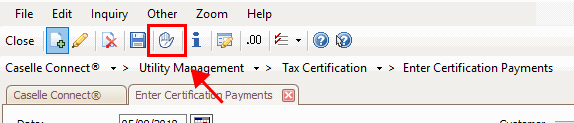
Manual Allocation button
10. Click Save (CTRL+S) or press Enter again.
The certification payment is saved.
Updated 09May2018
Entering a partial certification payment
If the certification payment report includes a certification payment for less than the certification amount, you record the partial payment and then manually apply the payment. Manually applying the payment lets you choose which certified service balance to pay off.
Do this...
1. Open Connect Utility Management > Tax Certification > Enter Certification Payments.
2. Enter the certification payment as usual.
3. At the Amount field, enter the partial payment amount.
4. Click Manual Allocation (SHIFT+F11).
Manual Allocation button
5. Use the section titled Allocations to manually apply the certification payment to the service balance.
The section titled Allocations will show the certified balance by service. Use the column titled Allocated to enter the amount to apply to the certified balance.
Important! The certification payment amount must equal the Allocated total.
6. Click Save (CTRL+S) or press Enter again.
The partial payment is allocated and saved.
Updated 09May2018
Viewing certification payments
Use the Certification tab in Customer Inquiry to view certification payments by customer. You may need to click Refresh (CTRL+F11). For certification payments, the transaction type is Payment and the description shows the description you're using to record certification payments, for example, "Certification Pmt" or "Cert Payment".
To see if the certification payment equals the certification amount, use the section titled Summarize to select the Certifications checkbox. Remember, none of the certification payment transactions will show up on the Transactions tab in Customer Inquiry because the amount has been recorded as a certification adjustment (PAdj).
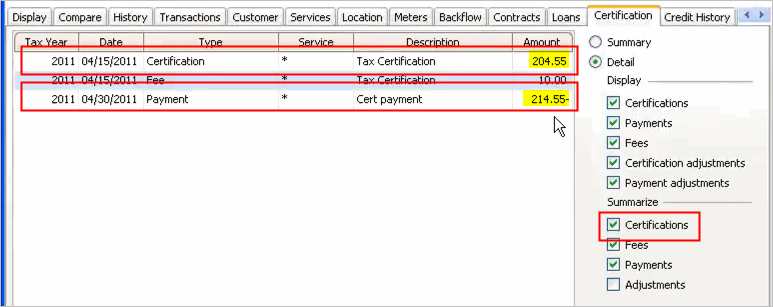
Certification tab in Customer Inquiry
Updated 09May2018
Deleting a certification payment
You cannot delete a certification payment, but you can create a payment reversal to back off the certification payment. How do I enter certification payment adjustments?
Updated 09May2018
Copyright © 2025 Caselle, Incorporated. All rights reserved.