How do I complete service orders?
Record the date the work was finished.
When the requested work is finished, use Complete Service Orders to record the date the work was finished.
Contents
Completing a service order
1. Open Connect Utility Management > Service Orders > Complete Service Orders.
2. Use the Service Order Number field to enter a number and then press Enter.
The service order properties display on the screen. The section titled Actions shows the action codes assigned to the service order.
3. Use the section titled Actions to select an action code.
This is the action code that you want to complete. You do not need to check the checkbox. When an action code is completed, a checkmark will display in the checkbox.
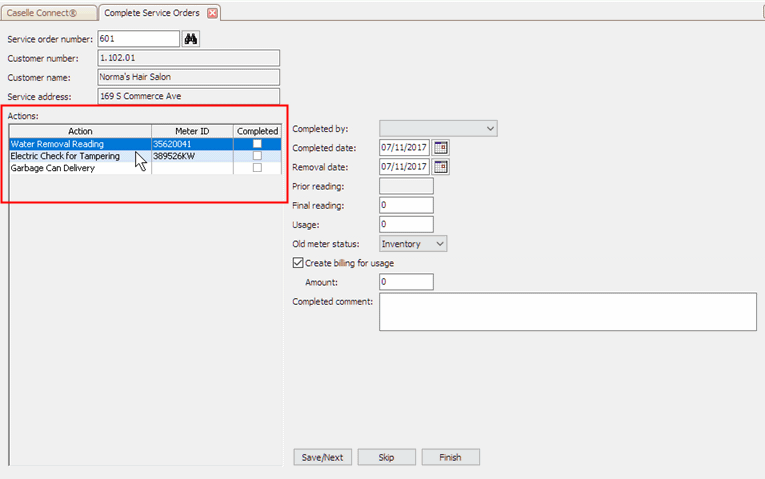
Actions
When you select it, the action code properties will display in the pane on the right.
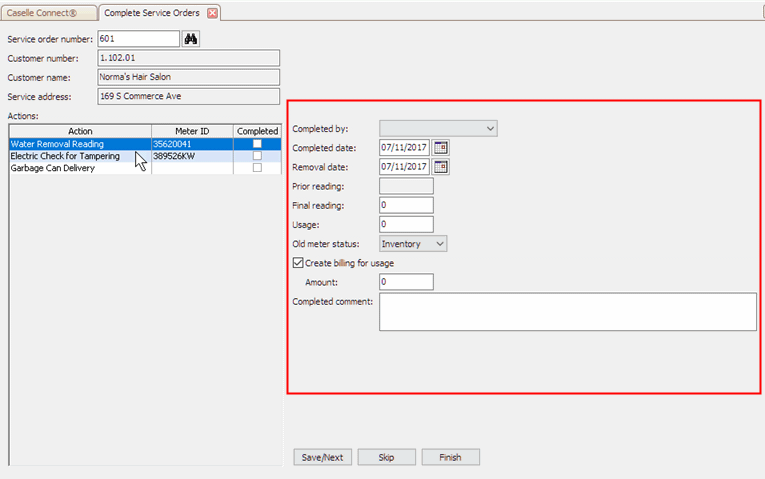
Action code properties
3. Use the options on the right portion of the screen to enter the information to complete the action code.
The fields that are displayed will change based on the action code properties and options. Follow the prompts on the screen to finish.
4. When you're finished, select an option.
Save your changes and display the next sequence. Click Save/Next.
Do not save any changes and display the next sequence. Click Skip.
Save your changes and clear the form. Click Finish.
Assigning the default meter status
The default meter status is the meter status that will be assigned to a meter removal. Place the meter in inventory if you plan on assigning the meter to a different location or assign the meter to retired to remove the meter from future service.
Do this...
1. Open Connect Utility Management > Service Orders > Complete Service Orders.
2. Click Options (F12).
3. Set up the field titled Old Meter Status Default.
You can change the default setting to assign the meter status for meter removal to inventory or retired.
4. Click OK.
Meters that are removed or replaced are assigned to the default meter status. Remember, you can replace the default meter status when you complete a service order.
Setting the default status to create billings on meter removal
When you complete a service order for meter removal, you can set the default status to create billings.
Do this...
1. Open Connect Utility Management > Service Orders > Complete Service Orders.
2. Click Options (F12).
3. Select the checkbox titled Create Billing on Meter Removals Default.
4. Click OK.
The default setting will always create a billing on a meter removal.
Setting the default period/cycle for billing transactions
Use this option to set the default setting to create billing transactions on the last date of the period/cycle or create billing transactions on the meter removal date.
Do this...
1. Open Connect Utility Management > Service Orders > Complete Service Orders.
2. Click Options (F12).
3. Set up the checkbox titled Use Period/Cycle Date for Billing Transactions.
To create a billing transaction on the last day of the period/cycle, select the checkbox. If you prefer to use the meter removal date as the billing date, do not select the checkbox.
4. Click OK.
If the service order is for meter removal, the default billing date is saved.
Adding fields to the Complete Service Orders form
Use Additional Information to view detail for a record or transaction. The detail view shows the field values, including, names, dates, amounts, and so on. You can also modify the fields that are shown on the Additional Information form as well as the order in which the fields are displayed.
I added additional fields, where did they go? The additional fields will not be displayed until you enter a service order number and press Enter.
Do this...
1. Open Connect Utility Management > Service Orders > Complete Service Orders.
2. Click Options (F12).
3. Click to select the Additional Information tab.
4. Select the fields to include on the Complete Service Orders form.
Click Select Additional Complete Fields.

Additional Information
The Selection form displays.
Move the fields that you want to include on the Complete Service Orders form to the Selected Additional Fields form, and then click OK.

Selection form
5. Place the fields in the order they will appear on the Complete Service Orders form.
If there's more than one field, use Move the Selected Field Up and Move the Selected Field Down to change the location of the field on the form.
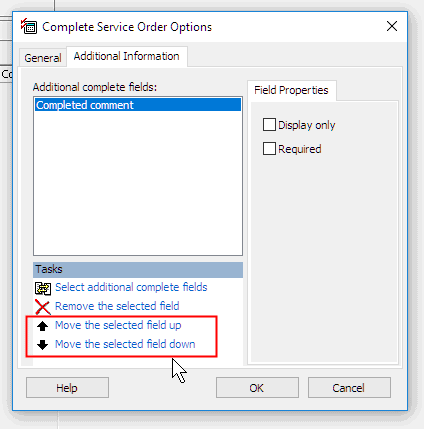
Complete Service Order Options, Move the Selected Field Up/Down button
6. Set up the section titled Field Properties.
Display Only: Show the field value as a view only field.
Required: Do not save the form unless this field is filled in.
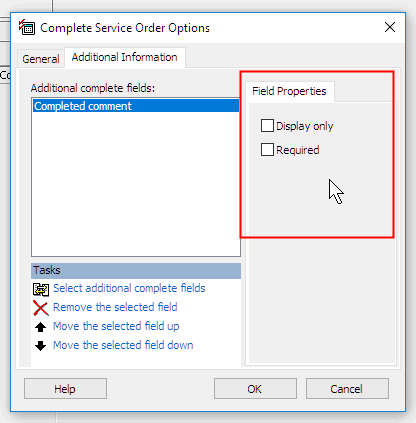
Field Properties
7. Click OK.
The additional fields are added to the Complete Service Orders form. The additional fields will not be displayed until you enter a service order number.
Updated 09Jul2018
Copyright © 2025 Caselle, Incorporated. All rights reserved.