Service Exception Report
Use the Service Exception Report to list customers who do not have a specific service.
Printing Service Exception Report
1. Open Connect Utility Management > Reports > Service Exception Report.
2. Select a Definition.
3. Set up Include Customers Without.
Search for customers who do NOT have the selected service. Use the drop-down list to select a service. You can check one service at a time.

Include Customers Without
4. Set up the checkbox titled Include Temporarily Disconnected Services.
A temporarily disconnected service is a service that has been disconnected and the customer account is still active.
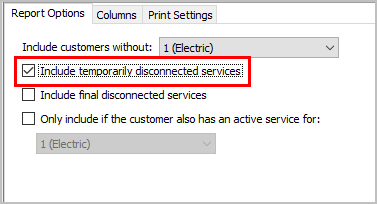
Include Temporarily Disconnected Services
Do you want to include services that have been temporarily disconnected?
Yes, I want to include services that have been temporarily disconnected. Select the Include Temporarily Disconnected Services checkbox.
No, I do not want to include services that have been temporarily disconnected. Leave blank the Include Temporarily Disconnected Services checkbox.
5. Set up the checkbox titled Include Final Disconnected Services.
A final disconnected service occurs when the customer's account is terminated.
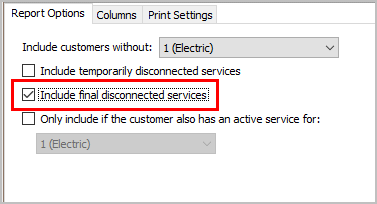
Include Final Disconnected Services
What do you want to do?
I want to include final disconnected services on the report. Click to select Include Final Disconnected Services.
I do not want to include final disconnected services on the report. Click to deselect Include Final Disconnected Services.
6. Set up the checkbox titled Only Include If the Customer Also Has an Active Service For.
Use Only Include Customers with This Service to select customers based on the services that are saved on the customer's account.

Only Include If the Customer Also Has an Active Service For
Do you want to limit the report to select only customers who also have another service?
Yes, I want to select customers based on the customer's services. Select the Only Include Customers with This Service checkbox. Then, select a service from the list.
No, I want to select all customers. Leave blank the Only Include Customers with This Service checkbox.
7. Set up the Selection Criteria, Report Order, and Report Sections.
How do I set up the Selection Criteria?
How do I set up the Report Order?
8. Click Print (CTRL+P).
The report prints.
Updated 14Jun2018
Copyright © 2025 Caselle, Incorporated. All rights reserved.