How do I set up service order personnel?
Service Orders
A service order personnel is a list of users who will appear in the Assigned To field when you create, complete, cancel, or modify a service order. The users you want to add to the Service Order Personnel list must be set up as users in System Management > Security > Setup/Modify Users.
Using Service Order Personnel allows you to assign service orders to people who are not set up in the master user table.
Contents
Do I need to set up Service Order Personnel?
Using the Service Order Personnel list will limit the number of users in the drop-down list to the users who have been selected as service order personnel for a given department. Users who have not been assigned as Service Order Personnel will be excluded.
Example
City XYZ has 121 employees. Of those 121 employees, five employees work with service orders. Instead of scrolling through 121 names to find the five employees who work on service orders, Jane decides to set up the Service Order Personnel list. She starts by adding the names of the five employees to Service Orders > Service Order Personnel. When she's finished, she opens Service Orders > Create Service Orders to check her work. When she clicks on the Assigned To drop-down list, only the names of the five employees appear in the drop-down list.
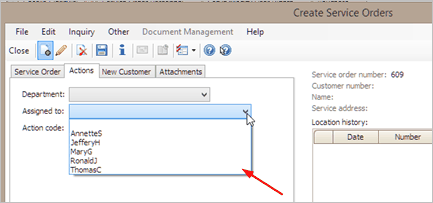
This routine is available when the Service Order application is installed.
Adding a service order personnel
Add a Caselle user to the Service Order Personnel list. You can assign service orders to users who are included on the list.
Do this...
1. Open Connect Utility Management > Organization > Service Order Personnel.
2. Click New (CTRL+N).
3. Enter the User ID.
A user ID is a unique name that you use to identify yourself in Connect. Your user ID displays next to transactions that you create or modify.
What do you want to do?
-
I want to select an existing user. Click Search to select an existing user. When the Search form appears, select the user name. Click OK. The user's name appears in the Name field.
-
I want to add a new user. Open System Management > Security > Setup/Modify User Rights. Click New (CTRL+N) to add a new user record.
4. Set up the checkbox titled Allow New Service Orders.
Use this option to create a user profile that allows other users to create service orders and assign them to the current user. This option is selected on users who will carry out the service order.
Do you want to assign service orders to this user?
-
Yes, allow users to assign service orders to this user. Click to select Allow New Service Orders.
-
No, do not allow users to assign service orders to this user. Click to deselect Allow New Service Orders.
5. Click the Departments tab.
A department is a section of an organization that handles a particular job or functions in a particular manner. Use the options on this tab to assign departments to the user. When a service order is assigned to a user, only the user names of users who are assigned to the department will be displayed in the Department list.
Use the Service Order Department to assign the service order personnel to a specific department.
To assign a department to a user...
-
Click Select Departments.
-
When the Selection form appears, move the department name to the Selected Departments list.
-
Click OK.
6. Click Save (CTRL+S).
The record is saved.
Changing service order personnel properties
Edit the user name and privileges. The user records are saved in the System Management > Security > Setup/Modify User Rights.
Do this...
1. Open Connect Utility Management > Organization > Service Order Personnel.
2. Use the Lookup bar to enter a service order personnel name or ID.
If you need to make changes to the user record, click the link to Edit This User in System Management.
3. Change the service order personnel properties.
4. Click Save (CTRL+S).
The updated record is saved.
Deleting service order personnel
You can remove a user from the Service Orders.
Do this...
1. Open Connect Utility Management > Organization > Service Order Personnel.
2. Use the Lookup bar to enter a service order personnel name or ID.
3. Click Delete (CTRL+D).
The record is deleted.
Editing this user in System Management
Security in System Management stores the master list of user names. If you need to update the information on a master user record, click the link to Edit This User in System Management to launch Security >
User ID
A user ID is a unique name that you use to identify yourself in Connect. Your user ID displays next to transactions that you create or modify.
Copyright © 2025 Caselle, Incorporated. All rights reserved.