How do I change a location?
Make changes to the location properties.
Contents
Changing a location
1. Open Connect Utility Management > Locations > Modify Existing Locations.
2. Use the Lookup bar to enter a location number.
You can search by location number or service address.
3. Now, edit the location properties.
4. Click Save (CTRL+S).
The location is updated.
Formatting the address
Save the address as house number, house number suffix, direction, street, and apartment/unit. Recording the address in this manner will ensure the address displays correctly throughout the application and prints the right way on reports.
Follow these instructions to update an address. To update more than one address, use the Update Street Order Fields routine in System Management > Master Records. See the help topic titled How Do I Update Street Order Fields?
Do this...
1. Open Connect Utility Management > Locations > Modify Existing Locations.
2. Enter the Service Address.
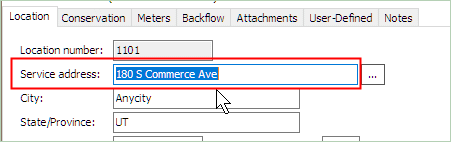
3. Click the menu button at the end of the Service Address.

The Street Order form displays.
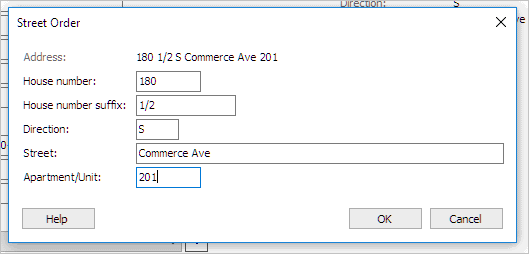
House number: 180 S Commerce Ave #201
House Number Suffix: 665 1/2 E 300 S
Direction: 180 S Commerce Ave #201
Street: 180 S Commerce Ave #201
Apartment/Unit: 180 S Commerce Ave #201
4. Click OK.
The address is parsed and saved as separate values.
Viewing meters installed at a location
1. Open Connect Utility Management > Locations > Modify Existing Meters.
2. Look up a location.
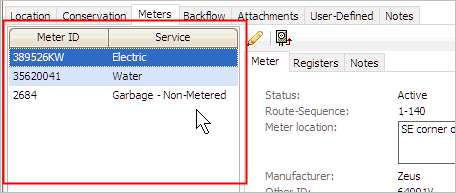
3. Click the Meters tab.
The pane on the left shows a list of the meters that are installed at the location. To view the meter details, click to select a meter.
Published on 14Jun2017.
Copyright © 2025 Caselle, Incorporated. All rights reserved.