How do I manage deposits?
Apply, refund, or transfer a deposit.
Once services have been provided the deposit can be applied to open (unpaid) services or refunded (returned) to the customer. Apply a deposit to an existing balance. Refund a deposit if the customer has a credit balance. Transfer a deposit to a service with a balance.
Contents
Watch a video
Applying a deposit
1. Open Connect Utility Management > Customers > Manage Deposits
2. Enter a Customer.
3. Select Apply as the Action.
4. Enter the Amount to apply.
5. Press Enter again to apply the amount.
Refunding a deposit
1. Open Connect Utility Management > Customers > Manage Deposits
2. Enter a Customer.
3. Select Refund as the Action.
4. Enter the Amount to refund.
5. Press Enter again to refund the amount.
6. Now, issue a refund check.
If you're using Caselle Accounts Payable, you'll use that application to issue a refund check to the customer.
Transferring a deposit
1. Open Connect Utility Management > Customers > Manage Deposits
2. Enter a Customer.
3. Select Transfer as the Action.
4. Enter the Transfer To.
5. Select a Service.
6. Enter the Amount.
7. Press Enter again to transfer the amount.
Using the shortcut in Modify Existing Customers
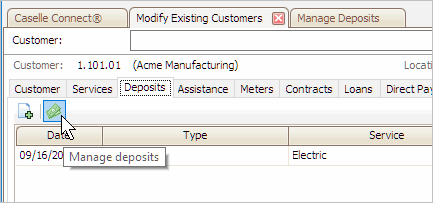
When you're on the Deposits tab in Modify Existing Customers, you can click the Manage Deposits button to launch the Manage Deposits routine.
Copyright © 2025 Caselle, Incorporated. All rights reserved.