How do I set up my Organization settings?
Set up the application default properties.
Use Organization to set up and maintain the organization's contact information and properties.
Contents
- Watch a video
- Change the organization's contact information
- Current period
- Keep [ _ ] periods of history to keep
- Allow entries [ _ ] days past month end
- Last book and last page
- Board of equalization date
- Payment allocation order
- Periods
- Calculations
- Miscellaneous Billing Types
- General Ledger Interface
- Passwords
- Tracking fields
- User-defined
Watch a video
Change the organization's contact information
The organization's name that prints on reports and forms is stored in Organization on the Organization tab. Changing this information will change the heading information on reports, and notices for all prior, current, and future dates.
Do this...
1. Open Connect Property Tax Collection > Organization > Organization.
The organization's contact information is stored on the Organization tab.
2. Fill in the information in the highlighted section.
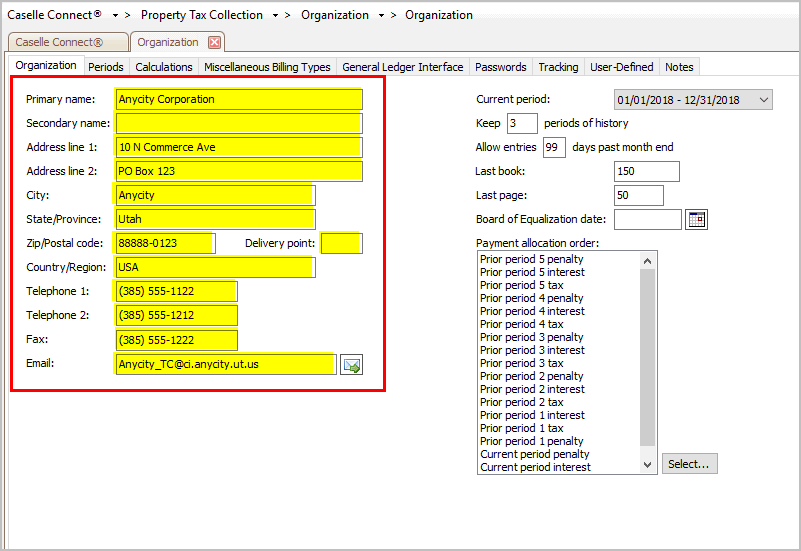
Organization's contact information
3. Click Save (CTRL+S).
The organization's information is updated.
Updated 12Jun2018
Current period
The Current Period field shows the beginning and ending date for the current period.
What is the current period?
Use the current period to make regular entries and print reports. Recommended. The current period is displayed.
Use a prior period to make entries to a closed period. You can use the drop-down list, or switch to the Periods tab, to view prior periods.
Keep [ _ ] periods of history to keep
The Keep [ _ ] Periods of History field stores the number of periods the system will be saving. The system will save the transactions in the period until a user runs the Update Period routine AND the number of periods stored in history exceeds the number of periods indicated in the Keep [ _ ] Periods of History field.
How many periods of history will you keep?
I don't want to save any history. Use Keep [ _ ] Periods of History to enter 0 (zero).
I want to keep 3 periods of history. Recommended. Use Keep [ _ ] Periods of History to enter 3 (three).
I want to keep more periods of history. You can enter 0 to 9999 in the Keep [ _ ] Periods of History field. Note: Keeping a lot of history may slow the application's performance.
Allow entries [ _ ] days past month end
Use Allow Entries Past Days Month End when there's a grace period that follows the usual close date at the end of the month. For example, it's February 1, 2012 and Jane needs to enter a payment in January 2012. Since the Allow Entries option has been set up to allow entries one week (7 days) after the end of the month, Jane can enter the payment as usual.
Do you want to allow users to make entries after the month end?
Yes, allow users to make entries after the month end. Use Allow Entries [ _ ] Days Past Month End to enter a number (0 to 99).
No, always record entries in the current month. Enter 0 (zero) in the Allow Entries [ _ ] Days Past Month End field.
Last book and last page
This is a carryover from the days when property tax was recorded in paper ledgers. You can use the Last Book and Last Page fields to record the last book and page from the previous property tax ledger.
Do you want to record the last book and page?
Yes, I want to record the last book and page. Use the Last Book field to enter the number of the last book that was assigned in Record Documents. Then, use the Last Page field to enter the number of the last page that was assigned in Record Documents.
No, my organization does not use or does not need a book and page. Enter a 0 (zero) or leave the field blank.
Board of equalization date
Add the board of equalization date to the organization's information. You can add the board of equalization date to forms.
Updated 12Jun2018
Payment allocation order
The Payment Allocation Order tells the system how to distribute payments to pay off property tax and interest.
Example 1: Allocate payment to the current year.
Payment allocation method: |
Current year interest Current year tax Prior year 1 interest Prior year 1 tax Prior year 2 interest Prior year 2 tax Prior year 3 interest Prior year 3 tax Prior year 4 interest Prior year 4 tax Prior year 5 interest Prior year 5 tax |
Example 2: Allocate payment to the oldest prior year.
Payment allocation method: |
Prior year 5 interest Prior year 5 tax Prior year 4 interest Prior year 4 tax Prior year 3 interest Prior year 3 tax Prior year 2 interest Prior year 2 tax Prior year 1 interest Prior year 1 tax Current year interest Current year tax |
Do you want to use a payment allocation method?
Yes, this organization allocates payments based on the priority. Click Select, located next to the Payment Allocation Method field. Now, move the payments in the order in which they will be paid to the Selected Items list. The item at the top of the list will be paid first while the item at the bottom of the list will be paid last.
No, allocate payments equally. Clear the values from the Payment Allocation Method field to allocate payments equally.
Periods
The period log is stored on the Periods tab in Organization. You can add a new period or remove an existing period, unless the period that you wish to delete has transactions tied to it.
Calculations
Use the options on the Calculations tab to set up and save formulas for calculating amounts to bill penalty, fees, interest, etc.
Add a calculation
Set up and save a new calculation.
Do this...
1. Open Connect Property Tax Collection > Organization > Organization > Penalty Calculations tab.
2. Click Add a New Penalty Calculation.
3. What is the penalty calculation name? Use the Name field to enter a description. Example: Late Penalty
4. How will you calculate the penalty?
I can type in the penalty calculation. Click on the Calculation field. Then, enter the penalty calculation.
Help me enter the penalty calculation. Click Modify, located next to the Calculation field. Use the Formula dialog to set up the penalty calculation. The Variables list provides all of the common names that refer to variables in the Property Tax Collection application. The value that will be included in the equation appears in the Insert Value column. When the Insert Value is followed by an operator, that means that you need to enter information, such as a number or a date, to complete the equation. Use the Operators list to select a mathematical operator, such as add, subtract, multiply, or divide. There are also operators that allow you to compare values, such as Is Not Equal, Greater Than, Greater Than or Equal, and so on. A formula can include: Numbers, Amounts, Dates, Variables, and Operators.
I'm ready to check my work. When the formula is finished, click Check Syntax to search for errors in the formula. The formula will not calculate correctly if a syntax error exists.

Miscellaneous Billing Types
Define the billing types you will use to create billings.
Add a billing type
Create and save a new billing type.
Do this...
1. Open Connect > Property Tax Collection > Organization > Organization > Miscellaneous Billing Types tab.
2. Click Add a New Miscellaneous Billing Type.
3. Fill in the fields on the Miscellaneous Billing Type subtab.
You're done.
Remove a billing type
You cannot remove a billing type when related transactions exist.
Do this...
1. Open Connect > Property Tax Collection > Organization > Organization > Miscellaneous Billing Types tab.
2. Click to select a billing type.
The billing type is highlighted.
3. Click Delete a Miscellaneous Billing Type.
The billing type is deleted.
General Ledger Interface
You can set up the application to update transactions that are created in this application to the General Ledger application. An interface is an application that works with this application. All of these options are found on the General Ledger Interface tab.
Interface
An interface is an application that allows other applications to share information. In this case, the interface allows you to post transactions to the General Ledger.
Will you turn on the interface to General Ledger?
I am using Connect General Ledger. Use the Interface field to select Caselle 4.x.
I am using Classic General Ledger. Use the Interface field to select Caselle 2.x.
I am using a non-Caselle General Ledger. Use the Interface field to select Other. This option allows you to create an export file.
I am not using a General Ledger or I do not want to turn on the General Ledger interface. Use the Interface field to select None.
Update method
The update method is the accounting method the application will use to post transactions to the General Ledger.
Which method do you want to use to update transactions to the General Ledger?
The organization uses a Cash basis. A Cash basis records income when it is received and expenses when they are paid. Use the Update Method field to select Cash.
The organization uses an Accrual basis. An Accrual basis records income when it is earned and expenses when they are incurred. Use the Update Method field to select Accrual.
The organization uses a different basis. Use this option when the organization does not use Cash or Accrual bases. Use the Update Method field to select None.
Update payments
This option only affects payments. The application always updates adjustments and deposits applied without regard to the option that is selected for updating payments.
Do you want to update payments to the General Ledger?
Yes, I want to update payments to the General Ledger. Select the Update Payments checkbox.
No, I do not want to update payments to the General Ledger. Leave blank the Update Payments checkbox.
Passwords
Application-level passwords
See the help topic titled How do I change application-level passwords?
Updated 22Jan2018
Tracking fields
How do I print the Management Tracking Report?
How do I set up Management Tracking?
Updated 08Jan2018
User-defined
How do I add a user-defined fields?
How do I change the display order of user-defined fields?
How do I change the name of a user-defined field?
How do I change the user-defined field properties?
How do I delete a user-defined field?
How do I test a user-defined field?
Updated 20Jun2018