How do I check for properties without a corresponding master property?
Checkout
Each master property should be assigned to a regular property record. You can search for master property records in the Property Tax Collection application that are not linked to a regular property.
Checking for properties without a corresponding master property
1. Open Connect Property Tax Collection > Organization > Checkout.
2. Click to select the Check for Properties Without a Corresponding Master Property checkbox.
3. Click GO (CTRL+G).
The Checkout error report prints a list of real properties that have a master property that is not linked to a regular property record.
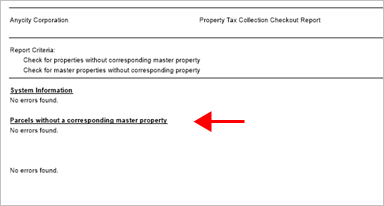
Checkout error report with no errors found
What does the Checkout error report show?
The section titled "Parcels Without a Corresponding Master Property" shows "No Errors Found". You're done.
The section titled "Parcels Without a Corresponding Master Property" shows a parcel ID. You can fix the error by linking the master property to a regular property record or deleting the master property record.
Fixing the error
To fix the error, choose an option: Link the master property to a regular property record; or Delete the master property record.
Linking the master property to a regular property record
1. Open Connect Property Tax Collection > Real Properties > Modify Existing Real Properties.
2. Use the Property box to look up the parcel ID, and then press Enter.
3. Add a master property record.
4. Click Save (CTRL+S).
Deleting the master property record
1. Open Connect System Management > Master Records > Setup/Modify Properties.
2. Use the Property box to look up the parcel ID, and then press Enter.
3. Click Delete (CTRL+D).
The master property record is deleted.
2020Mar10
Copyright © 2025 Caselle, Incorporated. All rights reserved.