How do I assign a shift to an employee's position?
Employee Positions
A shift refers to hours worked by an employee during a period of time when the job requires 24-hour coverage seven days a week. For example, firefighters may work four 12-hour days, followed by four off days. In this example, the shift length is eight days.
Assigning a shift to an employee's position
1. Open Connect Timekeeping > Employees > Modify Existing Employees.
2. Click to select the Positions tab.
The positions that have been assigned to the employee display in the table on the Positions tab.
3. Click to select a position from the table.
The position properties display on the Position subtab. If the employee has more than one position, select the position that is linked to shift work.
4. Find the Shift box and then click the Search button.
The Search window displays a list of available shifts. Remember, the shift needs to be saved in the Shift table (Organization > Shifts) before it will display in the Search window.
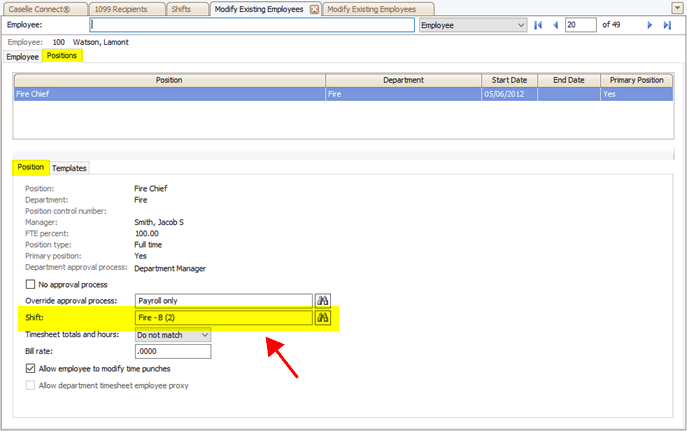
Modify Existing Employees, Positions tab
5. Click to select the shift to assign it to the position.
6. Click OK.
The shift is assigned to the position.
Updated 27Aug2016
Copyright © 2025 Caselle, Incorporated. All rights reserved.