How do I set default time worked on an employee's timesheet?
Employee Timesheets
You can fill in the default time worked each day on an employee's timesheet. The default time is saved on the timesheet template on the employee record. Adding a default time to the timesheet template means the default time worked will be displayed on the timesheet the employee is filling in. When the employee fills in the timesheet, they can accept the default time worked or replace it with a different amount.
You can set up a timesheet template with default time worked for each position that's assigned to the employee.
Contents
Setting the default time worked on an employee's timesheet
1. Open Connect Timekeeping > Employees > Modify Existing Employees.
2. Look up an employee.
3. Click to select the Positions tab.

Positions tab
4. If the employee is assigned to more than one position, select a position. (Skip this step if the employee has only one position.)

Positions assigned to the employee
5. Click to select the Templates tab.

Templates tab
If the Templates tab is blank, you'll need to set up a timesheet template for the employee position before you can continue. See the help topic titled How do add a template to an employee timesheet?

A employee position that does not have a timesheet template
6. Click to select the Time Defaults tab.
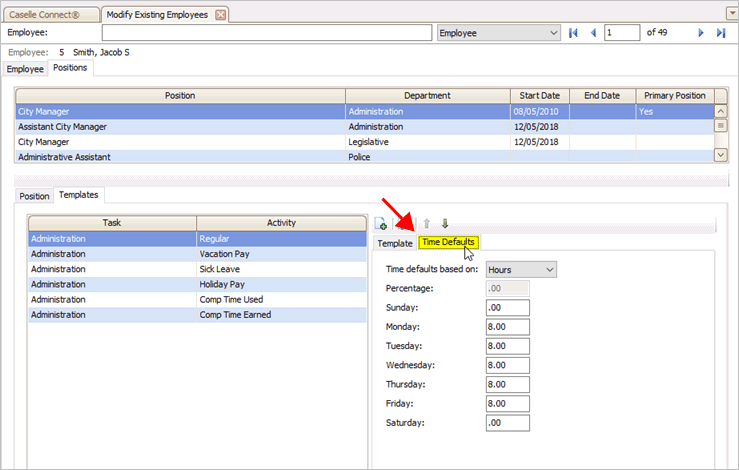
Time Defaults tab
7. Select the Time Defaults Based On.
Time defaults based on percentage
8. Click Save (CTRL+S).
The default time worked is saved.
2019.05, 2019Mar06
Time defaults based on hours
Use hours as the standard unit for entering time worked. Record the total number of hours the employee will work each week.
Example
City XYZ wants to use 8 hours worked as the default time worked for salaried employees. The timesheet administrator sets up the time defaults on salaried employees to record hours worked and then enters 8 hours worked on each day in the work week (Monday to Friday).
2019.05, 2019Mar06
Time defaults based on percentage
Use a percentage as the standard unit for entering time worked. This option will allocate a percentage of the hours worked to the employee position.
Example
Jacob fills the position of city manager and administrative assistant for City XYZ. The timesheet administrator sets up the timesheet template for Jacob's position of city manager to allocate 75% of Jacob's hours worked to the city manager timesheet. The admin sets up the timesheet template for Jacob's position of administrative assistant to allocate the remaining 25%. The following week, Jacob works 40 hours of which 75% (40 hours x 0.75 = 30 hours), or 30 hours, is allocated to the city manager position and 25% (40 hours x 0.25 = 10 hours), or 10 hours, is allocated to the administrative assistant position.
2019.05, 2019Mar06
Time defaults based on shift
Use a shift as the standard unit for entering time worked. The timesheet template will use the shift that's assigned to the position to fill in the default time worked on the employee's timesheet.
2019.05, 2019Mar06
How will I know if the default time worked displays correctly in the employee's timesheet?
After you update and save the default time worked on an employee's timesheet, you'll need to wait for the current pay period to end. Connect will start using the updated employee timesheet at the beginning of the next pay period.
2019.05, 2019Mar06
Copyright © 2020 Caselle, Incorporated. All rights reserved.