How do I delete an employee time entry?
Employees
Remove an entry from the timesheet. You will need the entry date and reference number to delete a specific entry. You also have the option of deleting the time entries for an entire pay paeriod.
Deleting an existing employee time entry
1. Open Connect Timekeeping > Employees > Enter Employee Time.
2. Click Delete/Abort  (CTRL+D).
3. Choose an option.

Delete Employee Time, Time entry, reference number, and pay period
What do you want to do?
-
I want to delete specific time entries. Click Delete Work Date Range From and then enter the date range and reference number range. To delete a single time entry, you can enter the same date and reference number as the beginning and ending value for the date range and reference number.
-
I want to delete time entries for the entire period. Click Delete Entire Pay Period and verify the pay period beginning and ending date.
4. Select the employee(s).
Choose the employees to include in the selection criteria.
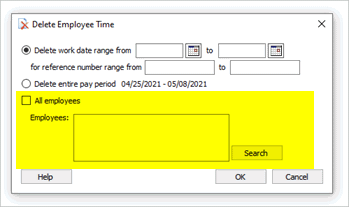
Delete Employee Time, Employees
What do you want to do?
-
I want to delete time entries from all employees. Click to select the All Employees checkbox.
-
I want to delete time entries from an employee(s). Remove the checkmark from the All Employees checkbox and then click Search. Use the Search window to select an employee. The Search window will only show employees who have time entires in the pay period that's selected in the Enter Employee Time view.
5. Click OK.
The time entries that you have selected have been deleted.
202111, 2021Sep15
Copyright © 2025 Caselle, Incorporated. All rights reserved.