How do I look up an employee's leave balance? (Managers)
Connect Online Timesheets
You can look up leave balances for employees who are assigned to your department.
Contents
Running the Manager Report for Employee Leave Balances
As a manager, you can look up an employee's leave balance by printing the Manager Report for Employee Leave Balances.
For instructions, see the help topic titled Printing Leave Report (Managers).
2019.05, 2019Mar27
Looking up an employee's leave balance
1. Open My Dashboard.
2. Click the link titled View Timesheet Status.

View Timesheet Status link on the Timesheet Statuses Widget
To add the Timesheet Statuses widget to My Dashboard, see the help topic titled How do I add the Timesheet Statuses widget?
The Timesheet Status page displays.

Timesheet Status page
3. Click on an employee's name to select it.

Timesheet Status page
The employee's timesheet page displays.
4. Click the number displayed under Leave Time.
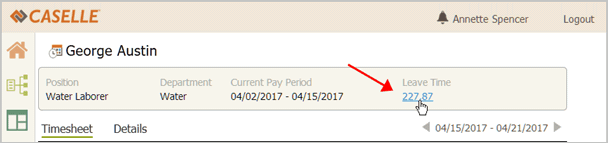
Leave Time on the Employee Timesheet page
The employee's leave time balance shows all of the leave pay codes assigned to the employee.
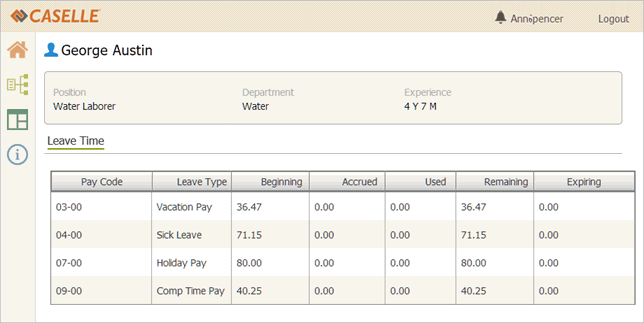
Employee Leave Time page
The table shows the balance for
-
Beginning balance: Leave hours at the beginning of the year.
-
Accrued balance: Leave hours earned during the year.
-
Used balance: Leave hours used during the year.
-
Remaining balance: Beginning + Accrued - Used = Remaining Balance
-
Expiring balance: Leave hours that will expire at the end of the year.
2019.05, 2019Mar27
Copyright © 2025 Caselle, Incorporated. All rights reserved.