How do I toggle between week, pay period, and daily time entry? (Connect Online)
Timesheet page
Change the timesheet view to display time entry by week (M, T, W, TH, F, S, S), pay period, or day. You can choose the view that makes it easier to enter and view time punches. All views will show the total from time punches and the total time allocated to a task and activity.
Contents
Watch a video
-
Learn how to show the time entries by pay period.. Watch a video (1m40s)
-
Learn how to sort and filter time entries. Watch a video (1m05s)
Weekly view
Show time entries for each task and activity for each day in a week.

Week view
Do this...
1. Open My Timesheet.
2. Click Settings  .
.
3. Use the Settings menu to click Week.
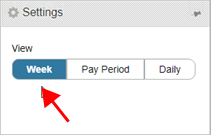
Settings menu on My Timesheet
202005, 2020Mar04
Pay period view
Change the timesheet view to show time entered for each day in a pay period. The date displays in the upper-left corner of each box.
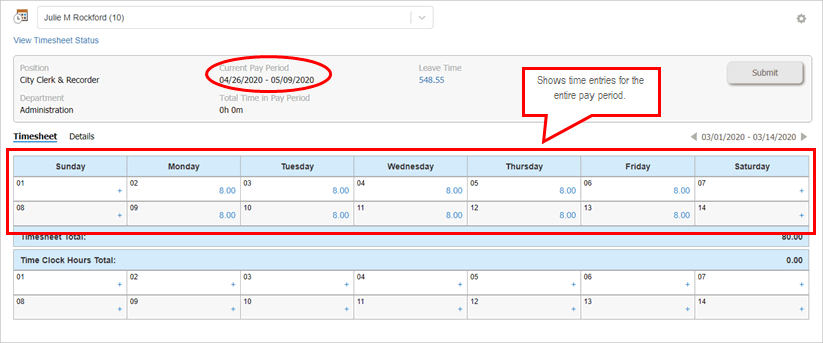
Pay period view
Do this...
1. Open My Timesheet.
2. Click Settings .
3. Use the Settings menu to click Pay Period.
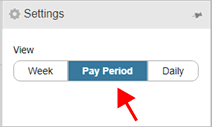
Settings menu on My Timesheet
202005, 2020Mar04
Daily time view
Show tasks and activity totals by day.
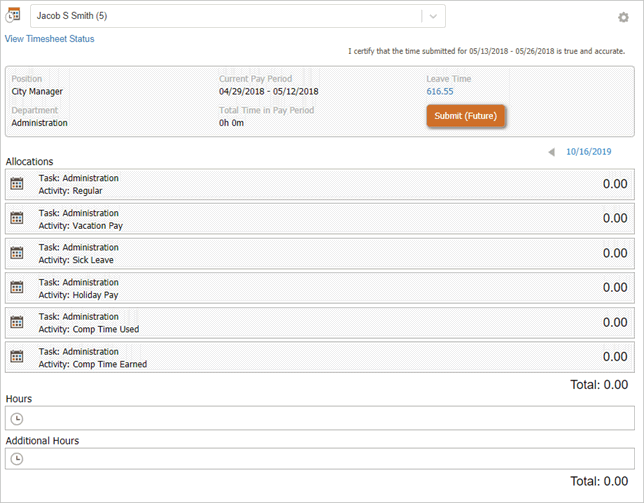
Daily view
Do this...
1. Open My Timesheet.
2. Click Settings .
3. Use the Settings menu to click Daily.
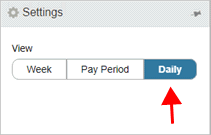
Settings menu on My Timesheet
202005, 2020Mar04
Copyright © 2025 Caselle, Incorporated. All rights reserved.