Gender Report
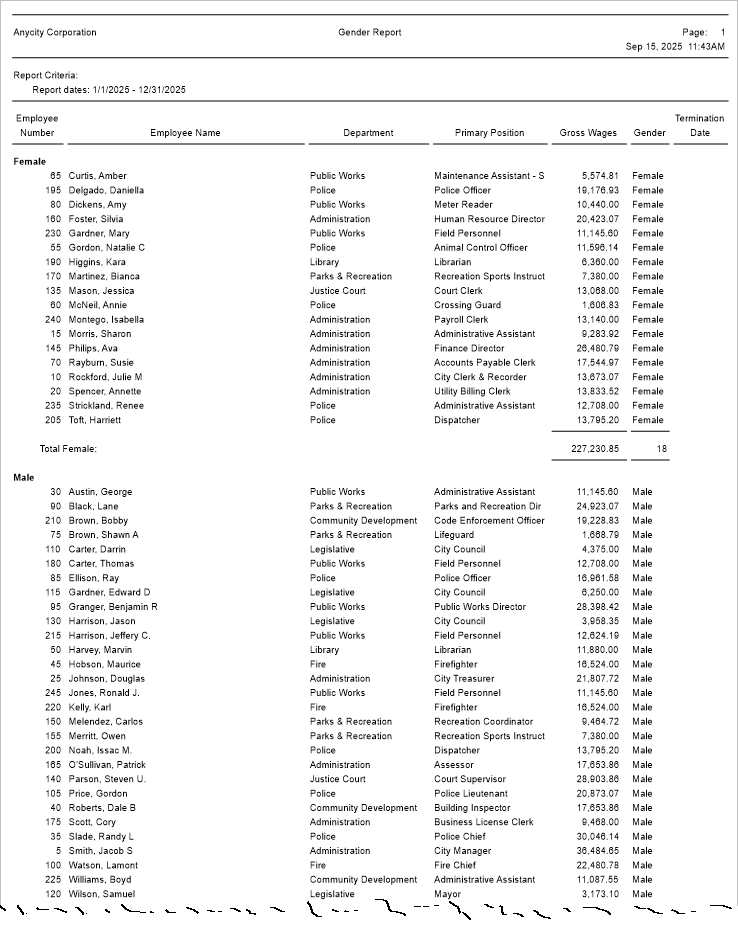
Use the Gender Report to print the gross wages for employees by gender. This report shows the distribution and representation of employees by gender across different pairs of the organization. It's often used to monitor diversity, equity, and inclusion (DEI) goals, as well as to comply with labor and equal opportunity reporting requirements.
Only employees who have recorded wages in each month for the past twelve months will be included on the report.
Connect master report definitions:
-
Gender Report [Caselle Master]
Printing a Gender Report
1. Open Connect Human Resources > Reports > Gender Report.
2. Select a report title.
3. Enter the Report Dates.
The report will use the report date range to select transactions to print on the report.
Do you want to use the current date range as the report dates?
-
Yes, I want to use the current dates. Continue to the next step.
-
No, I do not want to use the current dates. To select a different date range you can use the drop-down list, click the Calendar button, or click Advanced Options.
4. Set up the Include Terminated Employees checkbox.
A terminated employee is an employee who has a date recorded in the Termination Date field.
Do you want to include terminated employees?
-
Yes, I want to include terminated employees. Select the Include Terminated Employees checkbox.
-
No, I do not want to include terminated employees. Leave blank the Include Terminated Employees checkbox.
5. Click Print (CTRL+P).
The report prints.
Updating gender in an employee's record
If the employee's information is not correct on the Gender Report, you can update the employee's information in Employees > Modify Existing Employees > Employee tab > Gender field.
202511, 2025Sep15
Copyright © 2025 Caselle, Incorporated. All rights reserved.