A requester refers to the users who can use the request form.
Connect can limit requesters by the department that is assigned to a user or limit the requesters to users who are assigned to a specific position within the department. That means that users who are not assigned to the department or position will not be able to fill out the request form.
When you select a Payroll department, Connect will make the request form available to all of the users who are assigned to the department. If you choose to select a department and not select a position, Connect will assign the request form to all of the positions in the department.
Connect can also assign a request based on the position a user fills within an organization. Managers, supervisors, and senior managers are just a few examples of positions you might find in an organization. When you assign a request form to a specific position, only the users who fill the selected position in the selected department will be able to open the request form. Users who fill the same position in a different department will not have access and neither will users who fill other positions in the same department.
In this Topic Hide
To assign a department as a requester, the department needs to be set up in Connect Payroll > Organization > Departments.
To assign a position as a requester, the position needs to be set up in Organization > Positions.
1. Open Connect Human Resources > Organization > Requests.
2. Click to select the field titled Request and then type in the request name. Press Enter.
3. Click to select the Requesters tab.
4. Use the Requester menu to select All Users.
Connect makes the request form available to all users.
Updated 2017.02
1. Open Connect Human Resources > Organization > Requests.
2. Click to select the field titled Request and then type in the request name. Press Enter.
3. Click to select the Requesters tab.
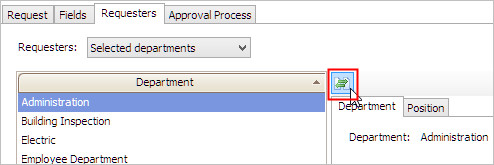
4. Use the Requester menu to select Selected Departments.
5. Click to select Selected Departments.
The Selection form displays.
5. Click to select the department that you want to add as a requester, and then move it to the Selected Departments list. Click OK.
Connect adds the department as a requester for the request form.
Updated 2017.02
1. Open Connect Human Resources > Organization > Requests.
2. Click to select the field titled Request and then type in the request name. Press Enter.
3. Click to select the Requesters tab.
4. Use the Requester menu to select Selected Departments.
5. Click to select a department from the Departments list.
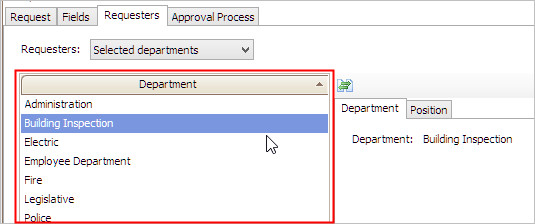
6. Click to select the Position subtab.
The Positions list shows the positions in the department.
7. Click to select Select Positions.
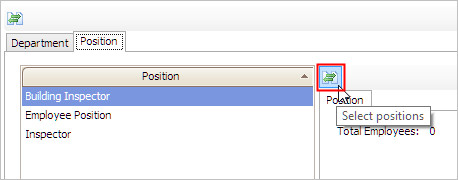
The Selection form displays.
8. Click to select a position and then move it to the Selected Positions list. Click OK.
The position displays in the Positions list on the Position subtab along with the number of employees in the department who are assigned to the position. This is the number employees who can use the request form.
Updated 2017.02
Only users who have been assigned to a department or position that has been set up as requester can select the request form. You'll want to start by checking if the user's department or position is assigned as a requester to the request form. If you don't see the user's department/position, then the next step is to add the user's department/position as a requester. See also the topic titled How do I troubleshoot an employee change request?
Updated 2017.02