How do I add an expiration date?
Add an expiration date to a qualification.
You can record the date when a qualification expires. The expiration date lets you know when the employee needs to renew the qualification.
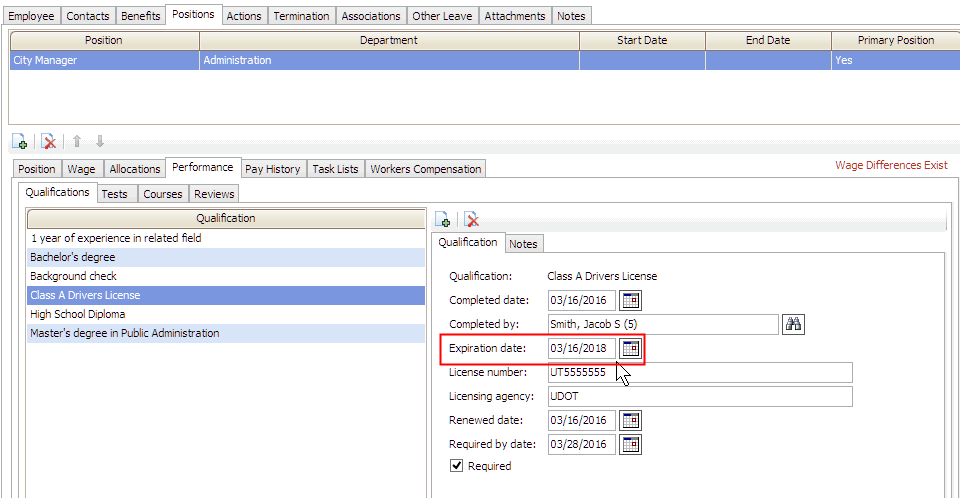
Expiration date
Adding an expiration date
1. Open Connect Human Resources > Employees > Modify Existing Employees.
2. Click to select the field titled Employee and then enter an employee name or number. Press Enter.
3. Click to select the Positions tab.
The positions assigned to the employee display on the Positions tab.
4. Click to select a position.
5. Click to select the Performance subtab.
6. Click to select the Qualifications subtab.
7. Click to select a qualification.
8. Click to select the field titled Expiration Date.
9. Enter the date when the qualification expires.
The expiration date is saved on the employee's position.
Updated 20May2016
Copyright © 2025 Caselle, Incorporated. All rights reserved.