How do I round time punches for a department?
Departments - Time Clock Options
Change the default setting for department timesheets to round clock in/out times and time entries to the nearest quarter hour, half hour, or hour. You can set up the different rounding options for each department.
Before you get started
-
Set up the option to round time punches in Timekeeping. (See the help topic titled How do I round time punches?) Selecting this option in Timekeeping will set all department timesheets to round time punches.
Rounding time punches on timesheets for a department
1. Open Connect Payroll > Organization > Departments.
2. Look up a department and then press Enter.
3. Click to select the Timekeeping tab.

Timekeeping tab in Departments
4. Click to select the checkbox titled Enable Time Clock.
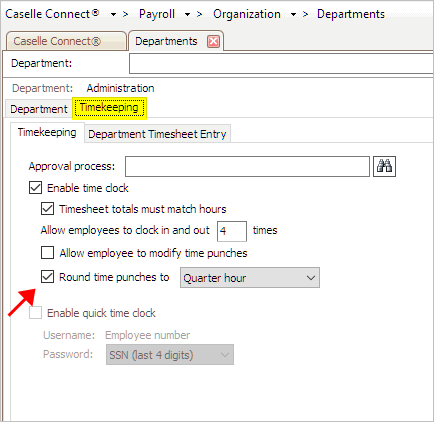
Round Time Punches checkbox
5. Use the Round Time Punches to X menu to select an option.
The default setting will record time entries as is.
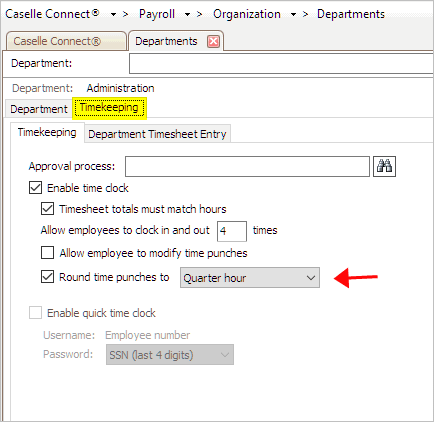
Round Time Punches to X menu
Table 1: Rounding Time Entries
|
User clocks in/out or enters... |
Time entry is recorded as... |
|
|
Quarter hour |
||
|
|
7:07pm |
7:00am |
|
|
7:08am |
7:15am |
5. Click Save (CTRL+S).
When a user in this department records a time entry, Connect will round the time entry to the selected option.
Updated 19Mar2018
Turning off option to round time punches on timesheets for departments
1. Open Connect Payroll > Organization > Departments.
2. Look up a department and press Enter.
3. Click the Connect Online tab.
4. Click to remove the checkmark from the Round Time Punches to X checkbox
5. Click Save (CTRL+S).
When a user in this department records a time entry, Connect will record the time entry as is.
Updated 19Mar2018
Copyright © 2020 Caselle, Incorporated. All rights reserved.