How do I combine multiple W-2s?
Payroll Year-end Checklist
Use these instructions to merge W-2s when the application creates more than one W-2 for the same employee. This is not a step in the Payroll Year-end Checklist. The instructions are here just in case you need them.
Combining multiple W-2s into a single W-2
1. Use the W-2 conversion report to find all employee numbers that belong to this employee.
2. Manually combine the totals for each W-2 field for this employee and make a note of the new totals on the W-2 conversion report.
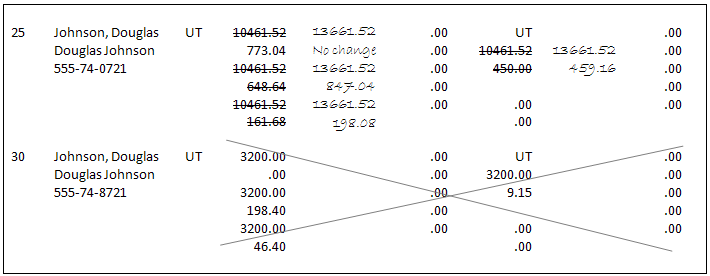
Using the W-2 Conversion Report to combine totals
3. Open Connect Payroll > Government Reporting > W-2 Employees.
4. Use the Employee box to enter the employee number for the employee that you want to keep.
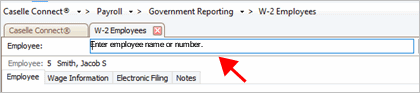
Employee box
5. On the Wage Information > General subtab, enter the new totals for the combined amounts into each of the W-2 boxes.
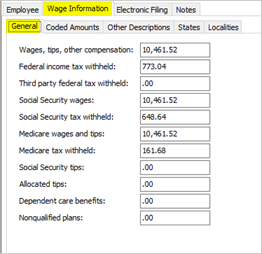
Original federal wage information
Here is the updated federal wage information.
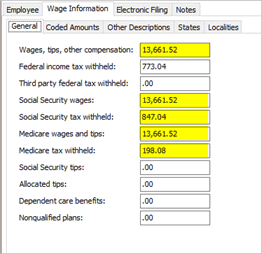
Updated federal wage information
6. On the Wage Information tab > States subtab, enter the new totals for the combined amounts into each of the W-2 boxes.
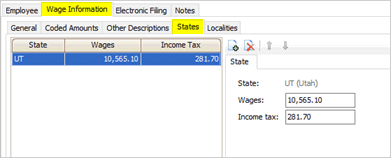
Original state wage information
Here is the updated state wage information.

Updated state wage information
7. Click Save  (CTRL+S).
The updated W-2 wage information is saved. This is the wage information that will print on the W-2 Form.
8. Now display the employee record that you wish to discard for this employee.
9. Click Delete  (Ctrl+D).
The W-2s have been combined. When you’re done combining W-2s, you’ll need to re-verify the employee information, see the help topic titled Step 4: Verify employee information.
202011, 2020Oct15
Copyright © 2020 Caselle, Incorporated. All rights reserved.