How do I delete a single check?
Checks
Use this option to delete a single check for payroll checks, supplemental checks, termination checks, and manual checks. A single check means the entire check, which will include the exceptions, pay codes, and amounts.
Deleting a single check by reference number
Use a reference number to delete payroll checks, supplemental checks, termination checks, or manual checks.
Do this...
1. Open Connect Payroll > Employees > Enter Payroll Checks.
2. Click Delete/Abort  (CTRL+D).
3. Use the Entry Mode box to select Single Check.
4. Click to select Delete Single References Number.

Delete single reference number option
5. Use the Reference Number box to enter the check reference number.
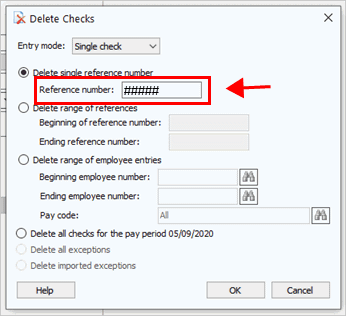
Reference number box
6. Click OK.
The check is deleted.
202005, 2020May20
Deleting a range of checks by reference number
Use the check reference number to delete all of the checks in a range.
Example: City ABC realizes a mistake was made and needs to delete payroll checks for employee 10, 15, 20, and 25.
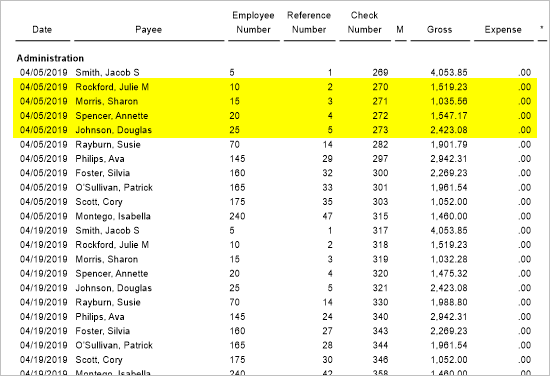
Payroll checks for City ABC
City ABC uses the option to delete checks by reference number and sets the beginning reference number to 2 and the sets the ending reference number to 5. Connect deletes the payroll checks in the range.
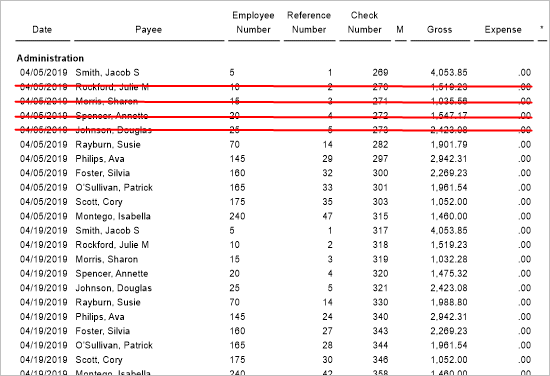
Deleted payroll checks for City ABC
Do this...
1. Open Connect Payroll > Employees > Enter Payroll Checks.
2. Click Delete/Abort (CTRL+D).
3. Use the Entry Mode box to select Single Check.
4. Click to select Delete Range of References.

Delete range of references option
5. Use the Beginning Reference Number box to enter the first reference number in the range to delete.

Beginning of reference number box
6. Use the Ending Reference Number box to enter the last reference number in the range to delete.
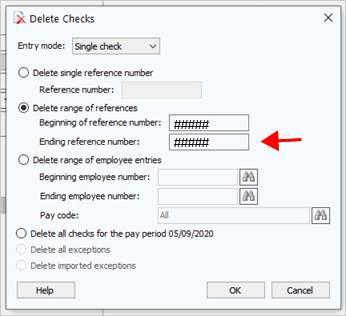
Ending reference number box
7. Click OK.
All of the checks in the reference number range are deleted.
202005, 2020May20
Deleting a check by employee number
You can use the check issue date and employee number to delete payroll checks, supplemental checks termination checks, and manual checks. This option allows you to delete a single check or a range of checks.
Do this...
1. Connect Payroll > Employees > Enter Payroll Checks.
Do I have to use Enter Payroll Checks? No, you don't have to use Enter Payroll Checks to use open the Delete Checks window. You can also use Enter Supplemental Checks, Enter Termination Checks, or Enter Manual Checks.
2. Use the Check Issue Date box to enter the check issue date on the check that will be deleted.
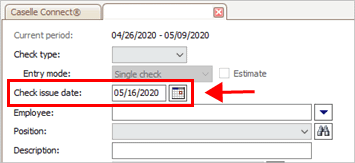
Check issue date box
3. Click Delete/Abort (CTRL+D).
In Edit mode, clicking the Delete/Abort button will open the Delete Checks window. If you're in the middle of entering a check, clicking the Delete/Abort button in New mode will abort the current entry and clear the view without saving.

Delete/Abort button
4. Use the Entry Mode box to select Single Check.
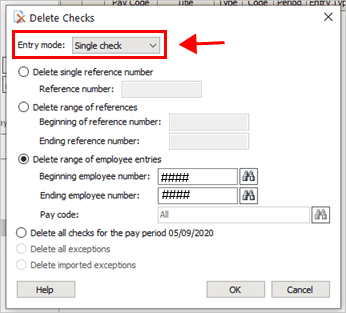
Entry mode box
5. Click to select Delete Range of Employee Entries.

Delete range of employee entries option
6. Use the Beginning Employee Number and Ending Employee Number box to enter the employee number.
What if I don't know the employee number? Click the Search button at the end of the Beginning Employee Number or Ending Employee Number box to look up an employee number.
Beginning employee number and Ending employee number boxes
What do you want to do?
-
I want to delete a check for an employee. Enter the same employee number in the Beginning Employee Number box and the Ending Employee Number box.
-
I want to delete checks for a range of employees. Enter the first employee number in the range in the Beginning Employee Number box and then enter the last employee number in the range in the Ending Employee Number box.
7. Click OK.
The check or checks for the selected employees are deleted.
202005, 2020May19
Deleting all checks created for a pay period
You can delete all of the checks that were created in a pay period. If you want to delete a specific type of check, for example, you only want to delete payroll checks but you don't want to delete supplemental checks, termination checks, or manual checks, then you should use the option to delete checks by reference number.
Do this...
1. Open Connect Payroll > Employees > Enter Payroll Checks.
Do I have to use Enter Payroll Checks? No, you don't have to use Enter Payroll Checks to use open the Delete Checks window. You can also use Enter Supplemental Checks, Enter Termination Checks, or Enter Manual Checks.
2. Click Delete/Abort (CTRL+D).
In Edit mode, clicking the Delete/Abort button will open the Delete Checks window. If you're in the middle of entering a check, clicking the Delete/Abort button in New mode will abort the current entry and clear the view without saving.
Delete/Abort button
3. Use the Entry Mode box to select Single Check.
4. Click to select Delete All Checks for the Pay Period MM/DD/YYYY.
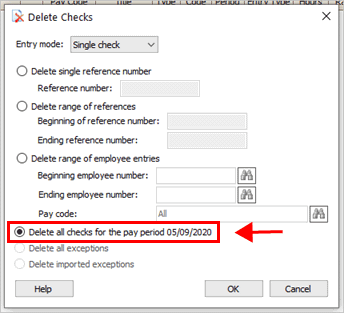
Delete all checks for the pay period MM/DD/YYYY option
5. Click OK.
The checks are deleted that were created for the pay period.
202005, 2020May19
Copyright © 2020 Caselle, Incorporated. All rights reserved.