Maintenance Order List
Reports
Print a report to view maintenance orders by date, status, user ID, department, and action code. For example, City XYZ prints a Maintenance Order List to view maintenance orders that have been partially completed for the admin department.
In this Topic
Printing Maintenance Order List
1. Open the Connect Maintenance > Reports > Maintenance Order List.
2. Set up the Report Dates.
How do I change the report date range?
How do I change the date type?
3. Select the Dates Based On.
Generate the report using dates based on the action completed date, assigned date, canceled date, completed date, create date, or due date.
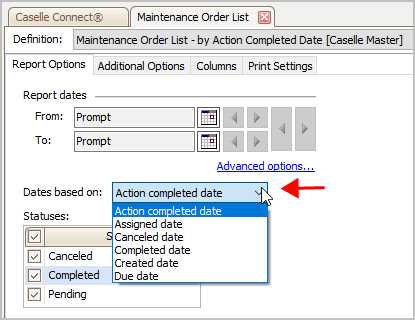
Dates Based On
4. Select the Statuses.
Filter the report contents based on the maintenance order status: canceled, completed, and pending. You can select more than one status.
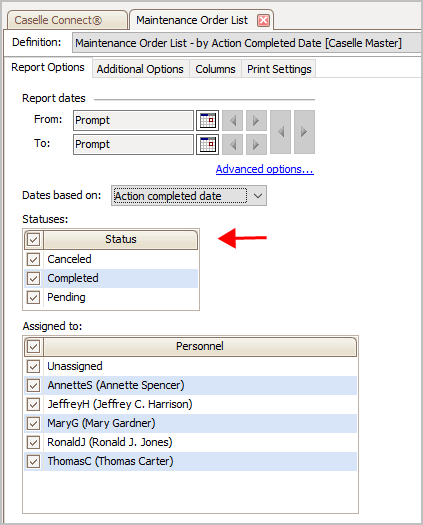
Statuses
5. Select the Assigned To.
Filter the report contents based on the user who is assigned to the maintenance order. The Personnel list will include the user ID for every user that is included in the Personnel table (Organization > Personnel).

Assigned To
6. Set up the Additional Options.
These options are located on the Additional Options tab.
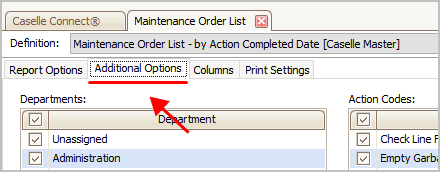
Additional Options tab
Set up the Departments.
Select the checkbox next to a department to include maintenance orders that have been created by the department.

Departments
Set up the Action Codes.
Select the check box next to an action code to include maintenance orders that are assigned to it.
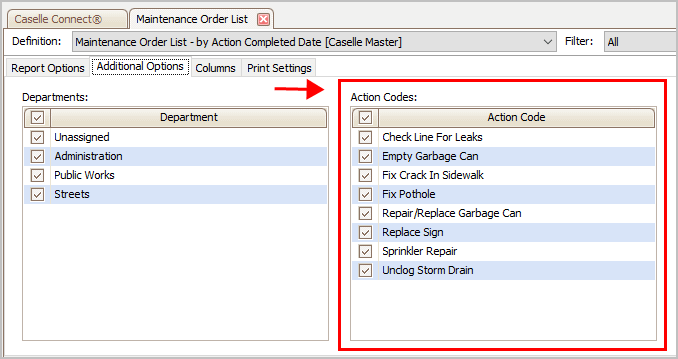
Action Codes
7. Set up the Selection Criteria.
What is the selection criteria?
How do I add/remove fields to a selection criteria?
How do I define values in a selection criteria?
How do I search for an exact match?
How to use operators in the selection criteria?
Updated 22Jan2018
8. Set up the Report Order.
How do I select a report section?
How do I change the column display order?
How do I change the sorting order?
How do I print the column title?
How do I total/count a column?
How do I start printing a column on a new page?
Which part of the column do you want to use for totals and page breaks?
How do I format an amount to show millions?
Updated 05Feb2018
9. Set up the Report Sections.
What is a report section?
Can I print the report section title?
How do I add a header/footer to a report?
How do I insert a page break between report sections?
How do I print the selection criteria on the report?
How do I total the columns in a report section?
10. Click Print (CTRL+P).
The report prints.
Updated 07May2018
Copyright © 2025 Caselle, Incorporated. All rights reserved.