How do I add/remove personnel?
Organization
Use personnel to include individuals who will use Maintenance Orders to create, modify, or delete maintenance orders.
Add personnel
First, add users to System Management > Security > Setup/Modify User Rights. Then, add the user to the Personnel table in Maintenance Orders.
Does the department already exist in System Management > Security > Setup/Modify User Rights?
Yes, the person is saved in System Management > Security > Setup/Modify Users. That's good news. Now, you can use Maintenance Orders > in New mode (CTRL+N) to make the user available in the Maintenance Orders application.
No, the person is NOT saved in System Management > Security > Setup/Modify Users. First, you need to add the user to System Management to make the user available for selection in Maintenance Orders. Then, click New (CTRL+N) in Maintenance Orders > Organization > Personnel to complete the process.
Allow new maintenance orders
Use this option to allow a user to use this person to set up a maintenance order. If you do not need to use the personnel, you can change this option to stop other users from selecting or assigning the user.
Do you want to use this action code on new maintenance orders?
Yes, allow users to select this action code. Click to select Allow New Maintenance Orders.
No, keep users from selecting this action code. Clear the Allow New Maintenance Orders checkbox.
Link personnel to departments
Select the personnel that belong to the department. You can link personnel to multiple departments. For example, an individual may work for the Street department but he also works part time for the Parks department. Assigning personnel to a department will make life a little easier when it's time to create or complete a maintenance order. Assigning personnel will limit the number of names that appear in the Personnel drop-down list to only the names of the individuals who are associated with the department.
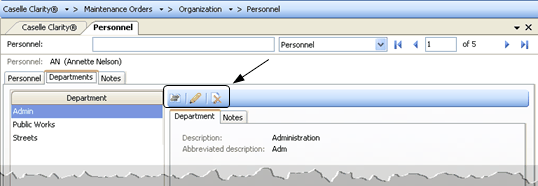
How do I add or remove departments from a user?
Assign departments to a user. Open Organization > Personnel > Departments tab. Then, click Select Departments. Move the departments that will be assigned to the user to the Selected Department list. Click OK.
Remove departments from a user. Open Organization > Personnel > Departments tab. Use the Department list to select a department name. Now, click Remove the Selected Department.
How do I add a department to the selection list?
Add a department and restrict use to Maintenance Orders. Click Modify the Selected Department. Then, use the Department field to enter the new name.
Add a department that has been saved as a master department in System Management. Click Modify the Selected Department. Now, select a name from the Department drop-down list.
Add a department If the department is saved as a master record in System Management > Master Records > Setup/Modify Departments, then click Modify the Selected Department. Use the Departments form to click New (CTRL+N). Now, you can select the department name from the Department field. Click Save (CTRL+S) to finish.
Copyright © 2025 Caselle, Incorporated. All rights reserved.