How do I receive inventory?
Receive Inventory
Inventory is available for use when it has been recorded as received inventory.
Contents
Receiving inventory
1. Open Connect Materials Management > Inventory > Receive Inventory.
2. Enter the Vendor.
A vendor is an individual, entity, or organization that sold the asset.
What is the vendor name or number?
-
Click on the Vendor field, then type in a vendor name or number. You can Search (F9) this field. Clicking the button, located at the end of the Vendor field, also allows you to view additional information, add a new vendor, and modify a vendor.
3. Enter the Purchase Order Number.
A purchase order is a document that lists item type, quantity, and price for products and services.
Does the inventory have a purchase order number?
-
Yes, the inventory has a purchase order number. Click on the Purchase Order Number field, then type in a PO number.
-
No, the inventory does not have a purchase order number. Leave the Purchase Order Number field blank.
4. Enter the Invoice Number.
An invoice number is a number that is assigned to an itemized list of goods shipped that usually specifies the items, quantity, price, and terms of sale.
Is there an invoice number for the received inventory?
-
Yes, I have an invoice number. Type in a number in the Invoice Number field.
-
No, I do not have an invoice number. Leave the Invoice Number field blank. You can fill in this field later.
5. Enter the Check Number.
A check number is a unique number that is assigned to each check.
Is the inventory paid for?
-
Yes, the inventory is paid for. Use the Check Number field to enter a check or transaction number, for example, when payment is a credit card or e-payment. This field is information only.
-
No, the inventory is not paid for. Leave the Check Number field blank.
6. Enter the Inventory Number.
This field is required.
What is the inventory number?
-
I know the inventory number. Click on the Inventory Number field and type in a number.
-
I don't know the inventory number. Click the button, located at the end of the field, and select Search.
7. Select the Location.
The system displays the inventory's default location in the Location field.
Where is the inventory received?
-
Select a value from the Location drop-down list.
8. Enter the Quantity.
The quantity is the number of items being received
What is the quantity?
-
Use the default quantity for the received transaction. This information is displayed.
-
Change the quantity. Use the Quantity field to edit the quantity.
9. Enter the Unit Cost.
The unit cost is the price for a single item or unit.
What is the unit cost?
-
Use the default unit cost for the selected inventory. This information is displayed.
-
Change the unit cost. Click on the Unit Cost field to enter a new unit cost.
10. Enter the Total Cost.
Total cost = Quantity x Unit Cost
The system will calculate the total cost. You can accept the calculated amount or you can type in a different amount. Typing in a different amount will adjust the unit cost.
11. Set up the Link This Entry To Another Receiving Transaction.
This hyperlink is turned on when the Quantity or Total Cost for the current entry is zero AND none of the existing receiving entries for the selected vendor and item have a matching purchase order number or invoice number.
For example, Site XYZ receives an ordered item before it receives the invoice, which details the unit cost and total cost. Instead of waiting for the invoice to arrive to receive the inventory, XYZ uses Receive Inventory to record the quantity received. Because the invoice is missing, XYZ leaves the unit cost and total cost fields empty. Now XYZ can issue the received inventory as needed. Later when the invoice is received, XYZ uses Receive Inventory to enter the cost of the received item. In contrast to the original entry, this entry only records a unit cost and/or total cost. XYZ uses Link This Entry to Another Receiving Transaction to link the current entry to a previous entry, which allows the system to use information from the linked transactions to fill in the missing information and create a complete record.
Do you want to link this entry to another receiving transaction?
-
Yes, I want to link this entry to another receiving transaction. Click the Link This Entry to Another Receiving Transaction link. Next, the system displays a list of receiving transactions that match the selected vendor and inventory item. Link a transaction by clicking on it. Now the system will use the information from the linked transaction to fill in the missing information, for example, the quantity, unit cost, or total cost.
-
No, I do not want to link this entry to another receiving transaction. Continue to the next step.
12. Set up the Inventory Received Is an Ordered Item checkbox.
An ordered item refers to inventory that was requested using Order Inventory.
Is the received inventory an ordered item?
-
Yes, the received inventory is an ordered item. Select the Inventory Received is an Ordered Item checkbox. The system will (1) create a receiving transaction and (2) create a reversing transaction to reverse the ordered quantity by the quantity received. Note: Both transactions will be assigned to the same reference number, but the system will assign a unique sequence number to differentiate between the receiving transaction and the reversing transaction.
-
No, the received inventory is not an ordered item. Leave blank the Inventory Received is an Ordered Item checkbox. The system will create a receiving transaction.
13. Is there another inventory item to enter?
-
Yes, I need to enter another inventory item. Click Split Mode (F11) to create multiple entries.
-
No, I am done. Press Enter to record the transaction. If you were entering multiple entries, click Split Mode (F11) again to exit Split mode and start a new entry.
Printing receive inventory report for my current selection
Print the receive inventory report for the information that is displaying on the screen.
Click Print  or use the mini-button to select Print Grid.
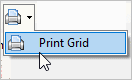
Print Grid option
202105, 2021Apr13
Changing a received inventory transaction
Has the transaction been updated to the General Ledger?
-
Yes, the transaction has been updated to the General Ledger. Use Connect Materials Management > Inventory > Adjust Inventory to edit the transaction.
-
No, the transaction has NOT been updated to the General Ledger. Use Connect Materials Management > Inventory > Receive Inventory to edit the transaction. Switch to Edit mode (CTRL+E). Then, use Redisplay (CTRL+R) or maximize the console to make the transactions grid bigger. Select a transaction by clicking on it; the selected item is highlighted and the transaction information also displays in the fields on the Receive Inventory form. Now, you can make your changes. Click Save (CTRL+S). What if I need to edit a transaction with multiple entries attached to it? This is a transaction that was created using Split Mode. You can use Edit mode to enter changes.
Aborting a transaction
The Delete (CTRL+D) button has two functions in this program. In New mode, clicking the Delete (CTRL+D) button will abort the current transaction. None of the information on the transaction is saved and a new form is displayed. In Edit mode, using the Delete (CTRL+D) button will remove a saved transaction.
Deleting a received inventory transaction
Has the transaction been updated to the General Ledger?
-
Yes, the transaction has been updated to the General Ledger. Use Connect Materials Management > Inventory > Adjust Inventory to delete the transaction.
-
No, the transaction has NOT been updated to the General Ledger. Use Connect Materials Management > Inventory > Receive Inventory to delete the transaction. You'll need to enter the Input Date when the inventory was received. Then, use Redisplay (CTRL+R) or maximize the console to show the transactions grid. Write down the reference and sequence numbers on a piece of paper. What do you want to do?
-
-
I want to delete a single entry. Click Delete Single Reference and Sequence Number. Then, enter the reference number and sequence number. Example: 1.01
-
I want to delete a range of entries. Click Delete Reference and Sequence Number Range. Now, enter the first and last reference and sequence number in the range. Example: 1.05 to 10.01
-
I want to delete all of the entries entered on the input date. Click Delete All Issued Transactions Input On MM/DD/YYYY. This will erase ALL of the transactions that were created on this date. There is no undo for this option. If you're not sure, back up the database before you continue.
-
Options
Check number
A check number is a unique number that is assigned to each check.
Is the inventory paid for?
-
Yes, the inventory is paid for. Use the Check Number field to enter a check or transaction number, for example, when payment is a credit card or e-payment. This field is information only.
-
No, the inventory is not paid for. Leave the Check Number field blank.
Input date
The Input Date is the date the system will use to record the transaction.
Do you want to use the current date as the input date?
-
Yes, I want to use the current date. Continue to the next step.
-
No, I want to use a different date. Click on the Date field to enter a MM/DD/YYYY.
Inventory number
This field is required.
What is the inventory number?
-
I know the inventory number. Click on the Inventory Number field and type in a number.
-
I don't know the inventory number. Click the button, located at the end of the field, and select Search.
Inventory received is an ordered item
An ordered item refers to inventory that was requested using Order Inventory.
Is the received inventory an ordered item?
-
Yes, the received inventory is an ordered item. Select the Inventory Received is an Ordered Item checkbox. The system will (1) create a receiving transaction and (2) create a reversing transaction to reverse the ordered quantity by the quantity received. Note: Both transactions will be assigned to the same reference number, but the system will assign a unique sequence number to differentiate between the receiving transaction and the reversing transaction.
-
No, the received inventory is not an ordered item. Leave blank the Inventory Received is an Ordered Item checkbox. The system will create a receiving transaction.
Invoice number
An invoice number is a number that is assigned to an itemized list of goods shipped that usually specifies the items, quantity, price, and terms of sale.
Is there an invoice number for the received inventory?
-
Yes, I have an invoice number. Type in a number in the Invoice Number field.
-
No, I do not have an invoice number. Leave the Invoice Number field blank. You can fill in this field later.
Link this entry to another receiving transaction
This hyperlink is turned on when the Quantity or Total Cost for the current entry is zero AND none of the existing receiving entries for the selected vendor and item have a matching purchase order number or invoice number.
For example, Site XYZ receives an ordered item before it receives the invoice, which details the unit cost and total cost. Instead of waiting for the invoice to arrive to receive the inventory, XYZ uses Receive Inventory to record the quantity received. Because the invoice is missing, XYZ leaves the unit cost and total cost fields empty. Now XYZ can issue the received inventory as needed. Later when the invoice is received, XYZ uses Receive Inventory to enter the cost of the received item. In contrast to the original entry, this entry only records a unit cost and/or total cost. XYZ uses Link This Entry to Another Receiving Transaction to link the current entry to a previous entry, which allows the system to use information from the linked transactions to fill in the missing information and create a complete record.
Do you want to link this entry to another receiving transaction?
-
Yes, I want to link this entry to another receiving transaction. Click the Link This Entry to Another Receiving Transaction link. Next, the system displays a list of receiving transactions that match the selected vendor and inventory item. Link a transaction by clicking on it. Now the system will use the information from the linked transaction to fill in the missing information, for example, the quantity, unit cost, or total cost.
-
No, I do not want to link this entry to another receiving transaction. Continue to the next step.
Location
The system displays the inventory's default location in the Location field.
Where is the inventory received?
-
Select a value from the Location drop-down list.
Purchase order number
A purchase order is a document that lists item type, quantity, and price for products and services.
Does the inventory have a purchase order number?
-
Yes, the inventory has a purchase order number. Click on the Purchase Order Number field, then type in a PO number.
-
No, the inventory does not have a purchase order number. Leave the Purchase Order Number field blank.
Receive date
The Receive Date is the date the inventory was received by the organization.
Do you want to use the current date as the receive date?
-
Yes, I want to use the current date. Continue to the next step.
-
No, I want to use a different date. Click on the Date field to enter a MM/DD/YYYY.
Redisplay transactions
Use Redisplay (CTRL+R) to show other transactions that were entered on the Input date. For example, the Redisplay tool comes in handy when you need to edit a saved transaction.
Quantity
The quantity is the number of items being received
What is the quantity?
-
Use the default quantity for the received transaction. This information is displayed.
-
Change the quantity. Use the Quantity field to edit the quantity.
Split mode
Use Split Mode (F11) to enter multiple entries on the same reference number, vendor, purchase order number, invoice number, and/or check number.
How do I turn Split Mode on and off?
Click Split Mode (F11) to enter Split Mode. The system will copy to the next entry the Reference Number, Vendor, Purchase Order Number, Invoice Number, and Check Number. The system will also start to increment the sequence number. The sequence number is part of the reference number. A reference number is the digit or digits that precede the decimal, shown underlined here as 1.01 A sequence number is the digit or digits that follow the decimal, like this 1.01. When Split Mode is turned on, each new entry is assigned to the same reference number but Split Mode will increase the sequence number by 1.
|
Entry |
Split Mode is OFF the reference number changes |
Split Mode is ON the sequence number changes |
|
1 |
1.01 |
1.01 |
|
2 |
2.01 |
1.02 |
|
3 |
3.01 |
1.03 |
|
4 |
4.01 |
1.04 |
|
5 |
5.01 |
1.05 |
When you are finished entering entries, click Split Mode (F11) again to exit Split Mode.
What if I need to edit a transaction with multiple entries attached to it?
You can use Edit mode to enter changes.
Total cost
Total cost = Quantity x Unit Cost
The system will calculate the total cost. You can accept the calculated amount or you can type in a different amount. Typing in a different amount will adjust the unit cost.
Unit cost
The unit cost is the price for a single item or unit.
What is the unit cost?
-
Use the default unit cost for the selected inventory. This information is displayed.
-
Change the unit cost. Click on the Unit Cost field to enter a new unit cost.
Vendor
A vendor is an individual, entity, or organization that sold the asset.
What is the vendor name or number?
-
Click on the Vendor field, then type in a vendor name or number. You can Search (F9) this field. Clicking the button, located at the end of the Vendor field, also allows you to view additional information, add a new vendor, and modify a vendor.
Copyright © 2025 Caselle, Incorporated. All rights reserved.