How do I set up my default options? (Inquiry)
Inquiry
Change the default settings for running Inquiry.
Choosing my default tab
Your default tab is the first tab that you'll see when you launch Inquiry.
Do this...
1. Open Connect Property Improvements > Inquiry.
2. Click Options (F12).
3. Use the Default Tab drop-down list to select the Inquiry tab that you want to display first when you launch Inquiry.

Setting my Default tab in Inquiry
4. Click Save (CTRL+S).
Your default tab is saved.
2019.05, 2019Mar13
Setting my default account history definition, other notices definition, and payoff report definition
Clicking the Print button will use the information that displays on the tab to fill in and print a report definition. You can select which report definition will print when you print an account history, other notice, or payoff report.
Do this...
1. Open Connect Property Improvements > Inquiry.
2. Click Options (F12).
3. Select the default report definition.
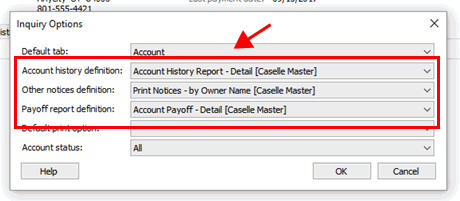
Setting my default report definitions for Inquiry
4. Click Save (CTRL+S).
Your default report definitions are saved.
2019.05, 2019Mar13
Selecting my default print option
When you click the Print button  in Inquiry, the Print Options dialog box will display a list. You can
assign the report that will be selected when the dialog box displays.
That way when you click the Print button, all you need to do is press
Enter to print the default report.
in Inquiry, the Print Options dialog box will display a list. You can
assign the report that will be selected when the dialog box displays.
That way when you click the Print button, all you need to do is press
Enter to print the default report.

Print Options dialog box
You can select a different report by clicking on another report or clicking the option to Print Screen.
Do this...
1. Open Connect Property Improvements > Inquiry.
2. Click Options (F12).
3. Select the default print option.
You can choose a report or use the option to Print Screen.

Setting my default print option for Inquiry
4. Click Save (CTRL+S).
Your default report print option is saved.
2019.05, 2019Mar13
Choosing my default account status
Select the account status that will be displayed when you launch Inquiry. You can show active accounts, inactive accounts, or both active and inactive accounts.
Do this...
1. Open Connect Property Improvements > Inquiry.
2. Click Options (F12).
3. Select the default account status.
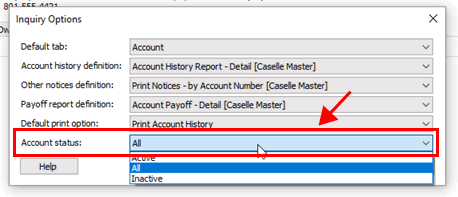
Setting my default account status in Inquiry
4. Click Save (CTRL+S).
Your default account status is saved.
2019.05, 2019Mar13
Copyright © 2020 Caselle, Incorporated. All rights reserved.