How do I enter cash receipts, transfers, and deposits?
Enter Transactions Checklist
Create a journal entry in the CRJE journal. In addition to manually written checks, you also need to ensure that all of your cash receipts, bank deposits, and transfers are also entered into a journal.
If you're using Caselle Cash Receipting, you don't need to worry about recording your cash receipts. You can manage them with Cash Receipting and then update the receipts to the General Ledger.
If you're not using Cash Receipting, you will need to manually enter your cash receipts into General Ledger along with your bank deposits and transfers.
Entering cash receipts, transfers, and deposits
1. Open Connect General Ledger > Journals > Enter Journal Amounts.
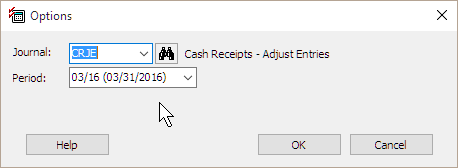
The Options form displays.
2. Set up the Options for entering cash receipts, transfers, and deposits.
-
Use the Journal menu to select CRJE.
-
Use the Period menu to select the GL period that you will use to record the cash receipt, transfer, or deposit entry.
-
Click OK.
The Enter Journal Amounts form displays.
3. Select the Mode.
What is the Mode?
-
I want to enter amounts as they appear. Use the Mode menu to select Normal.
-
I want to enter an amount and Connect will entry will record the difference between the amount entered and the total year-to-date amount. Use the Mode menu to select Year-to-Date.
4. Select the Sign.
This is sign given to the amount that you enter as the journal entry amount. If you use Normal mode, and you enter $100.00 in Amount field, Connect will record 100.00. If you choose Reverse mode, and you enter $100.00 in the Amount field, Connect will record -100.00.
What is the Sign?
-
I want to record the amount as it is entered. Use the Sign menu to select Normal.
-
I want to record the amount with the opposite sign. Use the Sign menu to select Reverse.
Now, you're ready to enter the cash receipt, transfer, or deposit. .
5. Enter the cash receipt, transfer, or deposit.
You can include both a description of the transactions and (for cash receipts) the name of the individual.
The Activity and Job Number fields are optional. You can use these fields to link the manual check entry to an activity in General Ledger or a job in Project Accounting.
6. Press Enter again to save the entry.
General Ledger creates an entry for the cash receipt, transfer, or deposit in the CRJE journal.
Why should I use the CRJE journal instead of the CR journal?
Receipts from Cash Receipting are updated to the CR journal. Any receipts, deposits, or transfers that you manually enter are recorded in the CRJE journal to keep them separate from Cash Receipting transactions. If you're not using Cash Receipting, you can enter your receipts, deposits, and transfers in the CR journal instead of the CRJE journal.
Copyright © 2025 Caselle, Incorporated. All rights reserved.