How do I copy journal entries? (2018.08)
Move journal entries to another journal.
Use Copy Journal Entries to copy entries from a non-budget journal to create identical entries in another journal.
Watch a video
2109Jan23
Copying journal entries
1. Open Connect General Ledger > Journals > Copy Journal Entries.
2. Set up the section titled Copy from Source.
The Copy from Source is the location of the journal entries to copy. Use Period to select the MM/YY that contains the entries. Use the Journal Code field to select the name of the journal that contains the entries. Now, use References to enter the reference numbers of the entries that you wish to copy. Use ALL to copy all of the entries, or type in a reference number followed by a comma (,) to enter a series, or use a dash (-) to separate a range.
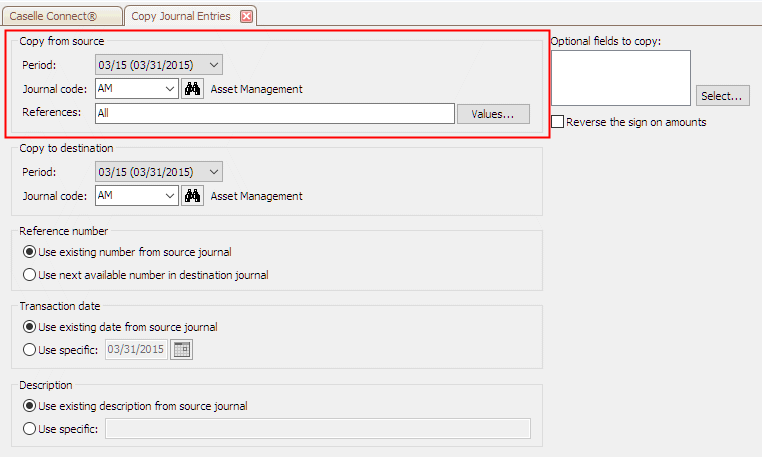
Copy from source
3. Set up the section titled Copy to Destination.
The Copy to Destination is the location where the journal entries will be pasted. Use Period to select the MM/YY. Then use Journal Code to select the journal to add the copied entries.

Copy to destination
4. Set up the Reference Number.
A reference number is a unique series of numbers that identify a transaction or journal entry. The existing number is the reference number from the Copy from Source. The next available number is the next reference number that will be assigned to the next transaction that is created in the Copy to Destination.

Reference number
What do you want to do?
-
I want to use the reference numbers from the Copy from Source journal. Click Use Existing Number from Source Journal.
-
I want to assign new reference numbers to the copied journal entries. Click Use Next Available Number in Destination Journal.
5. Set up the Transaction Date.
Use the existing date from source journal to copy the transaction date exactly from the source journal to the destination journal. Use specific to enter the MM/DD/YYYY that will be copied to the Transaction Date field in the new journal entry.

Transaction date
What do you want to do?
-
I want to keep the original transaction date. Click to select Use Existing Date from Source Journal.
-
I want to assign a new transaction date. Click to select Use Specific. Then, enter the MM/DD/YYYY in the Use Specific field.
6. Set up the Description.
Use the existing description from source journal to copy the transaction description exactly from the source journal to the destination journal. Use specific to enter the transaction description that will be copied to the Description field in the new journal entry.
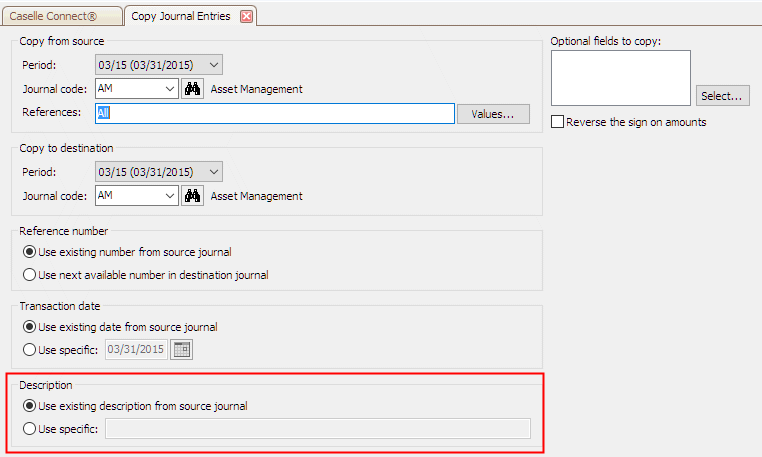
Description
What do you want to do?
-
I want to keep the original description. Click to select Use Existing Description from Source Journal.
-
I want to assign a new description. Click to select Use Specific. Then, enter the transaction description in the Use Specific field.
7. Set up the Option Fields to Copy.
Use Optional Fields to Copy to append additional information, such as the activity number, comment, and job number, to the destination entry.

Optional fields to copy
What do you want to do?
-
I only want to copy the transaction date, description, and amount. Leave blank the Optional Fields to Copy.
-
I want to copy add the activity number, comment, or job number. Click Select. Then, move fields that you wish to copy to the Selected Includes list. Click OK.
8. Set up the checkbox titled Reverse the Sign on Amounts.
Use Reverse the Sign on Amounts to assign the opposite sign from the sign that was assigned to the transaction in the source journal. For example, if the sign on the source transaction is credit and this option to Reverse the Sign on Amounts is selected, then the transaction will be copied to the destination journal as a debit.

Reverse the sign on amounts
What do you want to do?
-
I want to keep the original sign on copied amounts. Click to deselect Reverse the Sign on Amounts.
-
I want to copy amounts and assign the opposite sign. Click to select Reserve the Sign on Amounts.
9. Click GO (CTRL+G).
The journal entries have been copied.
Updated 11Sepo2018
Copyright © 2025 Caselle, Incorporated. All rights reserved.