How do I view multiple accounts?
Account Inquiry
View the amount type, period amount, and YTD (Year-to-Date) for one or more accounts.
Viewing multiple accounts
1. Open Connect General Ledger > Account Inquiry.
2. Click to select the Multiple Accounts tab.
3. Enter the Accounts.
Click the Values button.
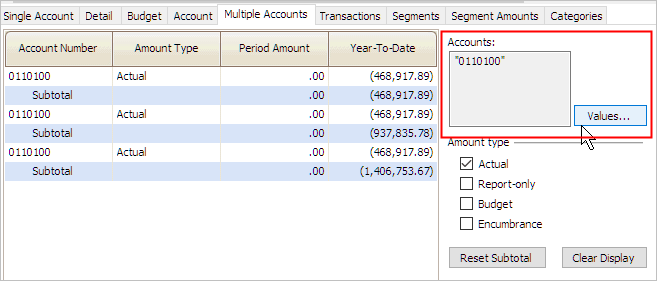
The Enter Values form displays. Use the Enter Values field to enter the account numbers.
-
Use a comma (,) to separate individual accounts. Example: 100, 200, 300
-
Use a dash (-) to separate a range. Example: 100-300

4. Click OK.
The account information for the selected accounts displays in the Multiple Accounts pane. The amount type, period amount, and year-to-date columns display for the selected accounts. The subtotal includes all of the YTD totals for the preceding accounts.

5. Select the Amount Type.
Use the section titled Amount Type to select the amounts to add to the viewing pane.
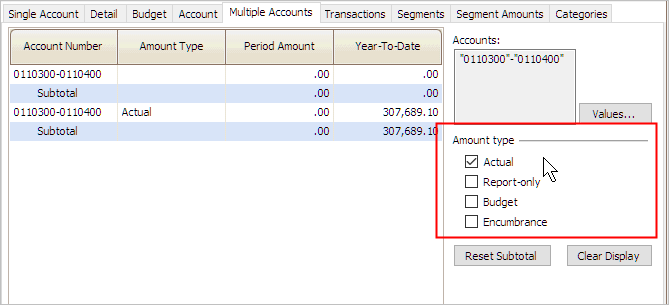
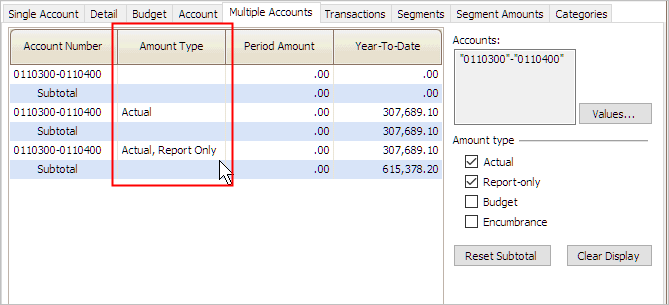
When you select the amount type, and you can select more than one, the period amount and YTD totals for the selected accounts display on one row followed by a running subtotal on the next row. The column titled Amount Type shows which amount types are selected.
Clearing the Multiple Accounts tab
When you add an account, the account information displays on the pane on the left. Clicking the Values button will add the account type, period amount, year-to-date, and subtotal to the pane. The subtotal calculates the subtotal for all of the accounts listed above it.
To clear the accounts from the Multiple Accounts pane, click Clear Display.
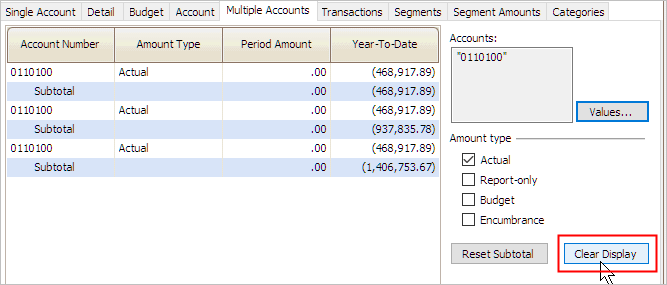
The Multiple Accounts pane is cleared.
Resetting the subtotal
You can reset the subtotal to zero without clearing the values.
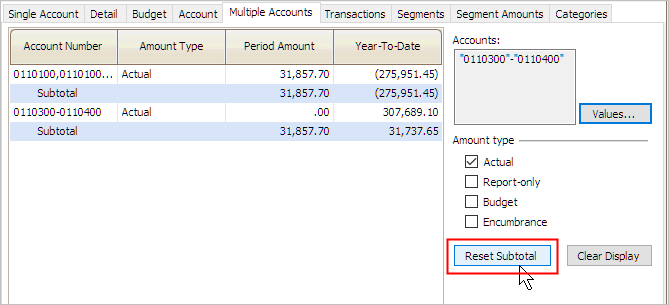
To set the subtotal to zero, click the Reset Subtotal button. The amounts in the account row and subtotal row are set to zero (0.00).
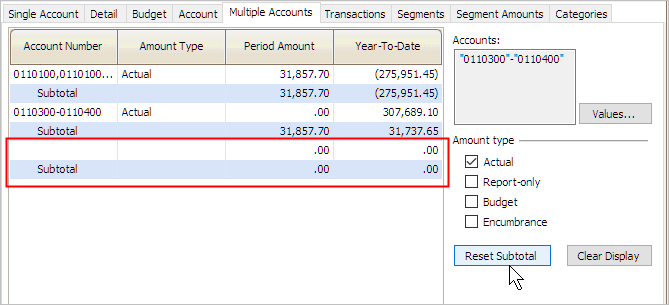
Now, you can start adding accounts.
Copyright © 2025 Caselle, Incorporated. All rights reserved.