How do I change document retention setting?
Documents
The document retention settings define how the document is protected from being deleted or modifed. If a protected document is accidently stored in the wrong location or you need to make changes to the document, you will need to update the document retention settings.
To modify the document retention settings, you will need administrative rights or you will need to contact a user with administrative rights.
Changing document retention settings
1. Right-click on the document or file.
2. Remove the checkmark from the Enable Retention checkbox.

Enable Retention checkbox
3. Remove the checkmarks from the Deletion checkbox and Modification checkbox.
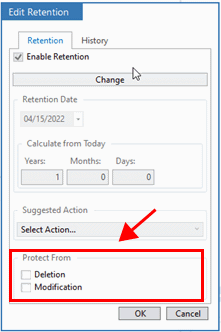
Protect From section
4. Click the Change button.
5. Click  and then select the reason for making the change.
For example, change retention date or wrong drawer.
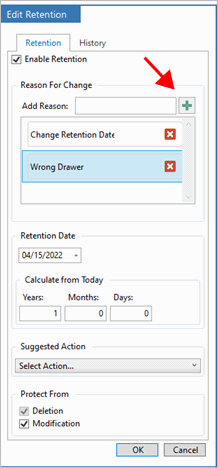
Add Reason button
6. To change the retention settings,
-
Use the Retention Date menu to select a new date.
-
If needed, update the Calculate from Today section to calculate the retention period.
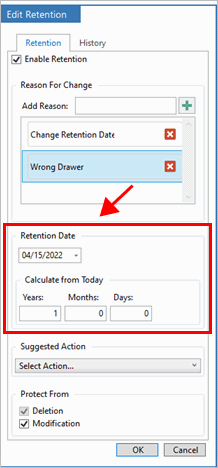
Retention settings
7. Click OK.
8. Re-apply the document retention settings.
-
Click to select the Enable Retention checkbox.
-
Click to select the Deletion checkbox.
-
Click to select the Modification checkbox.

Edit Retention options
9. Click OK to apply the settings.
Copyright © 2020 Caselle, Incorporated. All rights reserved.