How do I set up profiles?
Profiles
When you open a cabinet, you will see some information about the cabinet at the bottom of the screen. The fields in this section are part of a profile that tells Document Management which fields to show in this section when this cabinet is displayed. Profiles control the information that you see on the screen and manage the type of information that is synced from Connect to Document Management when you're using Document Management to perform that task.
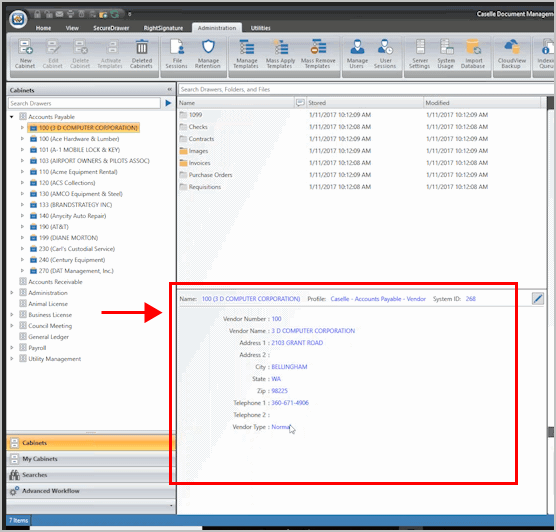
Profile Information
When you purchase Document Management, Caselle will install profiles for all of the Connect apps. If you purchase another Connect app and you'd like to use it with Document Management, contact customer support at (800) 243-8275 for assistance.
Watch a video
Logging in and setting up a user name, password, and profile (3m19s)
Updated 14May2018
Requesting a new profile
When you purchase Document Management, Caselle will install profiles for all of the Connect apps. If you purchase another Connect app and you'd like to use it with Document Management, contact customer support at (800) 243-8275 to request a profile for the new app.
Updated 24Apr2018
Adding a field to a profile
1. Open Connect Document Management.
2. Click Edit Profile.
The Edit Profile dialog box displays.
3. Click New.
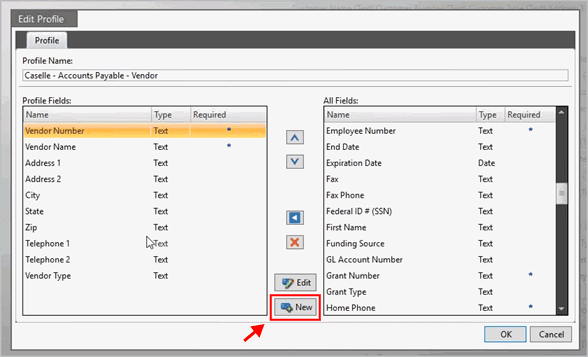
Edit Profile
The New Field dialog box displays.
4. Set up the New Field.
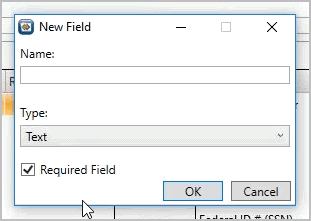
New Field
Name
Enter the field name.
Type
Select the type of information that's stored in the field. This will affect how the information is displayed on the screen.
Required Field
Is this field required to include the record in Document Management? Select the checkbox if a user must fill in the field to save the file in Document Management. Do not select the checkbox if the user can leave the field blank and save the file anyway.
5. Click OK.
The field is added to the profile.
Updated 25May2018
Copyright © 2020 Caselle, Incorporated. All rights reserved.