How do I summarize transactions to post to the General Ledger?
Distributions
There two options for posting transactions to the General Ledger. You can post the transaction detail that will include every payment received by distribution. Or you can post the transaction summary, which will include the total payments received for each distribution. You can choose what (summary or detail) will post to the General Ledger for each distribution.
Posting distribution transaction summary the General Ledger
1. Open Connect Cash Receipting > Organization > Categories.
2. Look up a category.
3. Click to select the Distributions tab.
The pane on the left of the Distributions tab shows the distributions that have been set up.
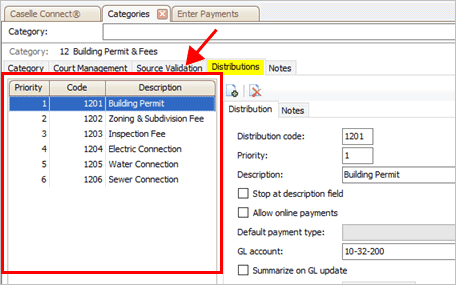
Distributions pane
4. Click to select a distribution.
5. Click to select the Summarize on GL Update checkbox.

Summarize on GL Update checkbox
6. Click Save (CTRL+S).
The changes to the distribution properties are saved.
2019.08
Posting transaction detail to the General Ledger
1. Open Connect Cash Receipting > Organization > Categories.
2. Look up a category.
3. Click to select the Distributions tab.
The pane on the left of the Distributions tab shows the distributions that have been set up.
Distributions pane
4. Click to select a distribution.
5. Click to remove the checkmark from the Summarize on GL Update checkbox.
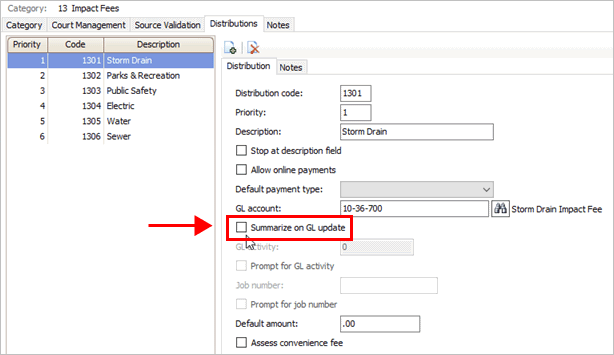
Summarize on GL Update checkbox
6. Click Save (CTRL+S).
The changes to the distribution properties are saved.
2019.08
Copyright © 2025 Caselle, Incorporated. All rights reserved.